

Silent Outlook Read Aloud can come from a missing Windows speech download even when music and system sounds work. Try the selected voice in Windows Speech settings, then install its text-to-speech feature if that preview is silent too.
If the playback controls appear but you hear nothing, check the voice first. For a missing Read Aloud button, check the display option and account sign-in instead. The two symptoms call for different repairs.
In this guide
1. Try the voice that Outlook is actually using
Open an email in classic Outlook. On Message, find Read Aloud in the Immersive group. Its playback controls appear near the upper-right corner. Open their settings and check Voice Selection.
Now open Windows Settings > Time & language > Speech. Under Voices, choose that same voice and select Preview voice. Hearing another voice doesn't tell you whether the voice Outlook selected has a working download.
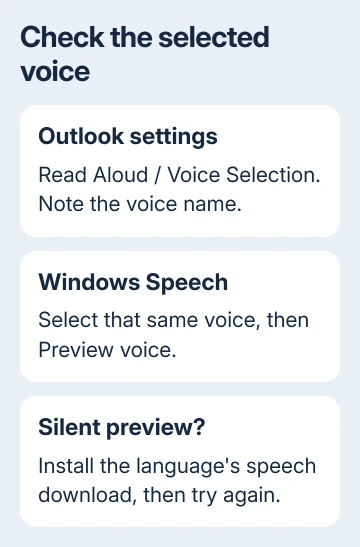
One owner could hear some voice previews, but the Canadian voices in Outlook stayed silent. Installing the missing speech download got the Richard voice working in Windows and Outlook. They didn't need a reboot.
If that exact voice is silent in Windows too, install its speech feature next. If it speaks in Windows but Outlook stays silent, skip to the Outlook playback controls and app-specific sound checks after the installation section.
Read Aloud uses the text's proofing language, the one used to check spelling. English (Canada) and English (United States) can offer different voices. Match the voice to the language you need, rather than changing the PC's region.
2. Download the language's speech feature
On Windows 11, open Settings > Time & language > Language & region. Under Preferred languages, open the … menu beside the relevant language and choose Language options. Look for the text-to-speech or speech download.
On Windows 10, use Settings > Time & Language > Language. Select the language under Preferred languages, then choose Options. Download the available Speech feature. Older Windows 10 releases called the page Region & language.
If the language isn't listed, choose Add a language, select the correct regional language and continue with Next. Choose Text-to-speech among the available features and install it. Not every language offers text-to-speech.
Microsoft's language and voice download guide explains the available features. A display-language download doesn't necessarily include the speech feature required for reading.
Keep your current Windows display language unless you also want the system interface translated. For this fault, you need the feature that reads text out loud. Speech recognition, which lets you dictate, serves a different purpose.
Wait until the download finishes, return to Speech and preview the required voice again. When it speaks, reopen the email and start Read Aloud. Complete any restart requested by the language installer before retrying.
3. Select a working voice and restart the email reading
In Outlook's Read Aloud controls, select a voice that successfully played in Windows if it's offered in the list. Use Play to resume. If playback was paused, the controls can remain visible without producing sound.
Close the Read Aloud controls with Stop (x), click where reading should begin and start it again. Try a second ordinary email as well. This tells you whether the silence follows every message or just the original email.
The voice choices depend on the app, operating system and speech service. Windows' full voice list and Outlook's selection don't have to match. Keep working language packs installed even when Outlook doesn't offer all their voices.
If other sounds are missing too, check which speaker or headset Windows uses, especially after connecting a headset or monitor. If only Outlook is silent, open Windows' volume mixer while Read Aloud is playing and check Outlook's volume.
On Windows 11, open Settings > System > Sound > Volume mixer. On Windows 10, open the speaker icon's right-click menu on the taskbar, then select Open Volume mixer. Check Outlook's volume and which speaker or headset it's using.
For a wider playback problem, use the Windows sound repair steps before changing Outlook's language again. If the voice preview plays, you can focus the remaining checks on Outlook.
4. Restore the command if Read Aloud is missing
In classic Outlook, open File > Options > Ease of Access. Under Application display options, select Show Read Aloud and confirm with OK. Return to an email and check the command again.
Also check that Outlook is signed into the Microsoft 365 account that gives you access to the feature. The Outlook listening instructions suggest restarting the app, then trying a fresh account sign-in if Read Aloud remains absent.
I'd check the display option before signing out of a working mail account. That setting can bring back a hidden button without changing your account. Fix the hidden command first; a silent installed voice needs the earlier speech checks.
In new Outlook or browser Outlook, use Immersive Reader to listen to the message. Open a message's … menu and choose Immersive Reader, then use its bottom Play control. Don't look for classic Outlook's File options there.
For reading a document rather than mail, the Word Read Aloud instructions cover Word's separate controls. A Word ribbon setting won't restore Outlook's missing command.
5. Update Outlook and report the exact remaining silence
For Microsoft 365 classic Outlook, select File > Office Account > Update Options > Update Now and install the current approved update. Restart the app afterward. A managed computer may need IT to supply that update.
If speech still fails, record the Outlook build from About Outlook, the message's language, selected voice and the result of Preview voice. Include whether every email is silent and whether the same voice works in Windows.
Give the Microsoft 365 help desk those results for a Read Aloud case. If neither app speaks, the Windows speech features need attention. A working preview with silent Outlook needs the mail app checked.
The Short Version
Preview the exact voice Outlook selected, install its missing speech feature and retry the email. For a missing button, enable Show Read Aloud in classic Outlook. New Outlook uses Immersive Reader instead.
Checked November 17, 2026.
 If you have any business, I can build it online






