

A Power Automate flow can read shared mail but fail when it moves or updates a message. Check the failed action's Original Mailbox Address first. The trigger's choice doesn't automatically set every later action's mailbox.
A different case happens when moving the message works but marking it read fails afterward. A move can change the message's ID. Update the message before moving it, or use the moved message's new ID for later actions.
In this guide
1. Open the failed action, not just the trigger
Open the flow in Power Automate and select its failed run from Run history. Expand the first failed Outlook action. Check its inputs and error details, along with the successful action immediately before it.
If When a new email arrives in a shared mailbox (V2) succeeded, the trigger reached the mailbox for that run. A later action can still use a different connection, address or message ID.
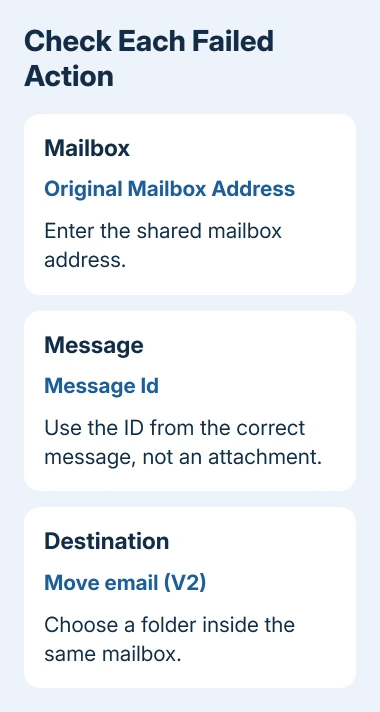
Note whether the first failure is Move email, Mark as read or unread, or the trigger itself. If the trigger is green but an action is red, start with the values sent to that action.
Microsoft's Office 365 Outlook connector reference lists shared-mailbox support and the fields available on each action. Shared mailboxes remain supported; an old Flow error isn't evidence that support was removed.
Keep the failed run open while editing the flow. You can then compare the address and ID it actually used with the values you meant to send.
2. Set the shared address on every affected action
Edit the flow and open the failed action. For current actions, use Move email (V2) or Mark as read or unread (V3). Expand the optional parameters if Original Mailbox Address isn't already visible.
Enter the shared mailbox's full email address in that field. Check each action that gets, changes or moves mail, not just the trigger. An empty optional mailbox field can send an action to the connected user's own mailbox.
For Message Id, use the dynamic value from the trigger or the action that fetched the message. A subject, attachment ID or Internet Message ID isn't the same as the connector's message ID.
For Move email (V2), select a destination folder within that same mailbox. The action moves mail inside one mailbox. It isn't a transfer action between your personal mailbox and the shared mailbox.
Save the flow and send a fresh test message to the monitored shared folder. A successful run should show the action in green and the message in the expected destination or read state.
If the action now works, its mailbox input was the problem. If the same error remains, compare the action order and the connection account next, keeping the shared address set.
3. Mark the message read before moving it
Check whether your flow moves a message, then tries to mark or flag it using the trigger's original ID. By default, the ID used to find an Outlook message can change when it moves to another folder.
Place Mark as read or unread (V3) before Move email (V2) when that fits your process. Both actions can then use the original message ID while the message is still in its original folder.
If an action must run after the move, use the ID returned by Move email (V2) for that later action. Keep the same shared mailbox address. Reusing the pre-move ID can point to an item that is no longer there.
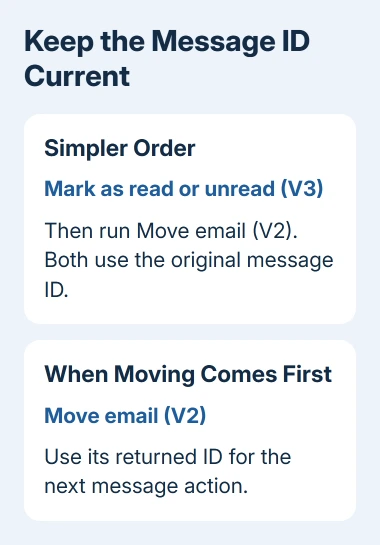
I'd fix the order before rebuilding a working trigger. It's a small change, and the run history will show whether the failure followed the old ID after the move.
Test with a new message and inspect both actions. If Move itself is the first failure, changing a later read action won't repair it. Return to the mailbox address, destination folder and connection permissions.
4. Check the account behind the Outlook connection
Check the connection selected on the failed action. It should belong to someone who has access to this shared mailbox. A working connection to their own inbox doesn't give them access to every team address.
Ask IT to confirm that account's mailbox membership and permissions. Newly granted access can take time to reach the connector. Allow about two hours for those permission changes to take effect.
Open the mailbox through that user's ordinary Outlook account to compare access. The shared mailbox setup steps explain how membership and displaying the mailbox differ.
If ordinary access also fails, ask IT to fix that account's access before rebuilding the flow. If Outlook works but the connector fails, give IT the flow connection's account name and the failed action's mailbox address.
A Microsoft 365 Group address isn't a shared mailbox address for these actions. Have the administrator confirm the mailbox type if the team uses a group inbox but the flow expects a shared mailbox.
5. Replace deprecated actions and check the watched folder
Older flows may still contain deprecated versions of Move email or Mark as read. Add the current versions, copy the necessary inputs carefully, and check the mailbox parameter while doing so.
Keep the flow's existing conditions and rules for handling messages. Replacing an action doesn't mean you need to rebuild the whole automation or change which messages it handles.
If the trigger never starts, check its selected folder and any inbox rule that moves incoming messages. The trigger watches its configured folder. It doesn't follow every message across all the mailbox's folders.
Use a newly delivered test message. Moving an older email into the folder isn't a reliable trigger test because these triggers also use the email's received time to decide which messages are new.
For a separate problem where the shared mailbox search shows old results, address that in Outlook. Search results and a flow's action inputs aren't the same fault.
Give the administrator a specific failure to check
The person who posted the original 2018 report later said Microsoft had resolved it. They didn't confirm that changing the action order fixed that incident. The old report doesn't show a current service outage.
For a flow that still fails, ask IT to review service health. If no listed incident explains it, open a Power Automate case. Include the flow name, run time, first failed action, error code, connection account and shared address.
Add the request IDs shown in the failed action to your support case. They help support trace a failure in the mailbox service without asking you to replace a trigger that already worked.
The Short Version
Set the shared address on each Outlook action, use the right message ID, and update messages before moving them. Then check the connection user's permissions and the trigger's folder.
Checked November 17, 2026.






