

An email address can work in Outlook and still be rejected by a sign-in form for a different account type. Try your work or school mailbox's direct webmail sign-in before changing Office or your password.
Inside a contact-import window, an Outlook.com option may expect a personal account instead of your work account. Exporting contacts to a file lets you copy the addresses without connecting the account, if the service accepts files.
In this guide
1. Try the work mailbox's direct sign-in
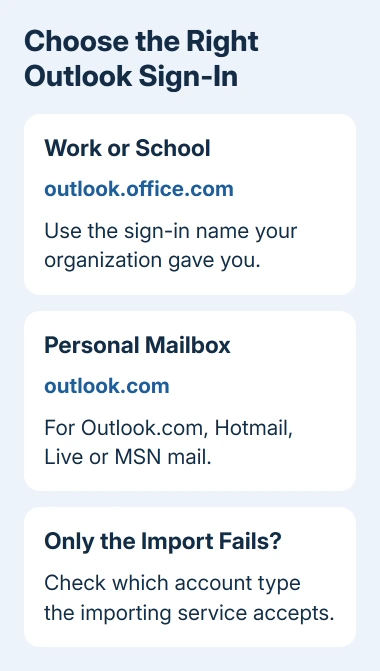
Open a normal browser tab and go to outlook.office.com. Enter your work or school sign-in name, then finish the password and identity-verification screens. Use the account details your organization gave you.
If Outlook opens the expected inbox, the account is usable there. Leave that tab open while checking the service or app that rejected it. A failed import connection doesn't mean the mailbox itself has stopped working.
Microsoft's Outlook on the web sign-in instructions explain how to check which account is open. Open the account manager at the top of Outlook and check the account shown.
If the wrong account is open, sign out and enter the work account you need. Your browser can remember another account and open its mailbox without asking you to choose again.
If the direct sign-in also rejects the address, skip to the administrator check. Import settings won't repair an account name that the organization's own sign-in service doesn't accept.
An error while entering a recipient belongs to a different check: correct a saved Outlook address if the rejected address is in a message rather than a sign-in form.
2. Separate a personal account from a work account
Personal Microsoft accounts exist separately from accounts managed by employers or schools. The displayed email addresses can look identical, yet the accounts remain separate. Access to one doesn't grant access to the other.
For a personal Outlook.com, Hotmail, Live or MSN mailbox, use outlook.com. For an organization's mailbox, use its work sign-in. If asked to choose an account type, select the one containing the contacts you need.
The domain after the @ sign isn't always enough to settle this. A person can have a personal Microsoft account registered with an existing email address, as well as an account managed by their employer.
Check the importing service's account picker too. An Outlook.com connection can be a personal-account connection. Look for a separate Microsoft 365, Office 365, or work-account option if the service provides one.
If it doesn't support your account type, return to your mailbox rather than trying to create a replacement personal account. A new account won't contain your existing work contacts.
I'd check this distinction before clearing all browser data. It's quicker, and it avoids signing you out of unrelated services when the form is simply asking for another kind of account.
3. Export the contacts instead of linking the account
In the original report, an invitation service rejected a work address during contact import. Replies suggested exporting the contacts, but the person asking didn't confirm that the import succeeded.
Exporting is still a supported way to copy your Outlook contacts. It saves them in a CSV file, a plain table that other services can read if they support that format. It doesn't change your account's sign-in name.
For new Outlook, choose People on its side panel. Choose Export contacts on the ribbon. Under Contacts from this folder, select the folder you need and choose Export.
The CSV is saved to Downloads. Check that you chose the account and contacts folder containing the people you want. An empty folder exports an empty list, even when another account in Outlook has plenty of contacts.
In classic Outlook for Windows, choose File > Open & Export > Import/Export. Select Export to a file > Next, then Comma Separated Values > Next.
Select the correct Contacts folder under the intended account. Choose Next, browse to a save location, name the CSV, and finish the wizard.
For webmail, open People > Manage contacts > Export contacts. Choose All contacts or the required folder, then Export. Use the desktop route if your web interface doesn't offer that command.
4. Check what the importing service accepts
Return to the destination service and look for a file-upload or contacts-import option. Read its stated file requirements before selecting the exported CSV. Some services need specific column names or their own sample spreadsheet.
Use its preview to check names and email addresses before confirming the import. If the preview puts addresses into the wrong field, cancel and match the file's columns to the service's required format.
The CSV contains personal contact details. Upload it only to the intended service and use only the contacts you're allowed to share, especially when the source is a work mailbox.
If the service rejects the file format, you've moved past the Microsoft sign-in problem. Ask its support team which CSV format it accepts. Repairing Outlook won't change the format the importer needs.
A contact list in Outlook groups recipients for sending mail. Check whether the destination needs individual saved contacts rather than expecting a contact group to transfer intact.
5. Ask IT to verify a rejected work sign-in name
If the direct work sign-in fails, ask your administrator to confirm your sign-in name, sometimes called the user principal name or UPN. In some organizations it differs from the email address people use to send you mail.
Send the exact error text and the address of the sign-in page. Mention whether the installed Outlook app receives mail. Include results from signing in through a second browser or another device.
With that report, IT can tell whether your sign-in name, a remembered browser account or an unsupported account type is causing the rejection. Don't send your password or verification codes with the report.
If a personal account is rejected at its own sign-in page, use the Microsoft account sign-in helper linked from the account support pages. For a work account, your organization's administrator can check your sign-in details.
Leave Office repair until you know which service and account are involved. An address rejected on a web form alone doesn't point to a damaged installation. Check which sign-in fails and who runs that form before changing the desktop app.
The Short Version
Check the mailbox through its own work or personal sign-in. If only a contact importer rejects the address, check account support or export a CSV. Ask IT to verify a work sign-in name rejected directly.
Checked November 17, 2026.
 If you have any business, I can build it online






