

Shared mailbox contacts are currently unavailable in new Outlook for Windows, even when its shared inbox opens. Use classic Outlook for that contact folder. Adding the mailbox again in new Outlook won't add the missing feature.
In classic Outlook, confirm access, then choose the shared folder under People > My Contacts. A browser opening your own People list doesn't mean the team's contacts were deleted.
In this guide
1. Check which Outlook app has the missing list
Look for File > Office Account. That menu identifies the classic Windows app. The new app has its own settings layout; webmail opens in your browser.
The app matters because support for shared mail, calendars and contacts can differ. Even with the shared inbox visible, that app might lack support for opening the shared contacts.
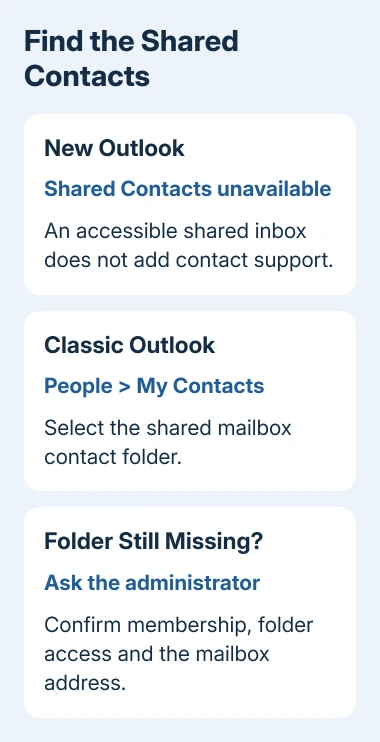
Microsoft's shared mailbox instructions state that shared mailbox contacts are unavailable in new Outlook. The same page gives the supported contact-list route for classic Outlook.
If this started when you moved to new Outlook, open Outlook (classic) from Windows Start if it's installed. Use your own work account with permission to the shared mailbox, rather than asking for a separate shared-mailbox password.
If classic Outlook isn't installed or licensed on your PC, ask IT which supported client your organization provides for shared contacts. Don't spend time rebuilding the new Outlook account to recover a feature it currently lacks.
2. Select the shared folder in classic Outlook People
After the administrator adds you as a member of the shared mailbox, close and reopen classic Outlook. The mailbox's shared contact list should appear in My Contacts.
Choose People in Outlook's navigation. Under My Contacts, look for the contacts folder belonging to the shared mailbox and select it. Check the mailbox name as well as the folder label.
Your own Contacts folder and the team's folder can both be present. If your personal folder is selected, the main panel will show your contacts. Select the team's folder before deciding whether its list is empty.
Open a known contact from the team list. Check a detail you recognize, such as the company or email address, before making a change. That confirms you're viewing the intended folder instead of a personal record with a similar name.
If the shared mailbox itself isn't available, follow the shared mailbox addition steps. That addresses account access and displaying the mailbox before you look for its contacts.
If the inbox opens but the shared Contacts folder is absent, ask IT to check the folder's availability and your permissions. Give them the mailbox address and a screenshot of My Contacts, with personal details hidden.
3. Treat a webmail People redirect separately
In the original report, the shared mailbox's mail opened in a browser, but choosing People returned the reader to their primary account's contacts. The contacts were still offered when addressing a new message.
That's different from opening a shared Contacts folder and seeing no items. The recipient picker lets you choose addresses for a message. It isn't the folder where you edit the team's contact records.
In webmail's account menu, Open another mailbox starts a separate shared-mailbox window. Enter the shared address and open it, then check the mailbox identity before trying its navigation.
If People sends you back to your own account again, use classic Outlook for the shared contact list and report the browser behavior to IT. Opening a separate window is an access check, not a promised repair for every People redirect.
The person who asked eventually said switching to the then-new webmail format restored their list. They didn't explain how to repeat that reset. That change happened in 2019, so it isn't a switch to look for in today's Outlook settings.
I'd use the supported classic contact folder before exporting or rebuilding anything. The team's records can then be checked directly, without relying on a redirected page.
4. Separate contact records from an address list
An address offered after clicking To can come from a different place than the Contacts folder you're trying to manage. The organization's directory, saved contacts and previous recipient suggestions serve different purposes.
Note which screens still display the names. For example, tell IT that the To picker finds a customer but People > My Contacts doesn't show the shared folder. That's more useful than reporting that every contact is gone.
If the issue is a saved group of recipients, the Outlook contact list guide explains contact lists and groups. A missing group is a different problem from losing the entire shared Contacts folder.
Don't recreate the same records in your personal contacts just because a browser opened your personal People page. Those copies won't repair the shared folder or give coworkers the updated records.
Once you can open the shared folder, make your edit there and reopen that contact to check it. If you can read contacts but can't save changes, send IT the save error so they know to check editing permissions on that folder.
5. Have another member check the same folder
Ask a colleague with access to open the same shared contact folder in classic Outlook. Compare the folder name and one expected contact, rather than comparing two different People home pages.
If they can open the records, the list still exists for that account. Ask IT to compare your access and client setup with theirs. Include whether your own shared inbox still opens.
If neither account sees items inside the shared folder, ask IT to check its contact data and recovery options. Hold off creating replacement contacts until IT locates the original records.
This check is especially helpful if the problem started after an account change or a move to another app. The timing helps IT check whether access or the app changed, rather than assuming the move deleted your contacts.
What to send your administrator
Send the shared mailbox address, Outlook version and app name, when you last opened the contacts successfully, and whether its mail opens. Include what you see in People > My Contacts and what another member can access.
For a web-only problem, include whether Open another mailbox opens the right inbox and where People takes you. Ask IT for a supported way to edit the shared contacts, or an Exchange Online support case if classic access also fails.
The Short Version
Use classic Outlook for shared contacts while new Outlook lacks the feature. Choose the shared folder under People, check permissions, and distinguish a webmail redirect from contacts missing inside the actual folder.
Checked November 17, 2026.






