

PowerPoint can select text without showing it clearly when the Mac's highlight color blends into the slide. Change the system text highlight color and retry the same selection before replacing the presentation.
One owner confirmed Graphite caused this on Mojave with PowerPoint 16.18; another fixed it with Office 16.20. Words inside pictures, text on slide master layouts, and files you can't edit need separate checks.
In this guide
1. Change the Mac's text selection color
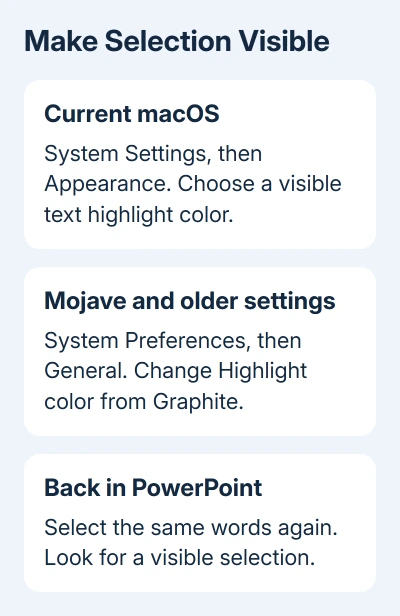
On a current Mac, open Apple menu > System Settings > Appearance. Find Text highlight color, or Highlight color on versions using that label, and choose a clearly visible color.
On macOS Monterey and earlier, including Mojave, open Apple menu > System Preferences > General > Highlight color. For the reported Mojave problem, select something other than Graphite.
Apple's Appearance settings guide separates the text highlight setting from other appearance colors. Changing an accent color or the slide's text fill isn't the same check.
Return to PowerPoint and drag across several words inside an editable text box. Try a selection in the notes pane as well if that was affected. The words you selected should now have a visible colored highlight.
This setting applies across your Mac, so it can change the selection color in other apps too. Pick a color you can read comfortably, rather than changing the slide's design to compensate for an invisible selection.
If the highlight becomes visible, the text was still selectable. If no insertion point appears and the whole object behaves like a picture, skip to the object-type check instead of cycling through more colors.
2. Update PowerPoint after the color comparison
In the Mac menu bar, choose PowerPoint > About PowerPoint and note the installed version. The original report involved 16.18 on Mojave; its author later reported that 16.20 fixed their problem.
Version 16.20 fixed that old problem, but don't seek out that release today. Install the newest Office update available for your supported Mac and Office product instead of downloading an old installer for that number.
If your Office copy uses Microsoft AutoUpdate, choose Help > Check for Updates from an open Office application. Install the offered updates, close the app when requested, and reopen the presentation afterward.
For an Office copy from Apple's Mac App Store, open that store and select Updates. These copies update in different ways. A missing AutoUpdate command doesn't mean your App Store copy is damaged.
Microsoft's Mac update instructions explain both routes. On a company Mac, follow the organization's update process if it controls which builds you can install.
I'd change the selection color before a reinstall. It takes little work and directly checks the owner-confirmed display issue. After updating, use the same slide and the same words so the comparison stays meaningful.
If only a particular typeface looks wrong while text remains editable, use the separate PowerPoint font checks on Mac. A font that displays incorrectly doesn't necessarily mean the selection color is wrong.
3. Check whether the text is an editable object
Click a normal text box, then click inside its words. The first click may pick the whole object. To edit the words, click between the letters so the text cursor appears.
A different Office 2011 bug makes arrow keys move the caret instead of the box, even after selecting its edge.
Use View > Normal while checking ordinary slide text. A running slide show doesn't give you the normal workspace for editing a slide.
If a whole screenshot or image gets selected, the visible words belong to that image. They aren't individual PowerPoint text characters, even when they look like a paragraph from a document.
Ask the author for the editable source, or add a separate text box for your own replacement text. Adding text over a picture doesn't turn the words inside the picture into editable text.
For an element supplied by the slide master, open View > Slide Master and locate the master or layout that contains it. Text inserted there is edited in that view rather than directly on each normal slide.
Keep a copy before changing the master, because its edits can affect several slides. If you only need one additional caption, add a normal PowerPoint text box instead of altering a shared layout.
If ordinary slide text, notes and a fresh text box all lack a visible selection, return to the color and app-version checks. Text belonging to a master layout wouldn't explain the same problem in all three places.
4. Separate invisible selection from editing being disabled
Try a new blank presentation and insert a small text box through Insert > Text Box. Type a few harmless words, click within them and drag across part of the line.
If that works, compare the original presentation's object type and any read-only or permissions message. Resolve the file's editing restrictions separately. Changing the Mac's appearance won't give you permission to edit it.
PowerPoint for Windows has its own set of locks, from Picture Presentations to Mark as Final, and the slide editing guide tells them apart.
If new files also refuse typing or saving, read the Office account or activation notice. This is broader than selected characters being hard to see, so keep the exact notice with your version details.
An official Office for Mac update notice describes some installations losing editing features from July 13, 2026. Affected apps can open and print but can't edit, save or create files.
Follow that notice's update and compatibility route if the behavior matches. The 2018 Graphite workaround isn't a repair for an expired installation component or a Mac that can no longer run its supported Office release.
Still unable to select ordinary editable text?
Use PowerPoint's Help support route or ask your organization's IT team for a Microsoft support case. Give them the Mac model, macOS version, PowerPoint build, highlight setting and result in a new blank presentation.
Tell them whether you can type but can't see the selection, or whether you can't edit at all. Include whether the slide body and notes both fail; that distinction helped narrow the original report.
The original owner also reported that macOS safe mode didn't help before the highlight-color repair. Repeating a long safe-mode test isn't a useful first response when the smaller confirmed setting change hasn't been tried.
The Short Version
Choose a visible system text highlight color and update Office. If that doesn't help, distinguish picture or master text from file restrictions and an app-wide editing failure. Give support the result of each comparison.
Checked November 17, 2026.
 If you have any business, I can build it online





