

Class Notebook can be switched off in OneNote for Mac even when the same notebook works online. Check OneNote > Preferences > General > Enable Class Notebook first, then open the school's class notebook in the app.
When the checkbox is selected but only one Mac user lacks the tab, try another Mac login before reinstalling Office. The original owner got the teacher working again through a new Mac user profile after simpler checks failed.
In this guide
1. Turn on Class Notebook in OneNote's preferences
Click inside OneNote. Its menu appears along the screen's top edge next to the Apple menu. Choose OneNote > Preferences, open General and select Enable Class Notebook.
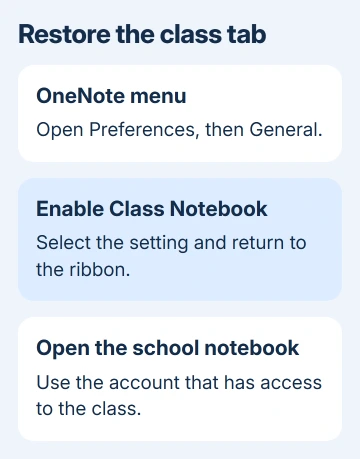
Return to the notebook and check the ribbon for Class Notebook. When it appears, select the tab and check the tools needed for that class. The tab can appear even if your account can't open a particular class.
The original Mac support discussion gives this Preferences path. Current guidance also says Class Notebook can be enabled in settings on Mac, though its linked desktop walkthrough shows the Windows File > Options route.
Don't look for that Windows menu on your Mac or install a Windows add-in there. Microsoft says the separate Class Notebook download is usually unnecessary; current apps provide the toolbar through their settings.
If it's already checked, move on to the notebook and account checks. In the original case, checking the preference didn't solve the problem, so toggling it repeatedly isn't a useful repair plan.
2. Open the class with the school account
Look at the account details in OneNote to see who's signed in. Select the school's account with class access; a similarly named personal account has separate permissions.
Open the class notebook from the school's usual link or Teams class. If it opens in the browser, use its command to open in the desktop app, whose label may read Open in OneNote or Open in Desktop App.
After the app opens, compare the notebook name and a recent page with the browser copy. This confirms the app opened the intended class, rather than your personal notebook or a similarly named older class.
If the browser itself refuses access, ask the teacher or school administrator to check membership and permissions. The toolbar setting doesn't grant access to a restricted notebook.
If the class opens but the teacher tools are unavailable, have the administrator check that the account has the intended teaching role and education service access. Don't buy another Office subscription just to test a missing tab.
For a clear access-denied message, use the OneNote notebook permission checks. For a missing Class Notebook tab, check whether the same class works online but lacks the tab in the Mac app.
3. Update through the app's installation source
For an App Store installation of OneNote, open App Store > Updates and install an offered OneNote update. After updating, check both the preference and Class Notebook ribbon in the reopened app.
If Office came from Microsoft, use Help > Check for Updates to open Microsoft AutoUpdate. Install the available updates, then reopen OneNote. If OneNote's menu is unavailable, use Help in another installed Office app.
The update route doesn't change between Intel and Apple silicon. The processor doesn't determine which Class Notebook tools to download. A managed Mac might need IT to deliver or approve the update.
The 2019 thread mentioned version 16.27 because it was current then. Don't search for that build today. Record the version currently installed when asking for help, especially if another school Mac has the tab and yours doesn't.
The original owner said other Macs running the same version worked, and removing and reinstalling OneNote hadn't helped. That makes a difference: another reinstall of the same app may leave the affected Mac user's settings in place.
4. Try a separate Mac user without deleting the old one
I'd test a fresh Mac user before removing Office or clearing app data. The teacher's original files stay available while you check whether the missing tab is tied to that Mac login.
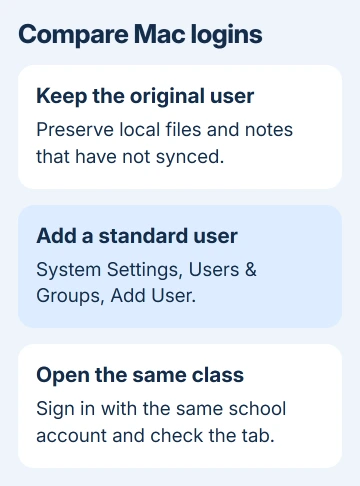
On current macOS, open Apple menu > System Settings > Users & Groups > Add User. Enter administrator details when asked, then create a temporary standard user with a name you'll recognize. A managed Mac may require the school's IT team.
When macOS has System Preferences instead, open Users & Groups, unlock the pane and use the add button. This creates an additional login and leaves the existing account in place.
Log out of the original user and log into the new one. Open OneNote, sign in with the same school account, enable Class Notebook if needed and open the same class. Check for the tab and the teacher tool that was missing.
If the tab works in the new login, the problem appears tied to the old Mac account. That doesn't tell you which preference file is at fault, so don't guess at folders to delete. Ask IT to repair the account or help move the teacher's work.
One owner resolved the original case by setting up a new Mac user and reconnecting OneDrive and Outlook. They planned to remove the old profile after rebuilding it, but deleting the old account isn't needed to perform this comparison.
5. Keep teaching while the original profile is repaired
Use the working browser version of the class while IT works on the Mac. Check a recent page and the class tools you need before relying on that session for a lesson.
If IT moves the teacher into the new Mac profile, preserve local documents and notes that haven't synced before retiring the old profile. Confirm the required notebooks, OneDrive files and mail are available in the replacement account.
This is especially important if OneNote has shown sync errors. A working online class doesn't mean every local notebook has finished uploading. Keep the old Mac account until the teacher and IT have checked all the work they need.
If the app starts crashing instead of just losing the tab, use the OneNote for Mac startup crash checks. That requires protecting notes before any app-data reset.
When the tab is missing in both Mac accounts
Give the school administrator your OneNote and macOS versions, where the app came from and the browser and second-login results. Ask them to check education access and submit a Microsoft education support case if the problem persists.
The Class Notebook support route is the next step when settings and account checks don't restore the tools. State that the Mac tab is missing rather than reporting a general notebook sync problem.
The Short Version
Enable Class Notebook in OneNote's Mac preferences, open the right school notebook and update the app. If it works online but fails for one Mac user, test a separate Mac login and keep the original Mac account during the repair.
Checked November 22, 2026.
 If you have any business, I can build it online





