

A meeting on a shared Outlook calendar doesn't necessarily reserve the organizer's personal calendar.
Put a Busy appointment on your own calendar for that time, or organize the meeting from your personal calendar if your team's setup allows it. Changing the shared copy's availability won't create a missing personal entry.
When invitees show as busy but the organizer stays free, check which calendar holds each person's copy. A visible meeting and a blocked personal time slot aren't always the same thing.
In this guide
1. Check your own calendar without the shared overlay
Open Calendar and temporarily hide the shared calendar using its calendar-list checkbox. Keep your own primary work calendar selected. Go to the meeting's date and time and look for a matching entry there.
Just hide the shared calendar for this check; don't delete it or change anyone's sharing permissions. Turning its display off helps you see whether the visible block belongs to you or only to the team calendar.
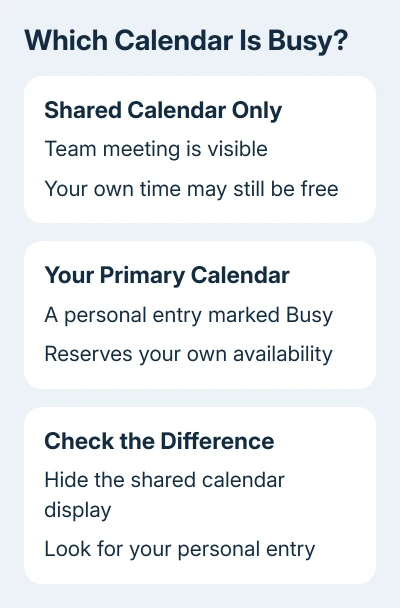
If the entry disappears when you hide the shared calendar, your personal calendar doesn't contain that visible copy. Add a personal Busy block using the next section.
Changing the shared event's Show As value alone won't supply the missing personal item.
If the entry stays on your primary calendar, open it and inspect Show As. A personal entry marked Free needs an availability change instead. That's a different situation from an organizer who has no personal entry at all.
That was the problem in the original report: the organizer created a shared-calendar meeting, invitees accepted it, and their own calendars became busy.
The organizer didn't receive an invitation and remained free on their personal calendar.
When different people see missing or outdated events, use the shared calendar update checks. Fix any trouble syncing events before comparing the two calendar views. Otherwise, you could be comparing an old copy with an updated one.
2. Reserve the time on your personal calendar
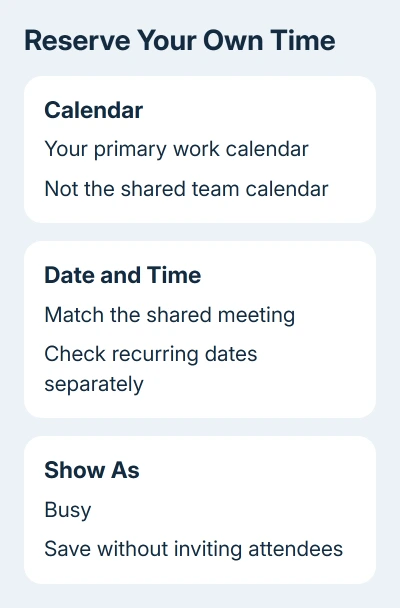
Create a personal appointment covering the shared meeting's time. It blocks your availability without sending duplicate invites to the participants. I'd use this when the team needs to keep the original meeting on its shared calendar.
For the classic Windows app, follow this sequence:
- Select your primary personal work calendar under My Calendars.
- Choose Home > New Appointment.
- Enter a subject that helps you recognize the team meeting.
- Set the same date, start time, and end time as the shared meeting.
- In the appointment's Options group, set Show As to Busy.
- Select Save & Close without adding attendees.
Microsoft's appointment instructions explain that Show As controls the availability other people see for that time.
Save the appointment on the calendar that controls your work availability. Saving it on a different calendar won't block the time on your work calendar.
In new Outlook, select your own primary calendar and choose New event. Check the calendar selected in the event form, enter the matching time, choose Busy in the availability control, and save without inviting attendees.
In Outlook on the web, do the same inside your signed-in work calendar: New event, your own calendar, matching dates and times, and Busy. If your account has several calendars, check the selected calendar before saving.
After saving, hide the team calendar again and check that your personal block remains. Ask a coworker to check your time in Scheduling Assistant. That checks what someone arranging another meeting with you will actually see.
3. Change a personal entry that's marked Free
If the meeting already appears on your own calendar, open that personal copy. In classic Outlook, use the ribbon's Show As menu and select Busy. Save the item with Save & Close, or Send Update if you're changing a meeting you organize.
In new Outlook, or using the web app, edit your personal calendar event and change its availability to Busy, then save. Make the change to the item on your own calendar, not a similarly named event in the team's calendar.
All-day events need particular attention because they can start as Free. An all-day team event can look like a major commitment on screen without blocking time in the way a timed meeting does.
The event-editing instructions also explain that attendees control their own status. An organizer's later update doesn't necessarily replace a status an attendee already has on their copy.
If one attendee still looks free, have that person inspect their own copy and availability. Changing the shared event again won't fix every attendee's own saved Free setting.
For a meeting you didn't organize, keep the change limited to your personal availability. Editing your local status and rescheduling the meeting for all participants are different actions, even when the subject and time look identical.
4. Choose a workflow that keeps future meetings together
If the team doesn't require a shared-calendar organizer, create the meeting from your primary personal calendar and invite the participants. That gives you the organizer's personal calendar entry from the start.
When the team does require the shared calendar to own the meeting, keep the separate personal Busy block. For recurring meetings, match its recurrence and end date to the team meeting, and check exceptions such as canceled dates.
A separate appointment isn't linked automatically to the shared event. When the team changes or cancels the meeting, adjust your personal block too.
That extra upkeep lets you keep the shared meeting and avoid sending duplicate invitations.
Don't delete and recreate an established series just to change ownership without consulting the team. Existing responses and exceptions matter.
For a managed shared mailbox or Microsoft 365 Group, ask IT which organizer workflow they want people to use.
If the trouble is Outlook forgetting which calendars were displayed, the calendar display settings guide covers that separate fault. It doesn't change which mailbox owns the appointment.
If Scheduling Assistant still shows the wrong availability
Send your work administrator the meeting time and personal mailbox address. Include the shared calendar's name and type, whether a personal Busy entry exists, and whether browser Outlook shows the same availability.
Ask them to check the personal mailbox's free/busy information and the shared calendar's organizer permissions.
The old thread suggested looking for an invitation in Deleted Items, but no reply confirms that accepting an invitation fixed this case.
The Short Version
Check your primary calendar with the shared overlay hidden. Add a personal Busy appointment if no entry exists, or change Show As if the personal copy says Free. Keep a separate Busy block updated when the shared meeting changes.
Checked November 17, 2026.
 If you have any business, I can build it online






