Outlook Tasks search can fail even when email searches work. Try safe mode, then check add-ins if results return. One owner restored task search by disabling two add-ins after an index rebuild hadn't helped.
These checks cover Windows' classic Outlook and its combined To-Do List of tasks and flagged messages. Microsoft To Do and new Outlook use different controls, so the Windows index isn't the place to start for those apps.
In this guide
1. Try the same task search without add-ins
Close Outlook. Press Windows key + R, type outlook.exe /safe, and press Enter. Choose your normal profile if prompted. The space before /safe matters: it's a startup instruction, not part of the program's name.
Open the same task list that failed, then search using an unusual word from a visible task. Repeat the search with that task and word to see whether leaving add-ins off changes the result.
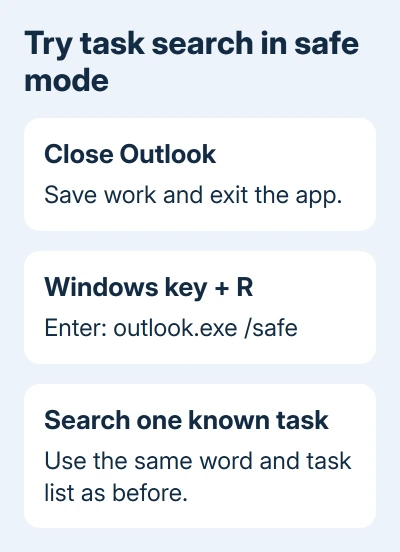
Microsoft's safe-mode instructions explain that this starts Outlook with add-ins disabled. If search works, check your add-ins next. The task doesn't need recreating.
I'd check add-ins before spending time on another index rebuild. In the original report, mail searches worked, two other computers searched tasks normally, and rebuilding the desktop's index hadn't restored its results.
If safe mode still returns nothing, leave the add-ins alone for now and move to the folder and search-location checks. If search fails in safe mode too, that result doesn't point to a particular add-in.
2. Disable add-ins, then restore them individually
In classic Outlook, open File > Options > Add-ins. At the bottom, set Manage to COM Add-ins, then select Go. Write down the selected extensions first.
Clear those checkboxes and choose OK. Close Outlook, launch it normally, and repeat the task search. This tells you whether search also works during a normal start with those add-ins turned off.
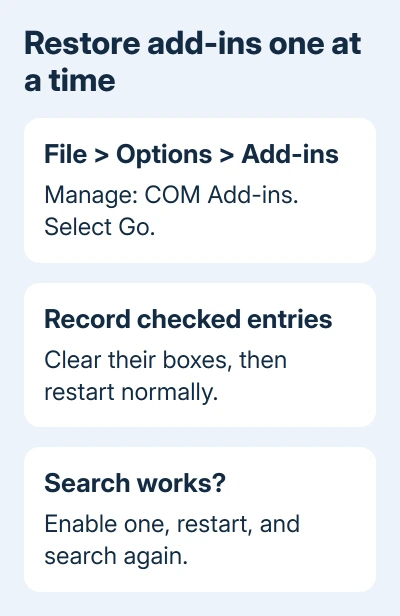
If results return, enable one add-in, restart Outlook, and search again. Continue one at a time. If a specific add-in brings back the failure, leave it disabled and ask its supplier or your IT team for an update.
The owner in the task-search discussion disabled an Exchange-related add-in and a VBA add-in. Search then worked. They enabled each again, and it continued working with both enabled.
That's a reason to try turning the add-ins off and restarting, but it doesn't mean either add-in was permanently faulty. If yours also works after everything is enabled again, keep the result and stop changing settings.
Don't remove add-ins from the list. Clearing a checkbox gives you a way back, which matters when an extension supplies work features such as meeting integration or document management.
3. Search the task's own folder and account
Cancel the search. Is the missing entry a manually created task or an email with a follow-up flag? The combined To-Do List can contain both. A task folder and a list assembled from several accounts aren't the same collection.
Find one affected item without searching and note the account it belongs to. Open that account's Tasks folder and search there. Click in the search field and inspect the available scope choices on the Search ribbon.
Where All Task Items is offered, try that scope instead of a narrower location. Also inspect Search Tools > Locations to Search and select the data files you want to search.
A wider task search can include completed work too. In the original case, searching all tasks returned results, including closed tasks, even before the add-in change restored the usual search behavior.
If an item appears in its own folder but not in a combined search, check which folders that search includes. An item missing from the folder itself needs an account or synchronization check before any search repair.
When the list is empty even with no search running, use the separate checks for blank Outlook task groups. Changing the index won't correct a grouping that hides the items before a search begins.
If clicking Tasks launches another app, restore classic Tasks before following the desktop menu paths. A search performed in Microsoft To Do isn't the same test.
4. Read the indexing status before rebuilding
Index checks become more useful when task and mail searches both fail, or when Outlook reports that search results are incomplete. Click the search field, then open Search Tools > Indexing Status.
If items remain, note the number and check it again after five minutes. A decreasing count means indexing is progressing. Let it finish before deciding that the search has failed.
When the count doesn't move, open Indexing Options through Windows search or Control Panel. Check that Microsoft Outlook appears among the included locations. Use Modify to select it if it's missing.
Windows 11 also has an indexer troubleshooter under Settings > Privacy & security > Searching Windows. On Windows 10, look under Settings > Update & Security > Troubleshoot for Search and Indexing.
If Outlook is included but the completed index still misses results, open Indexing Options > Advanced > Rebuild. Searches can remain incomplete while it runs. A falling item count means you should let the rebuild continue.
This is a broader search repair, not the owner-confirmed fix for the task-only failure. If you've already rebuilt once and email search is healthy, return to the task-specific comparisons rather than spending another evening on it.
5. Compare a separate profile if tasks still won't search
A profile holds Outlook's accounts and settings. Leave your current setup intact while trying a second profile. Close Outlook and run outlook.exe /profiles through Windows key + R.
Select Options > New and name the profile Task search check. Connect the affected email account. Let its tasks appear before repeating the same search.
If search works in the new profile, ask IT to repair or replace the old one. If both fail with the same account, ask IT to compare task search on another configured computer and see whether that account fails there too.
Before removing an old profile, back up any tasks or PST data that exist only on this computer. A new cloud connection doesn't automatically transfer everything stored only on that PC.
Send support the build listed in File > Office Account > About Outlook and your account type. Include the safe-mode and second-profile results. Say whether mail search works and whether the missing task started as a flagged email.
The Short Version
A successful safe-mode search makes COM add-ins the next check. Compare the task folder and search scope if it still fails. Use indexing status to decide about rebuilding, and compare a second profile without removing the first.
Checked November 17, 2026.
 If you have any business, I can build it online