

An Excel sharing violation means the save couldn't finish replacing the workbook, even without another editor. Save under a new name first, then check for an old file format, a lock, or software interrupting the save.
For older .xls files that show Compatibility Mode, try converting the file early: owners confirmed that saving in a newer format stopped this error. A failure affecting every workbook needs a different route.
In this guide
1. Preserve the edits with a fresh filename
Keep Excel open and choose File > Save As. In a newer version you may see Save a Copy. Give it a fresh name in a writable folder on this PC. Keep the original file alongside that separate copy.
Choose a folder that doesn't sync if your usual Documents or Desktop folder syncs through OneDrive. Save that separate copy before working on the folder or app that rejected the save.
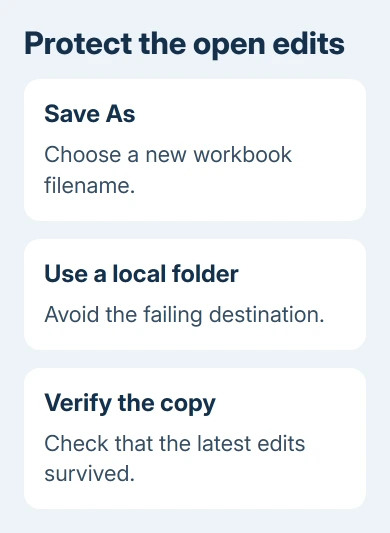
Find the saved copy in its destination and open it. Confirm your latest changes survived. If Excel won't save a complete workbook, its save-error guidance also describes moving sheets into a new workbook as a recovery option.
That recovery route can affect workbook features, so don't discard the open original until you have a usable saved copy. Once your changes are safe, work through the checks for your file's format and location.
The Excel save-error guidance explains replacement: Excel writes a temporary copy, deletes the old file, then renames the new one.
2. Convert an old .xls workbook out of Compatibility Mode
Check the filename and Excel's title bar. A workbook ending in .xls uses the older Excel 97-2003 format, and Excel may display Compatibility Mode when it's open.
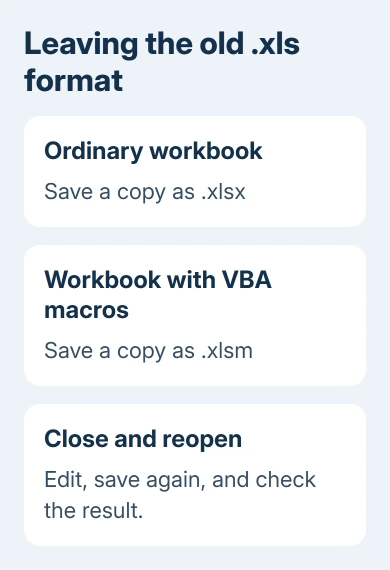
After preserving the original, choose File > Save As and select Excel Workbook (.xlsx) for an ordinary workbook. If the file contains VBA macros, select Excel Macro-Enabled Workbook (.xlsm) instead so the macros can be retained.
Close the new file, reopen it, make a small intended edit, and save again. If the sharing violation disappears, keep working in the new-format copy and retain the original until you've checked its formulas, charts, and links.
One owner stopped this Office 2010 fault by converting the file, saving it, and reopening it. A later owner confirmed that the same solution worked for them. Changing antivirus settings had failed in other reports.
I'd try conversion before an Office repair when only old .xls workbooks fail. This checks for a format problem and leaves Office installed as it is.
Office 2010 also offered File > Info > Convert for leaving Compatibility Mode. Saving a separately named copy is easier to compare with the original when you're deciding whether conversion solves the fault.
If another app requires .xls, ask its owner whether it supports .xlsx or .xlsm. Keep the required import format until you know what that app accepts. Test a copy outside that app before changing the workflow.
3. Close other programs holding the same file
Close the workbook in other Excel windows and on other computers, including another signed-in session of your own. Ask a coworker to close it if the folder is shared. Then try saving your working copy again.
Close File Explorer's Preview pane, then try saving again. Use View > Show > Preview pane on Windows 11, or the View tab's Preview pane control on Windows 10. Alt+P toggles the pane in either version.
If closing the preview changes nothing, leave it as you prefer. Restart Windows so programs release their hold on the file, then retry the saved copy.
Leave temporary and lock files in place while an unsaved workbook is open. Some may be part of its unfinished save. Preserve edits under a new filename rather than guessing which files are disposable.
For network-only errors, use the network workbook save checks. If local saving works, focus on access to the failing destination.
4. Compare the destination with a new blank workbook
Create a blank workbook, enter a small amount of text, and save it under a unique name in the original folder. Close and reopen it, change that text, and save a second time.
The second save matters because creating a file and replacing an existing one aren't the same operation. A folder can let you create a workbook but still block part of the replacement process.
If the new workbook also fails, check available storage and ask the folder administrator to review Read, Write, Modify, and Delete permissions. Excel needs those permissions to complete the save.
If the new workbook saves but the original filename fails, check whether it's locked or marked read-only. Give IT each filename alongside its save result. Ask them to examine access to the failing file.
5. Check software interference without leaving protection off
Update the security software and any document-management program that watches the folder. Ask IT to review their logs when saving fails. A scanner can interrupt Excel while it replaces the old file during a save.
Stopping antivirus worked for one owner, but others still had the error with antivirus disabled. Converting the file reduced errors for other owners. That's why I'd check the filename, format, and folder first.
If saving fails only on one Windows computer, close Excel and use Start > Run, enter excel /safe, and choose OK. Open a saved comparison copy and try the edit-and-save cycle again.
If Office Safe Mode succeeds, open File > Options > Add-ins after restarting normally. In Manage, check COM Add-ins and Excel Add-ins separately, recording the selections before disabling one item at a time.
If Excel only keeps requesting another save without displaying this violation, use the repeated save prompt checks. That behavior can have a different cause.
When the error keeps returning
Send Office support or IT the exact message, Excel version, file extension, storage location, and whether conversion and a new local filename worked. Include the result of saving a new blank workbook twice in the original folder.
An old Excel 2007 fix addressed one cause involving an Office shell extension, a component that adds Office features to File Explorer. Ask IT about approved legacy updates or moving to supported Office.
Don't download random hotfixes or leave antivirus disabled.
The Short Version
Preserve edits under a new local filename. Convert old .xls files when practical, then check locks, replacement permissions, and software interference according to which saves fail.
Checked November 17, 2026.






