

Switch Word to View > Print Layout when Insert Page Number is grayed out. Web Layout can disable it while other header controls remain available. Several owners restored the button by changing the view.
An empty design gallery needs a different fix than an unavailable button. Check the view first; if Page Number opens without any designs, use a PAGE field and check the gallery separately.
In this guide
1. Return the document to Print Layout
Open the View tab and select Print Layout. Return to Insert > Page Number and try selecting a position again. Pick the header or footer position your document needs.
Print Layout shows the document as pages, including the areas used for headers and footers. Web Layout is meant for a continuous web-style view, so it isn't the right place to judge a printed page's numbering controls.
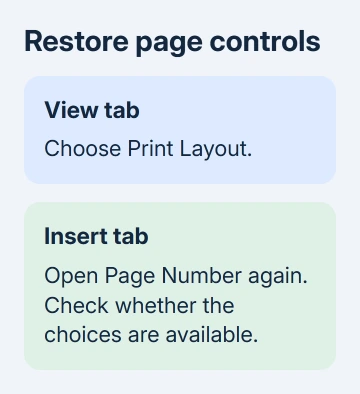
An owner in the page-number discussion found their document was in Web Layout after copying content from a web page. Selecting Print Layout made Insert Page Number available again.
Try this even if the document was numbered earlier. The important detail is the view Word is using now, not the view it used when the file was created.
A single-page document can have a page number. Adding a page or page break is unnecessary just to enable numbering. That suggestion appears in the discussion, but a later reply correctly separates page count from Print Layout.
If the command remains disabled, create a blank file and select Print Layout there. A working button there points to a restriction or problem in the original file; the same failure everywhere needs the gallery and application checks later.
2. Check whether the document allows header changes
Double-click the top or bottom margin of a page. A header or footer should become active, with a cursor where you can type. If the document refuses changes there, check its editing permissions before replacing templates.
On Windows, open Review > Restrict Editing. If protection is active and you have permission to remove it, select Stop Protection. Enter the protection password if asked, or ask the document's owner for an editable copy.
The document protection controls can allow changes in selected areas while keeping the rest locked. Being able to type in the main text doesn't mean you can also edit its header.
For a trusted file showing a Protected View message, use Enable Editing if your organization's policy allows it. Don't enable editing for an unexpected attachment simply to add a number.
Check the header again after correcting permissions. If the cursor works there but designs are missing, insert an automatic field directly. That gives you a page number without choosing a gallery design.
3. Insert an automatic page number without the gallery
In Windows desktop Word, double-click the header or footer and click the spot where the number should appear. Press Alt + Shift + P. This inserts a PAGE field, which displays the current page's number automatically.
Word's keyboard shortcut reference lists that command. It avoids the design gallery; it doesn't restore missing gallery entries.
Another Windows route is Insert > Quick Parts > Field. Select Page in the Field names list and confirm. Choose Page for the current page, rather than NumPages, which gives the document's total page count.
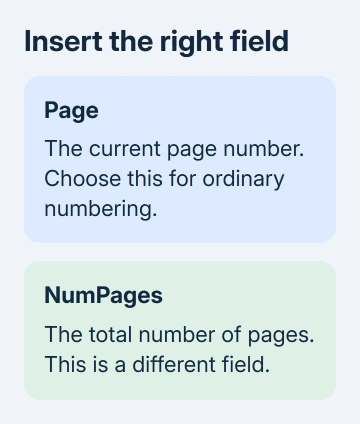
For the field-code route, press Ctrl + F9 in the header or footer. Type PAGE inside the braces Word creates, then update the field with F9. Use Alt + F9 if Word displays codes instead of their results.
Don't type ordinary braces around PAGE. The braces Word creates tell it to calculate the number. Braces you type yourself would leave plain text instead of a page number that changes.
Close Header and Footer, then inspect a later page. The number belongs in the repeating header or footer, rather than being typed separately into each page's body.
For a cover that shouldn't display a number, or page 2 that should begin at 1, use the Word numbering settings. Use those settings to arrange your numbering once you can insert a number. They won't repair a disabled button.
4. Separate a broken gallery from a view problem
Open Insert > Page Number again in a blank document. Note exactly what is disabled. A single online-content item saying content isn't available is different from the entire Page Number control being unavailable.
If standard designs are missing in every file, or Word names Building Blocks.dotx or Built-In Building Blocks.dotx in a warning, use the Building Blocks template checks.
The template filenames differ between older Word versions. Keep the exact filename from the error rather than deleting Normal.dotm because another person mentioned it. One owner in this thread deleted Normal.dotm without restoring the menu.
I'd keep the working PAGE field while fixing the gallery. It produces an automatic number without forcing you to rebuild the document or remove all its headers to meet a deadline.
When a blank file works and the original fails, remove any confidential content from a copy and send it to the author. Ask them to check header permissions and the section containing the failed insertion.
5. Follow the controls for the Word edition you use
On Mac, first select View > Print Layout. Open Insert > Page Number and use its position and alignment choices. The Windows Quick Parts route and Alt shortcuts aren't the Mac menu path.
The browser edition has its own controls. An account that can only view the file needs editing permission before adding numbering. For a stubborn gallery problem, try an authorized copy in the installed Word app.
For a Windows installation that fails even in blank documents, save your files, close Office and run its repair from Control Panel > Programs and Features > Microsoft Office > Change. Follow the Repair choices shown for your installation.
If repair fails, tell support your Word version, current view, disabled item and blank-document results. Say whether the PAGE shortcut works, so they can tell whether Word can't insert a field or just can't show gallery designs.
The Short Version
Use Print Layout first and check header permissions. Use an automatic PAGE field when gallery designs remain unavailable. Missing designs need gallery repair; adding pages won't unlock a disabled numbering command.
Checked November 17, 2026.






