
Equation 3.0 objects won't open in an updated copy of Word 2013 because the old editor was removed for security reasons. Reinstalling Office won't bring it back.
Keep your original document, then convert the equations in a compatible desktop version of Word or use supported MathType software.
A separate problem affected Office 2013 in 2014, before that removal. Reinstalling helped the original owner briefly, but they later reported the fault returning. That old repair isn't a current solution for the missing editor.
In this guide
1. Check whether the equation is an old embedded object
Make a backup before changing any equations. Keep the original file in its original format so you can compare the math after conversion.
Double-click one affected expression. An error naming Equation or saying Microsoft Equation is not available points to the legacy editor. With a modern equation, you should be able to click inside the math and edit it.
The old Insert > Object > Microsoft Equation 3.0 command and Insert > Equation use different equation systems. A working Insert > Equation command doesn't mean Word can open every old object already embedded in a document.
Microsoft says in its Equation Editor notice that January 2018 public updates removed the component. Once removed, it couldn't be brought back with a normal Office repair.
Look under File > Account > About Word to see which version you have. An old Microsoft 365 subscription might once have supplied Word 2013. Current subscription Word and perpetual Office 2013 have different conversion options.
If a brand-new equation also fails, use the separate Word 2013 equation insertion checks. Keep going here if only the old embedded equations fail.
2. Convert a copy in desktop Microsoft 365
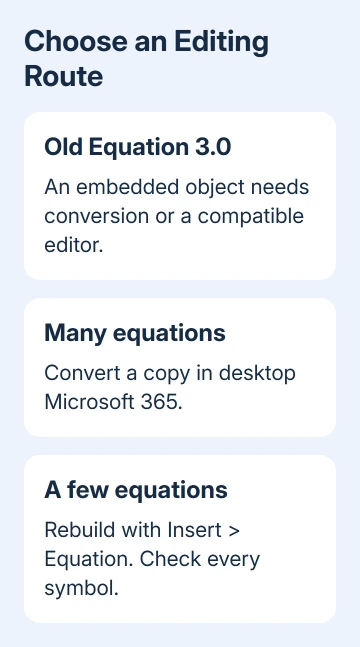
For a document containing many old equations, I'd try conversion on one equation that uses your usual notation before recreating anything. It shows how well your actual notation survives before you convert the whole file.
Open the copied document in desktop Word for Microsoft 365. The supported versions are Office 2019 and Microsoft 365, with the converter available from build 16.0.10730 onward. Repairing Word 2013 won't add this converter.
If the copy is a .doc file, choose File > Save As and save another copy as Word Document (.docx). Changing only the filename extension isn't a format conversion.
Double-click the old equation, or select it and press Enter. A compatible equation should produce a prompt offering to convert it, with an option covering other equations in the file too.
Start with the individual expression when that choice is offered. After conversion, click inside it and check that its symbols and structures can be edited. The converted equation uses OMML, Word's modern editable math format.
Compare fractions, subscripts, superscripts and operator limits with the original. Conversion can change fonts and spacing, and colors may need applying again. Long division isn't supported by this converter and needs recreating.
If other people are editing the shared document, arrange for them to close it before converting. The converter can refuse the operation while multiple people have the file open. Retry with your separate copy after editing has stopped.
If you don't get a conversion prompt, the equation isn't necessarily damaged. Check the Word version, the file format and whether the object is actually an old Equation Editor equation. A pasted image isn't an editable equation object.
3. Recreate a few expressions with Insert > Equation
For two or three short equations, rebuilding them can be quicker than arranging access to another computer. In Word 2013, place the cursor in a new paragraph and choose Insert > Equation.
Use the equation structures on the ribbon to enter fractions, roots and scripts. Type each expression from the original document, then compare it character by character. A similar-looking symbol can have a different mathematical meaning.
Leave the old expression beside the new one until you've checked it. Once the replacement is correct, remove only the old object, keeping any equation number or explanatory text that belongs with it.
Reopen the saved copy and click inside a replacement. If you can edit the math, your replacement is working. In print preview, look for taller lines and changed wrapping.
Don't turn the whole collection into screenshots simply to dismiss the error. That leaves the expressions readable but removes mathematical editing. For a thesis or reusable template, that can create more work later.
For documents on a Mac, use the Word for Mac legacy equation guide. Its software compatibility choices differ from the Windows Office 2013 case.
4. Use compatible MathType for equations you must retain
The official notice points to WIRIS MathType tools for editing legacy equations. Check with WIRIS which desktop product supports your Windows version, your Word installation and the old equation objects in your document.
Ask about legacy Equation 3.0 object editing before purchasing. A browser math tool or a similarly named add-in isn't necessarily the desktop product that opens an existing object in Word.
Try a typical equation in a small copied document to check compatibility. Confirm that you can open the object, change a symbol, save, close and reopen it. Then check both the math and how it looks when printed.
If your organization controls software installation, give IT that sample and the Word version from File > Account. They can choose a supported editing route without changing the only working copy of your document collection.
5. Leave the old reinstall workaround in its historical context
In the 2014 discussion, one owner restored editing by reinstalling Office 2013 after Click-to-Run repair failed. They later said the problem returned in August and again in October.
Those later failures matter if you're considering that old reinstall advice. It wasn't permanent for the asker, and it predates the security removal by several years.
Don't restore a downloaded copy of the removed editor or roll back security updates to revive it. Use conversion or a compatible editor instead. Repeated Office repairs won't add a feature removed from the updated product for security.
If conversion rejects a valid old object, report it through File > Feedback in the supported Word installation and include #MEEConverter. Provide a nonconfidential sample and describe any notation that changes or fails to convert.
If you still can't edit the file, ask your document team or Microsoft Support to check its old equation objects. Include the Word build and file format, and explain whether the object displays but refuses editing.
The Short Version
Updated Word 2013 can't restore Equation 3.0 through repair. Convert a copied document in compatible desktop Word, recreate a few equations, or use supported MathType tools. Check the math after any conversion.
Checked November 17, 2026.






