

An Outlook add-in can crash Excel 2013 when it sends a workbook as an attachment. Owners confirmed this with Kaspersky and ESET mail integrations.
For urgent mail, save the workbook and attach it inside Outlook. Then check Outlook's add-ins before spending time repairing Excel.
The crash can happen after the message has already sent. Check Sent Items before retrying, so the recipient doesn't receive the same spreadsheet several times. A mail error without an Excel crash needs different checks.
In this guide
1. Send the saved workbook from Outlook
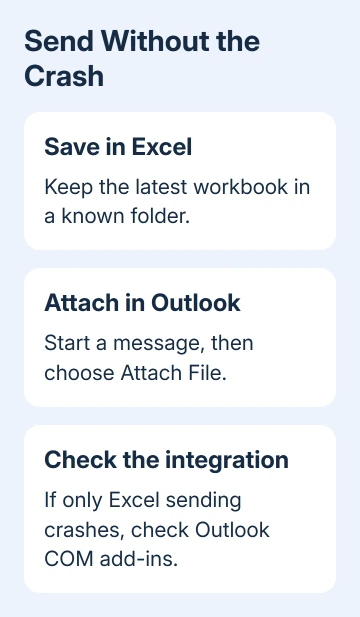
Save your current changes in Excel and note the file's folder. Open Outlook 2013, create a new message and choose Attach File to select that saved workbook. Confirm the filename and recipient before sending.
This avoids Excel's File > Share > Email > Send as Attachment command. One affected owner chose this route so they could keep their antivirus integration enabled while sending spreadsheets normally.
Check Outlook's Sent Items folder for the message and its attachment. A message remaining in Outbox hasn't completed sending, even if Excel is no longer involved.
If Outlook also crashes while composing or sending, treat that as part of the same report. This tells you whether Excel's mail command triggers the crash or Outlook also fails when sending mail on its own.
If Outlook won't start, use the Outlook opening checks. If it sends normally, keep using the manual attachment route while you check the add-ins involved in sending mail.
For tests, use a small workbook with no private information and send it only to an address you control. Save it before each attempt. That makes an unexpected restart less costly and keeps test messages easy to recognize.
2. Check Outlook's COM add-ins first
In Outlook 2013, open File > Options > Add-ins. At the bottom, set Manage to COM Add-ins, then click Go. These are extensions loaded into Outlook, including some antivirus mail integrations.
Before changing anything, list the add-ins with checked boxes. For a work computer, ask IT to handle a security add-in test. Don't turn off the antivirus program or its main protection just to send a workbook.
The original Excel crash reports include owners whose crashes stopped after disabling Kaspersky's Outlook add-in. One reported that changing only its outgoing-mail scanning option hadn't helped.
ESET users reported two different successes: disabling its Outlook plugin, or turning off outbound scanning in an older ESET version. These are separate reports, so use the controls for the version you have installed.
With IT's approval where needed, clear the suspected add-in's checkbox and choose OK. Close Outlook and Excel, reopen them, then try Excel's attachment command with the small test workbook.
If the crash stops, report the add-in name and version to its support team. Ask for an update or settings that work with your Office version. Send manual attachments while they decide how to configure mail protection.
If you have several add-ins you don't need for this test and none stands out, disable them, then enable each entry separately. Restart Outlook after each change. Note which entry brings the crash back.
Restore settings that don't affect the crash. A working test with one extension disabled tells you more than leaving every extension off indefinitely.
3. Compare Excel in safe mode
If Outlook's extensions don't explain it, check Excel's startup add-ins. Close Excel, press Windows+R, enter excel /safe, and press Enter. This works through the Run dialog on Windows 7, 8.1, 10 and 11.
In the safe-mode window, open your saved test workbook and try sending an attachment. Safe mode skips several startup customizations and most COM add-ins; it doesn't automatically put Outlook into safe mode too.
Microsoft's Excel crash troubleshooting uses safe mode to check startup and add-in conflicts. If safe mode helps, return to Excel's File > Options > Add-ins.
Select COM Add-ins > Go, note which entries are active, then uncheck them and test Excel outside safe mode. Close Excel, start it normally and test again. Enable each entry separately, restarting Excel between attempts.
An owner disabled Excel-related add-ins and stopped the crashes, without identifying the exact extension. Check your own add-ins before blaming a particular product.
If safe mode still crashes, move to repair rather than repeating the same add-in test. The historical discussion includes machines without Kaspersky and cases where disabling add-ins didn't help.
4. Repair the Office installation once
Save work and close all Office programs. On Windows 7 or 8.1, open Control Panel > Programs > Programs and Features, select the Office suite and choose Change.
On Windows 10, open Settings > Apps > Apps & features, select Office and choose Modify. Windows 11 puts Modify in Office's three-dot menu under Settings > Apps > Installed apps.
For a Click-to-Run installation, try Quick Repair first. If it doesn't help, choose Online Repair for a fuller repair that downloads fresh files. An MSI installation instead offers Repair, followed by Continue.
Repair the suite that contains Excel and Outlook. After it finishes, restart if prompted and test once with the small workbook. A successful result opens and sends the attachment message without Excel restarting.
Some affected installations still crashed after repair. One later owner reported that repairs, a reinstall and disabled add-ins all failed. I'd stop repeating repairs after that comparison and collect the crash details.
If the actual message is General mail failure, rather than Excel closing, use the Excel mail handoff guide. Its historical Windows update fault isn't the same as an add-in crashing Excel after Send.
5. Give IT the crash details and the test results
Open Event Viewer > Windows Logs > Application and find the error at the crash time. Note the faulting application, faulting module and exception code. Avoid copying private paths or document names into public posts.
The old discussion includes an mspst32.dll_unloaded report, but other owners had different modules and products. Don't download replacement DLL files based on that filename. Give your own event details to IT instead.
Include Excel and Outlook versions from File > Account > About, the antivirus product and whether direct Outlook attachments work. State which app's add-ins you changed and whether safe mode helped.
Since April 2023, Office 2013 has been out of support. Ask IT to move this workflow to supported Office. Ask the security-software vendor for help with its mail add-in. Use direct attachments until that combination is repaired.
The Short Version
For urgent mail, compose in Outlook and attach your saved spreadsheet. Check Outlook's mail add-ins, then Excel's safe mode and add-ins. Repair Office once if needed, and send persistent crash details to IT or the add-in vendor.
Checked November 17, 2026.
 If you have any business, I can build it online






