

The same page number on every page can be plain text repeated in a footer, or an automatic number restarting in each section. Replace a typed number with a PAGE field first, then check section numbering.
If the field and sections are correct, Track Changes is another confirmed cause to check.
A footer repeats its contents by design. Typing 2 into it repeats 2; a PAGE field calculates the page's number. That's why deleting a typed digit and typing it again won't fix the sequence.
In this guide
1. Replace the repeated number with an automatic field
Make a backup before changing headers, footers or section settings. Work in that copy until the numbering is correct, especially if the document has chapter breaks or tracked revisions.
Double-click the header or footer containing the bad number. Select just the number, leaving a surname, title or other surrounding text in place. Delete the selected number and press Alt+Shift+P in Windows Word.
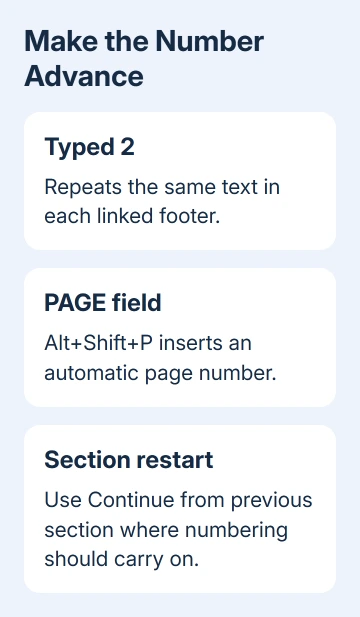
That shortcut inserts a PAGE field. Close the footer and look at several pages. If their numbers now advance, replacing the repeated text has fixed it. Leave the section settings alone.
Press Alt+F9 to inspect field codes if you're unsure what was inserted. A page-number field appears as { PAGE }, sometimes with a formatting switch such as \* MERGEFORMAT. Press Alt+F9 again to return to numbers.
The formatting switch doesn't turn the field into a mail merge. In the original discussion, the asker first described a merge field, then shared the actual code. Read the actual field name before choosing another repair.
Don't type braces around PAGE yourself. That creates ordinary text, not the field inserted by the shortcut. If the shortcut isn't available on your keyboard, use Word's Page Number insertion command instead.
If the header has a name beside the number, preserve that text while replacing the number alone. The Word page-number guide covers placement and a title page that doesn't display its number.
2. Stop unintended restarts at section boundaries
If a real PAGE field still repeats or restarts, click in the affected section's header or footer. In Word 2013, open Header & Footer Tools > Design > Page Number > Format Page Numbers.
Under Page numbering, select Continue from previous section, then click OK. Repeat in each following section that should continue the sequence. Check the pages on both sides of every chapter boundary.
Keep an intentional restart where the main text begins at 1 after introductory pages. The problem isn't that section numbering exists; it's that a later section is set to restart when you don't want it to.
Microsoft's section numbering instructions explain how each section can have its own starting value and format. Those settings are separate from the text you see in the footer.
Turn on Home > Show/Hide to see section breaks. A document can have several sections on one page, including continuous breaks. Don't assume each new section begins on a fresh sheet of paper.
Link to Previous controls whether a header or footer shares content with the preceding section. The separate Continue from previous section option controls the numbering sequence.
Keep your section breaks while checking the number sequence. Removing them can also alter margins, columns and orientation. If the document mixes portrait and landscape pages, those breaks may be essential to its layout.
3. Check Track Changes when fields still won't advance
I'd check revisions before the macro. Open Review and check Track Changes. Switching the display to No Markup only hides revision marks; it doesn't turn tracking off or accept or reject any changes.
In the original Word 2013 discussion, one owner with pages stuck at 1 reported that turning Track Changes off restored consecutive numbers. Another later reply confirmed that route helped.
Turn off tracking in the copy and check the sequence. Review the pending revisions with the document owner. Accepting them changes the revision record, so leave the working original intact until the owner agrees.
After that review, use Review > Accept > Accept All Changes in your copy to accept the revisions. Check the numbering and print preview. If it works there, keep the original revision record until the owner approves the final document.
If Track Changes is locked or controlled by a work process, ask the owner to perform this comparison. Keep the document's review requirements in place while its owner checks it.
4. Use the confirmed macro for many unwanted restarts
For many unwanted section restarts, the thread includes a macro, a short piece of code, that makes numbering continue in the primary footer. The original asker confirmed it solved their problem after manual reinsertion failed.
Use this only in the copied file, and only when every section should continue. It would also remove intentional numbering restarts, such as a body section that needs to begin at 1 after Roman-numbered front matter.
Press Alt+F11. The Visual Basic editor opens. Choose Insert > Module, then paste this code into the module:
Sub SetContPageNum()
Dim s As Section
For Each s In ActiveDocument.Sections
s.Footers(wdHeaderFooterPrimary) _
.PageNumbers.RestartNumberingAtSection = False
Next s
End Sub
Return to the copied document. Press Alt+F8, select SetContPageNum, then click Run. The code acts on the active document, so check the active document's filename before running it.
Check all section boundaries afterward. This code changes the primary footer setting; don't assume it repairs every separate first-page or even-page header and footer arrangement.
If macros are blocked by your organization, give the code and sample to IT rather than changing security policy. The manual section settings remain the first option for a short document.
5. Check the printed sequence and get help with the file
Open File > Print and inspect the pages that used to repeat. Check the cover, the first body page and later chapter boundaries. A correct first pair of pages isn't enough for a document with many sections.
If a table of contents still shows the old numbers, update it after fixing the page sequence. The Word table of contents steps explain updating the generated contents rather than typing over its results.
For persistent trouble, give your document editor or Microsoft 365 support team a nonconfidential copy showing the first bad boundary. Include the PAGE code, section settings and whether the numbers work in a copy with revisions accepted.
The Short Version
Insert a real PAGE field, set unintended section restarts to continue, and check Track Changes. For many sections that must all continue, the owner-confirmed macro can change the restart setting in a copied document.
Checked November 17, 2026.
 If you have any business, I can build it online






