

A shared Outlook calendar that vanishes from your list while the owner still sees it means the link between your two accounts has broken. The events themselves haven't gone anywhere: they're still safe on the owner's side.
A fresh invitation brings it back: the owner removes you, shares the calendar again, and you accept the new invite in Outlook on the web. Owners whose family calendars vanished in mid-June 2026 got them back this way.
Start with a quick check, though, because a calendar that's only hidden needs none of that.
In this guide
1. Look for it in Outlook on the web first
Sign in to Outlook.com in a browser (with a work account, that's Outlook on the web) and open Calendar. Look through every group in the left pane for the missing name, not just My calendars.
If the name is there but its events don't show, it's only hidden: select it and the events come back. If the name is missing entirely, the share itself has broken, and no setting in the desktop app will fix that.
Then ask the owner to open Sharing and permissions for that calendar. If your address is still listed there with the right permission while the calendar is gone on your side, that's exactly the June 2026 fault.
2. Have the owner remove you and share it again
Microsoft's support team confirmed on its forum that the June fault was fixed. Their advice for a calendar that disappeared: re-add it from a new sharing invitation sent by the owner.
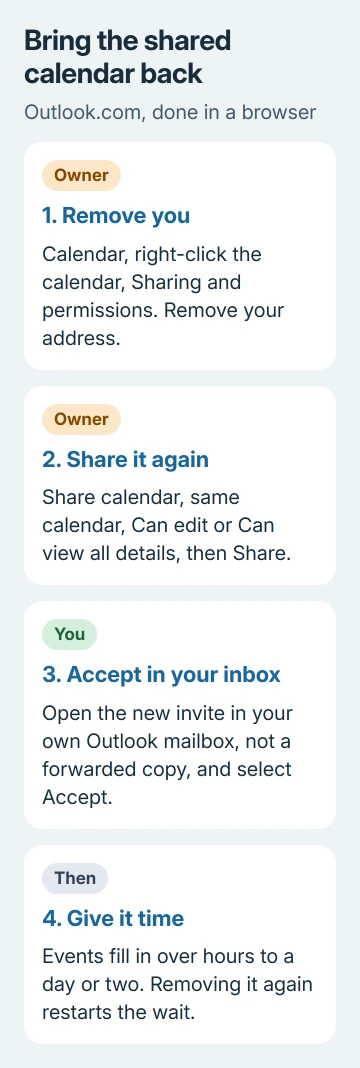
Owners who got it working did this in a browser, not the desktop app. In Outlook.com, the owner should:
- Open Calendar, right-click the calendar under My calendars and choose Sharing and permissions.
- Remove the person whose copy disappeared, so the old connection is gone.
- Select Share calendar near the top and pick the same calendar.
- Type the person's email address, choose Can view all details or Can edit, then select Share.
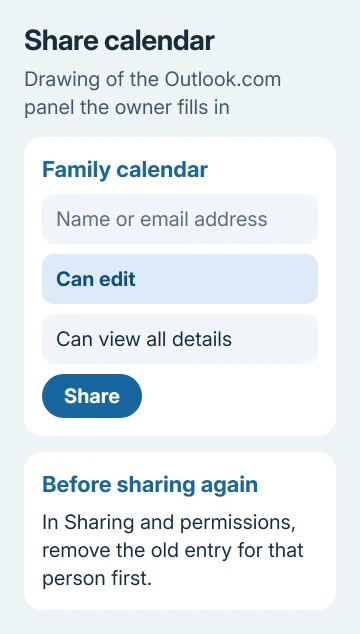
Can edit lets the other person add and change events, while Can view all details only lets them look. If you're not sure which one fits, our guide explains the calendar access levels in more depth.
On your side, remove any leftover copy first: right-click it in the calendar list and pick Remove. That only takes it out of your view, and the owner's calendar stays exactly as it was.
3. Accept the invitation in your own Outlook inbox
The new invitation arrives as an email. Open it in the Outlook.com or Microsoft 365 mailbox it was sent to and select Accept at the bottom of the message.
Forwarded mail is the trap here. One owner had Outlook mail forwarded to Yahoo, where the button read Accept and View Calendar and never worked. After they turned off forwarding and pressed Accept in Outlook, it worked the first time.
If you get an HTTP 500 error when you accept, that's a known glitch. Select Accept again and Outlook should open the shared calendar.
4. Leave it alone while the events fill in
A re-added calendar takes anywhere from a few hours to a day or two to fill in, depending on how big the owner's calendar is. A Microsoft employee on the same forum added that removing and re-adding it starts that sync over.
That explains the half-empty calendars owners saw at first. Some had only three weeks of events, or just the current month, before older and later entries trickled in.
I'd give it a full day before touching anything else. Re-sharing a second time only puts you back at the start of the wait.
5. Restart Outlook and reselect the calendar on each device
Classic Outlook may not show the returned calendar until you close and reopen it. Then find it in the folder pane and click it (sometimes twice) to get the events to load.
On a phone, one owner had to deselect the re-added calendar in the calendar list and select it again before it filled in. After that it showed up in the iPhone's own Calendar app as well.
6. Edits fail even with Can edit
Several owners got the calendar back as view-only, even though the owner had picked Can edit. In one family the edit rights started working about a day later with nothing else changed.
Restart the Outlook app first. If edits still fail a day after the re-share, contact support instead of sharing it a third time.
Opening a colleague's calendar on a work account
With a school or business account in Microsoft 365, you can open a colleague's calendar without any new invite. In Outlook on the web, right-click Other calendars, choose Open calendar, type the name in From directory and select Open.
Without a direct share, you'll only see what the owner lets the whole organization see. If the calendar is back but shows old events, the shared calendar update checks cover that case.
When it still won't come back
Contact Outlook.com support from inside the web app. Select Help and describe the missing shared calendar. If the suggestions don't solve it, scroll down to Still need help? and select Yes.
Tell them the date it vanished, both email addresses, the apps you checked, and that the owner re-shared and you accepted on the web. That saves you a round of basic steps you've already done.
The Short Version
Look in Outlook on the web before anything else. If it's gone there too, the owner removes you, shares again, and you accept in your own inbox. Allow up to two days, then restart Outlook and reselect the calendar.
Checked November 19, 2026.






