

Bing search points usually stop because Microsoft Rewards has paused your credit, not because anything is broken. A burst of quick searches triggers the pause, and the same searches spread through the day start counting again.
The other common reason is a full counter. Level 1 members earn on up to 10 searches a day and Level 2 members on up to 30, so nine or ten credited searches and then nothing on a Level 1 account is just the daily cap.
Zero points from the very first search is a different problem. For that one, look at the account signed in to Bing, Give Mode, a VPN or a restriction on the account itself.
In this guide
Match the way the points stop to the cause
The way the points stop tells you which fix you need, so take a look before you change anything. Open your Rewards dashboard and its points breakdown, where PC searches and mobile searches each have their own counter.
Two or three searches credited and then nothing for a while is the earning limit. If points stop at the same total every day, that's the daily cap. No points at all, on any device, means something on the account is blocking credit.
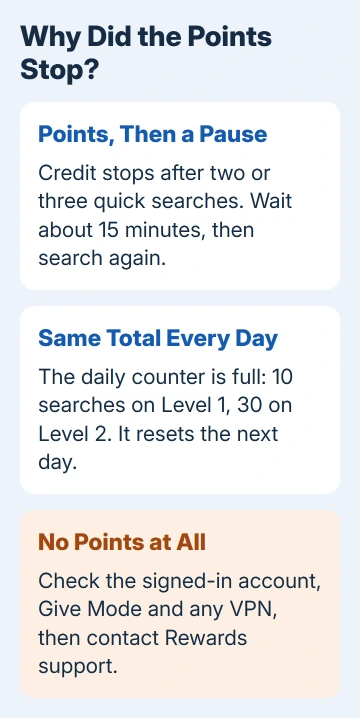
Switching browsers or devices won't reset any of these. One owner tried several of both and the credit still stopped, because the limits follow your Microsoft account, not the browser you're using.
1. Slow down when credit stops after a few searches
The pause is on purpose. Microsoft's page on limiting your searches says you may see a notice that you'll only earn after a certain amount of time, and that the limit lifts once your searching looks normal again.
Owners who've hit it put the pace at about three credited searches every 15 minutes. It began in late 2023 and still catches people in 2026. One owner wrote that "my points stop logging after maybe 2-3 searches cause of a cooldown".
So search in small groups. Do a few searches, leave it for 15 minutes or so, then do a few more. I'd fold them into things you were going to look up anyway, because rapid searches aimed only at points are exactly what trips the limit.
Typing random letters into Bing, or clicking through articles as fast as you can, makes it worse, because both trigger the limit too. Keep doing it and the account can be suspended, points and all.
Auto-search extensions and scripts are a bad idea as well. Searches typed by a bot, a macro or any other automated tool don't earn anything, and they put the account at risk.
2. Check whether today's counter is already full
If the PC or mobile counter on the points breakdown is full, extra searches won't be credited until it resets. That's normal, and waiting for the reset is the only fix.
A common version of this complaint is nine searches credited on a PC and then nothing. That's what a Level 1 account looks like at or near its cap, and the phone keeps its own, separate count.
Your level is on the dashboard too, so check it before you assume the higher Level 2 limit applies to you. Daily limits also vary by country and region, which is why a friend somewhere else may see different numbers.
Once points are available but a gift card is blocked, follow the Rewards phone-verification checks for the separate redemption step.
3. Make sure Bing knows it's you
Searches only count for the Microsoft account that's signed in to Bing when you search. Check the name or picture in the top-right corner of bing.com and make sure it's the account that holds your points.
A work, school or family account signed in to Bing will happily take your searches and give your personal Rewards balance nothing. This catches people who share a PC or use a second Edge profile.
If the account is right and points still don't show, sign out of Bing, close the browser and sign back in. Clearing Bing's cookies first gives it a clean start, and our guide to clearing Edge's cache shows where that option sits.
4. Turn off Give Mode and any VPN
Give Mode, the Give with Bing option, comes first on Microsoft's own list of reasons for missing search points. If you switched it on at some point, turn it off, then run a search and watch your balance.
A VPN can stop points too. Earning from outside your current country or region breaks the Rewards rules, and a VPN server abroad makes it look as if you're searching from another country.
Turn the VPN off, including any built into your browser, and search again. Travel counts too: searches from another country can stop earning until you're back home.
An on-the-go region warning in Rewards needs the travel and redemption checks when it remains after returning home.
5. Earn on your phone the way Rewards counts it
Mobile searches only count from the right places. Use the Bing app or the Microsoft Edge app, or make Bing the default search engine in your phone's browser, and stay signed in to the same Microsoft account.
On Android, Microsoft Launcher works as well. Some mobile ways of earning aren't offered in every region, so a mobile counter that never moves can mean the option simply isn't available where you live.
6. Ask Rewards support when nothing counts at all
Searching slowly, room left on the counter, the right account, and still no points? Then the block is on Microsoft's side. One owner earned nothing while their partner kept earning on the same device.
Fill in the Microsoft Rewards Support form with the counter that stopped, the date it stopped and what you've already checked. Say plainly that you search by hand, with no extensions or scripts.
Several owners had their tickets closed with a reply blaming automated searching, so keep your searches slow and ordinary while you wait. The limit isn't permanent, and searching normally is what lifts it.
The Short Version
Rewards pauses search credit after quick searches, so search in small groups spread through the day. Check the daily counter, the account signed in to Bing, Give Mode and any VPN. If nothing counts at all, contact Rewards support.
Checked November 19, 2026.
 If you have any business, I can build it online






