Running Command Prompt as administrator fixes regsvr32 error 0x8002801c almost every time. The control loaded fine, but Windows wouldn't let regsvr32 save its registration in the registry without admin rights.
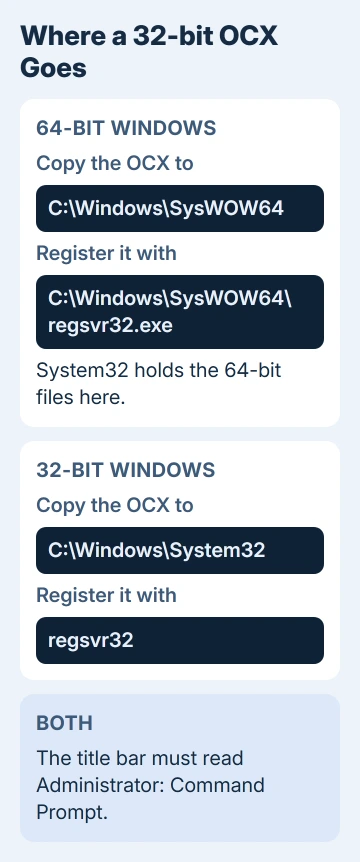
On 64-bit Windows, also put a 32-bit OCX in C:\Windows\SysWOW64 and register it with the regsvr32 that lives in that folder.
In this guide
What 0x8002801c is telling you
The full message usually looks like this, with your file's name in place of mscomctl.ocx:
The module "mscomctl.ocx" was loaded but the call to DllRegisterServer failed with error code 0x8002801c.Read it in two halves. Was loaded means regsvr32 found the file and could open it. DllRegisterServer failed means the next part went wrong: writing the registry entries that tell programs where the control lives.
The code itself translates to "Error accessing the OLE (Object Linking and Embedding) registry". OLE is the old Windows system these ActiveX controls belong to, and only programs with admin rights can change its part of the registry.
Microsoft's note on the related 0x80070005 code is plain about it. An account without admin rights "cannot write to the registry or change files in the System32 folder".
It turns up on Windows 7, 10 and 11 alike, even on an administrator account. User Account Control, the feature behind the Yes or No prompt, gives Command Prompt standard rights until you choose Run as administrator.
1. Start Command Prompt with administrator rights
On Windows 10 and 11, type cmd into Start, right-click the Command Prompt result, pick Run as administrator and answer Yes. On Windows 7, type cmd in the Start menu's search box, then right-click cmd.exe for the same option.
Look at the title bar before you type anything. It should read Administrator: Command Prompt. A plain Command Prompt title means you're still on standard rights and will get the same error again.
Then register the file with its full path, so the right copy gets registered:
regsvr32 C:\Windows\SysWOW64\mscomctl.ocxWhen it works, you'll see a box saying DllRegisterServer in C:\Windows\SysWOW64\mscomctl.ocx succeeded.
One owner who'd hit this with mscomct2.ocx reopened Command Prompt as administrator, ran regsvr32 on the file again and reported back: "Succeeded! Problem solved!"
2. On 64-bit Windows, put the OCX in SysWOW64
Classic controls such as mscomctl.ocx, mscomct2.ocx, comdlg32.ocx and mscomm32.ocx come from Visual Basic 6. Microsoft's VB6 support statement says its runtime files "continue to be 32-bit only".
On 64-bit Windows, 32-bit system files belong in C:\Windows\SysWOW64. The names are backwards from what you'd expect, because C:\Windows\System32 holds the 64-bit files.
It matters for another reason too. A 32-bit program that looks in System32 is quietly redirected to SysWOW64, so an OCX copied into the real System32 folder is invisible to the old program that needs it.
So copy your file into C:\Windows\SysWOW64, then run the 32-bit regsvr32 from that same folder:
cd /d C:\Windows\SysWOW64
C:\Windows\SysWOW64\regsvr32.exe mscomct2.ocx
Typing the full path to regsvr32 makes sure the SysWOW64 copy runs. A 32-bit copy of Windows has no SysWOW64 folder, so on one of those the file goes in C:\Windows\System32 and the plain regsvr32 command is the right one.
3. Still failing as administrator? Check the account
Run as administrator only helps if your account really is an administrator. On Windows 10 and 11, open Settings > Accounts > Your info and look for the word Administrator under your name.
On Windows 7, open Control Panel > User Accounts and read the account type there.
IT staff control the rights on company and school PCs, so an account can look like an administrator and still not have them. On one company PC, right-clicking a fix script and choosing Run as administrator made no difference.
The script only worked when it was started with the runas command under an account that really had admin rights. On a PC like that, ask IT to run it for you.
If your account checks out, unregister the control and register it again, still from the administrator prompt:
C:\Windows\SysWOW64\regsvr32.exe /u mscomctl.ocx
C:\Windows\SysWOW64\regsvr32.exe mscomctl.ocx
The /u switch removes the old registration first. A half-written registration from an earlier failed attempt can otherwise get in the way of the new one.
4. When the old program itself shows 0x8002801c
Sometimes your files register fine and the old program still stops with 0x8002801c when it starts. One Windows 10 owner got exactly that after copying comdlg32.ocx and mscomctl.ocx into SysWOW64 and registering both.
No working fix was ever posted for them, so this part is my own suggestion. I'd start the program once with Run as administrator from its right-click menu.
Some old programs register their own pieces the first time they run, and that hits the same registry block. If that works, close it and open it normally from then on.
Better still, reinstall the program by running its own installer as administrator. Those OCX files are meant to arrive with the program, not with Windows, so its installer puts the right versions where it expects them.
Where the OCX should come from
Skip the file-download websites that offer OCX and DLL files. Their copies are often the wrong version, and you can't tell where they came from. Take the file from the program's own installer or ask its maker.
The same 32-bit and 64-bit mix-up is behind error 0xc000007b when an app refuses to start at all.
If it still won't register
If you can't get an administrator Command Prompt at all, Run as administrator may be grayed out on that shortcut, and that has its own fix. On a managed PC, IT has to register the control or deploy the program.
For a program you paid for, ask its maker for an installer that works on your version of Windows. Give them the exact file name and the full error line. Microsoft doesn't support third-party controls, so the maker is the right place to ask.
The Short Version
Start Command Prompt as administrator, and check that its title bar says Administrator before you register anything.
On 64-bit Windows, copy the 32-bit OCX into C:\Windows\SysWOW64 and register it with C:\Windows\SysWOW64\regsvr32.exe. Still failing? Confirm the account is an administrator, then unregister and register again.
Checked November 19, 2026.
 If you have any business, I can build it online