A deleted svchost.exe keeps Windows from starting, because many of its core services run inside copies of that one file. Without it, the PC can stall after the logo on a black screen with only a mouse pointer.
The file can usually go back without a reinstall. Boot into the recovery screen and run Startup Repair, and if that fails, an offline System File Checker scan restores svchost.exe from the spare copies Windows keeps on the drive.
In this guide
Why the PC stops at a black screen
svchost.exe is the Service Host. Windows loads groups of services from DLL files (shared code libraries) into separate copies of it, so with the file gone, those services never start and the desktop never appears.
Safe Mode needs it too. On Microsoft's forum, the owner who deleted it tried Safe Mode and got the same black screen.
The genuine file lives in C:\Windows\System32, and 64-bit Windows has another copy in C:\Windows\SysWOW64. A Windows 11 laptop checked here has both.
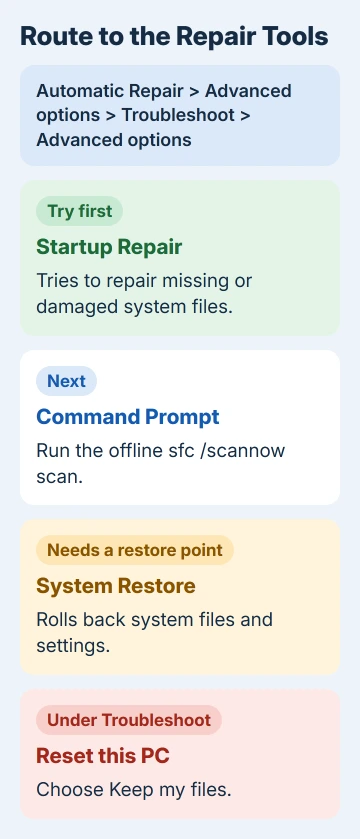
Every fix happens in the Windows Recovery Environment (WinRE), the blue set of repair screens that runs separately from Windows. Get there first, then work down the list.
1. Open the recovery screen
Windows opens WinRE by itself after repeated failed starts, and you can trigger that on purpose:
- Switch the PC on.
- As soon as the Windows or maker's logo appears, cut the power with a long press on the power button.
- Repeat that once, then start the PC normally. Windows should open Automatic Repair.
- Select Advanced options, then Troubleshoot > Advanced options.
If BitLocker (Windows' drive encryption) is on, WinRE asks for the recovery key before most tools will open, so have it ready on another device before you start.
If the Automatic Repair screen never shows up, you'll need installation media made on a working PC. Open Microsoft's Windows 11 download page, scroll to Create Windows 11 Installation Media, and select the Download Now button under it.
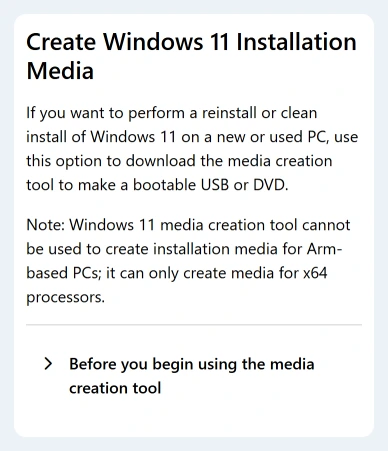
Run the tool to make a bootable USB stick, boot the broken PC from it, and choose your language. Select Next, then Repair my PC, to reach the same recovery screens.
2. Run Startup Repair
In Advanced options, select Startup Repair and let the PC restart. It hunts for the faults that keep a PC from booting, and missing or damaged system files are on the list it tries to repair.
If Windows reaches the sign-in screen afterwards, you're done. Get a message that Startup Repair couldn't fix the PC? Go straight to the offline scan. The Automatic Repair guide covers that message in general.
3. Restore svchost.exe with an offline SFC scan
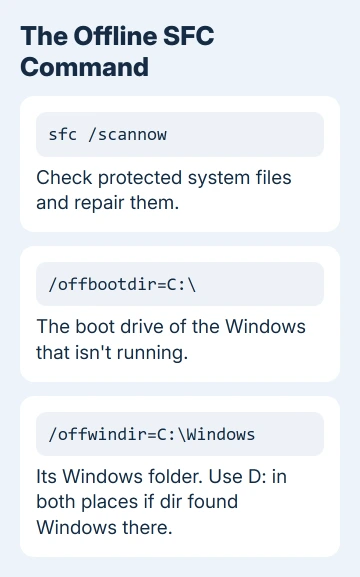
System File Checker normally checks the copy of Windows that's running. Point it at the Windows folder from the recovery screen, though, and it repairs a Windows installation that isn't running, which is exactly your situation.
- In Advanced options, choose Command Prompt.
- Type
dir C:\Windowsand press Enter. If the result lists folders such as System32, Windows is on C:. - No System32? Try
dir D:\Windows. Drive letters can shift in the recovery screen, so the drive that's C: in normal use may show up as D: here. - Run the scan with your letter in both places:
sfc /scannow /offbootdir=C:\ /offwindir=C:\Windows- Wait until it reaches 100% and shows its result. Then type
exit, press Enter, and select Continue to leave the recovery screen and boot Windows.
If SFC lists files it couldn't fix, the SFC repair steps cover what to do next once Windows starts.
The accepted answer on that forum thread copies svchost.exe over from another PC running the same Windows version, Windows 7 64-bit in that case.
I'd let SFC do it instead. It restores the copy that matches your exact build, and a file from another build can cause new trouble.
4. Roll back with a restore point
If SFC can't put the file back, System Restore can return system files to the way they were before the deletion. Select it in Advanced options, then pick a restore point dated before svchost.exe went missing.
It undoes changes to system files and settings but leaves your personal files alone.
On Windows 11 24H2 and newer, Troubleshoot may also offer Point-in-time restore. That one rolls back personal files too, so anything saved after the chosen point is lost.
Plenty of PCs have no restore points at all, so don't count on this fix.
5. Reset Windows and keep your files
When nothing else works, choose Troubleshoot > Reset this PC > Keep my files. It reinstalls Windows, which puts a fresh svchost.exe in place, and keeps your documents, photos and other personal files.
Your apps and settings go, so plan to reinstall programs afterwards. Read the next screen carefully, because Remove everything erases your files as well.
Before deleting a flagged system file again
If an antivirus warning is what led you to delete it, check where a flagged file sits next time. The genuine svchost.exe lives in System32 or SysWOW64, while a file with that name in a user or Temp folder deserves suspicion.
Let the antivirus quarantine a flagged file instead of forcing it out with an unlocker tool. A quarantined file can be put back, and restoring a quarantined file covers what to do when Defender won't release one.
When none of this works
If Reset this PC fails too, reinstall Windows from the USB stick, which erases the drive, or take the PC to a repair shop that can rescue your files before anything is wiped.
If the PC is still under warranty, its maker can take it from there, and Microsoft's support site can help from another device.
The Short Version
A deleted svchost.exe stops Windows at a black screen. Force the Automatic Repair screen, run Startup Repair, then sfc /scannow /offbootdir=C:\ /offwindir=C:\Windows with the right drive letter. System Restore and Reset this PC come last.
Checked November 19, 2026.