KERNEL_MODE_HEAP_CORRUPTION, stop code 0x13A, means the Windows component that lends memory to drivers found some of that memory damaged, so it halted the PC before things got worse.
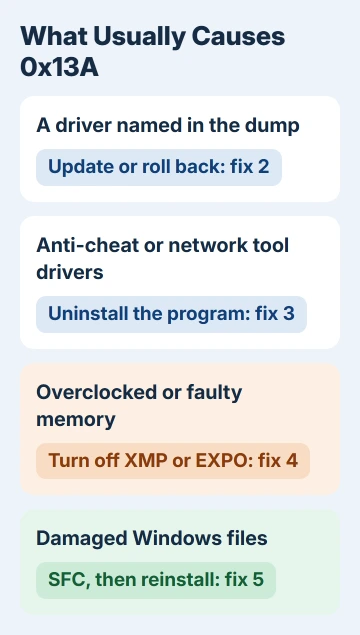
In the crash dumps volunteers have analyzed on Microsoft's forum, the culprit is usually a driver: audio, network, graphics or a game's anti-cheat. Overclocked or faulty memory and damaged Windows files are behind other cases.
Start with the driver the crash dump names, then update it, roll it back or remove it.
In this guide
What 0x13A actually means for you
Microsoft's page on this stop code is written for driver developers and lists 21 kinds of heap damage. You don't need any of them.
The useful part for you is which driver was involved when the damage was found, and Windows writes that into a small crash dump every time this happens.
Look at the other blue screens too. If the same PC also shows MEMORY_MANAGEMENT or UNEXPECTED_KERNEL_MODE_TRAP, as one owner's did, a mix of stop codes points more to memory than to a single bad driver.
1. Find the driver in the crash dump
Windows keeps one small dump per crash in C:\Windows\Minidump, named with the date. That file usually names the driver involved.
- Copy the newest .dmp file from
C:\Windows\Minidumpto your desktop, since that folder needs administrator rights. - Install WinDbg, Microsoft's free tool for reading crash dumps, from the Microsoft Store and open the copied file with File > Open dump file.
- Type
!analyze -vin the command box, press Enter and let the analysis run to the end. - Look for MODULE_NAME and IMAGE_NAME. A file such as vgk.sys or cfosspeed6.sys is the driver to deal with.
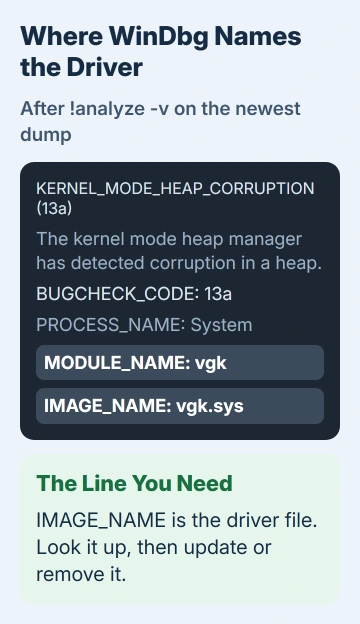
If the result only blames nt or ntoskrnl.exe, that's Windows itself, which is usually the victim rather than the cause. Move on to fixes 4 and 5.
Rather not install WinDbg? Zip the Minidump files, share them through OneDrive and post the link in Microsoft's Q&A forum. Volunteers there read dumps regularly, which is how the same owner traced their crash to a Realtek audio driver.
2. Update or roll back that driver
Get the new driver from the right place. Audio, network and chipset drivers come from your PC maker's site, on the page for your model; graphics drivers come from NVIDIA, AMD or Intel.
Did the blue screens begin just after a driver update? Roll it back instead. In Device Manager, right-click the device and pick Properties, then click Roll Back Driver on its Driver tab.
For that owner, reinstalling the audio driver from the PC maker stopped that crash for a while, but freezes and MEMORY_MANAGEMENT errors followed. That's the pattern that sends you to fix 4.
3. Remove the program that brought the driver
Some drivers arrive with software rather than hardware: game anti-cheat, network speed tools, VPNs and older antivirus. When owners confirmed a fix, it came from removing the program, not updating it.
One owner's dump named vgk.sys, the Vanguard anti-cheat driver installed with Riot's games. They uninstalled Vanguard and the game, ran SFC, which found corrupt files, and haven't seen the crash since.
Another dump named cfosspeed6.sys, the driver behind the cFosSpeed network tool, and the advice was to uninstall it.
If you removed a game along with its anti-cheat, reinstall it later from a fresh download. If the same driver crashes again, take it to the game's support.
4. Take memory off its overclock and test it
XMP and EXPO are BIOS settings that run your memory faster than its standard speed. One owner's first heap corruption arrived the day they turned on EXPO on a new build, and switching it off stopped the crashes for a while.
To reach the BIOS on Windows 11, open Settings > System > Recovery and choose Restart now beside Advanced startup (Windows 10 keeps it under Settings > Update & Security > Recovery).
After the restart, pick Troubleshoot > Advanced options > UEFI Firmware Settings on the blue menu, then Restart. In the BIOS, set the memory profile back to its default and save.
Then test the memory. Type Windows Memory Diagnostic into Start and pick the first option, which restarts the PC and tests the memory right away. Windows shows the result in a notification after you sign back in.
A failed test, from Windows or from your PC maker's diagnostics, means the RAM needs reseating (taking it out and pressing it back in firmly) or replacing.
5. Repair Windows files, then reinstall in place
Damaged system files can trigger the same stop code. Run sfc /scannow in Terminal (Admin) and restart the PC when it finishes.
If the crashes continue, reinstall Windows over itself. Open Settings > System > Recovery and select Reinstall now. That button reinstalls Windows from Windows Update and keeps your apps, files and settings.
That's what finally solved it for one owner after driver rollbacks hadn't. Our repair install guide shows where the button sits and what to do when it's missing.
6. Last resort: let Driver Verifier name the driver
When dumps never name a driver, Driver Verifier puts drivers under stress so a faulty one crashes in a way the dump records. Microsoft's own advice is to run it only on test computers, because it can crash the PC on purpose.
- Create a restore point first, then run
verifierin Terminal (Admin). Choose Create standard settings, then Select driver names from a list, and tick the drivers whose provider isn't Microsoft. - Restart and use the PC normally until it crashes. A DRIVER_VERIFIER_DETECTED_VIOLATION blue screen, 0xC4, names the driver in its dump.
- Turn it off with
verifier /resetand restart. If Windows won't start while it's on, run the same command from Safe Mode.
When the crashes don't stop
Crashes that survive a reinstall point to hardware: memory first, then the motherboard or power supply. A PC under warranty goes back to its maker with the dump files; a repair shop can test with known-good RAM.
If the stop code changes to MEMORY_MANAGEMENT along the way, our page on the MEMORY_MANAGEMENT blue screen picks up from there.
The Short Version
KERNEL_MODE_HEAP_CORRUPTION means memory Windows lends to drivers got damaged, usually by one of them. Read the newest dump in C:\Windows\Minidump with WinDbg, then deal with the driver it points to: update it, roll it back or remove it.
If no driver shows up, turn off XMP or EXPO, test the RAM, run SFC and use Reinstall now under Settings > System > Recovery.
Checked November 19, 2026.