Windows Setup shows 0x8007000D-0x20006 when it gives up copying the Windows features installed on your PC into the new copy, because some of the data it needed was invalid.
That data usually lives in the component store, the files Windows keeps for updates and repairs. Suspect it first if Windows Update was failing before you ran Setup; one owner on Microsoft's forum hit exactly that.
Start with a fresh Windows 11 ISO and run Setup with update downloads turned off. If it fails again, repair the store with DISM and SFC before the next try.
In this guide
What the two halves of the code mean
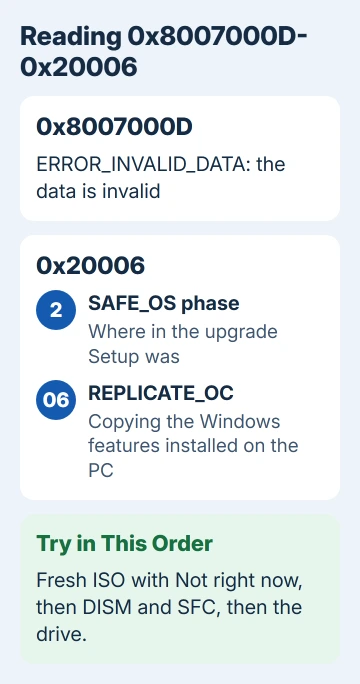
Setup errors come in two parts. The first, 0x8007000D, is the general Windows error ERROR_INVALID_DATA, "The data is invalid." It shows up when a download arrived damaged or files on the disk are corrupt.
The second half, called an extend code, says how far Setup got. In Microsoft's table of extend codes, the first digit is the phase Setup was in and the last two digits are the operation it was running.
So 0x20006 reads as phase 2, SAFE_OS, and operation 06, REPLICATE_OC. In plain words, Setup was copying your optional components, the extra Windows features on the PC, across to the new installation.
Nothing is lost when it fails: Setup rolls back and puts you back on the Windows you started with, so you've got room to work through the fixes in order.
1. Download a fresh ISO and skip Setup's updates
The usual cure for invalid data is to download again and start fresh. A new ISO (one file holding the whole Windows installer) replaces any damaged setup files, and turning off update downloads keeps Setup to what's on it.
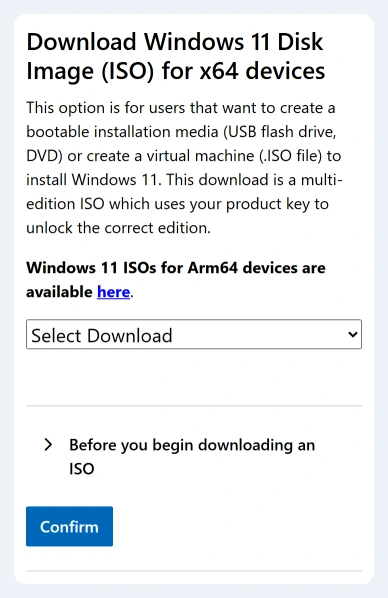
- On the Windows 11 download page, go to the disk image (ISO) section, choose Windows 11 (multi-edition ISO for x64 devices), select Confirm, pick your current language and download the 64-bit file.
- Right-click the downloaded ISO and select Mount, then double-click setup.exe on the new virtual drive.
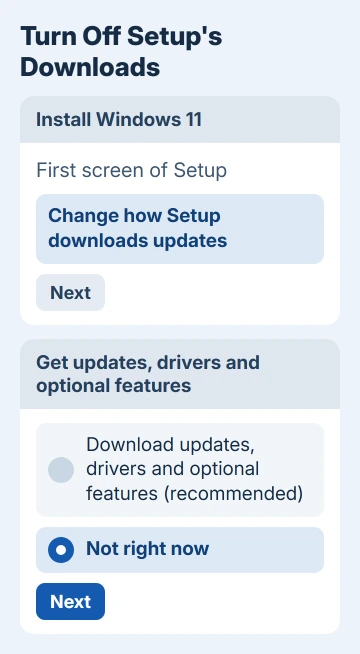
- On Setup's first screen, select Change how Setup downloads updates, then Not right now.
- Leave the default, Keep personal files and apps, in place and let Setup run.
That Not right now choice is what finally got that owner's upgrade through, once the damage underneath had been repaired. Pick the same language you use now, since the download page warns that it has to match.
2. Repair Windows' component store with DISM, then run SFC
If the fresh ISO fails with the same code, the damage is in the installed copy of Windows, not in the setup files. Open Terminal (Admin) and run these two commands, one after the other:
DISM.exe /Online /Cleanup-image /Restorehealth
sfc /scannow
DISM fetches clean copies of damaged system files from Windows Update and writes what it did to C:\Windows\Logs\CBS\CBS.log. SFC then checks the Windows files themselves against that repaired store.
Give each one time to finish, even if the percentage seems stuck. When both report success, restart and run Setup from the ISO again, with Not right now selected as before.
If SFC says Windows Resource Protection couldn't perform the requested operation even after a restart, or DISM fails outright, these tools can't repair this copy of Windows. Skip to fix 4.
3. Read what Setup wrote down
Setup leaves its own diagnosis behind. Windows Setup runs Microsoft's SetupDiag tool automatically when an upgrade fails, and saves the result in C:\Windows\Logs\SetupDiag\SetupDiagResults.xml.
Open that file in Notepad. It names the known problem SetupDiag matched and often the file, driver or component involved, which tells you whether the store is to blame or something else, such as a driver.
The raw logs sit in C:\$WINDOWS.~BT\Sources\Panther, mainly setupact.log. Keep them: anyone helping you later will ask for that folder first.
4. Check the drive before you rebuild anything
System files don't go missing in bulk for no reason. When that owner's PC turned out to be missing thousands, the volunteer who diagnosed it pointed to two causes: files deleted by accident, or a failing hard drive or SSD.
Back up your personal files first. Then run chkdsk C: /scan from Terminal (Admin), and check the drive with its maker's health tool if it has one. If the drive reports errors, replace it before you spend more time on Windows.
5. Rebuild the store, or start clean
When thousands of files are missing, DISM and SFC can't rebuild them on their own. That owner's PC had more than 3,000 missing manifest files, the small records that describe each part of Windows.
A volunteer on Microsoft's forum restored them from the owner's logs with a repair script, and the next upgrade from the ISO, with Not right now selected, went through. "Thanks, it worked!" was the owner's reply.
To get that kind of help, post in Microsoft's Q&A forum and share the Panther and Rollback folders from C:\$WINDOWS.~BT\Sources as a zip file through OneDrive.
Don't run a repair file made for someone else's PC: these fixes are built from one machine's logs.
The other way out is a clean install from a USB drive, after a full backup. Setting everything up again takes longer, but a clean install doesn't depend on the old store at all.
Our repair install guide covers the gentler reinstall options if your store is in better shape.
When Setup still fails
If a clean install also fails, suspect the hardware: the drive first, then memory. A repair shop can check both, and while the warranty lasts, that job belongs to the PC maker.
If Windows Update was failing before you tried Setup, look up that first error as well in our list of Windows Update error codes.
The Short Version
0x8007000D-0x20006 means Setup hit invalid data while copying your installed Windows features into the new copy. Mount a freshly downloaded ISO, run setup.exe and choose Not right now for updates.
If it fails again, run DISM and SFC, read SetupDiagResults.xml, and check the drive. A store missing thousands of files needs a volunteer-led rebuild or a clean install.
Checked November 19, 2026.