S mode is the usual reason a Windows 11 laptop refuses AVG: that locked-down version of Windows only installs apps from the Microsoft Store, and AVG isn't one of them.
Open Settings > System > About and read the Edition line. If it says in S mode, switch out of it for free in the Microsoft Store, then run AVG's installer again.
Not in S mode? A warning about Microsoft-verified apps points to an app setting instead, and an installer that fails or says setup is already running needs AVG's removal tool first.
In this guide
Which block are you seeing?
The wording of the pop-up points to the fix you need, so read it before you click anything away.
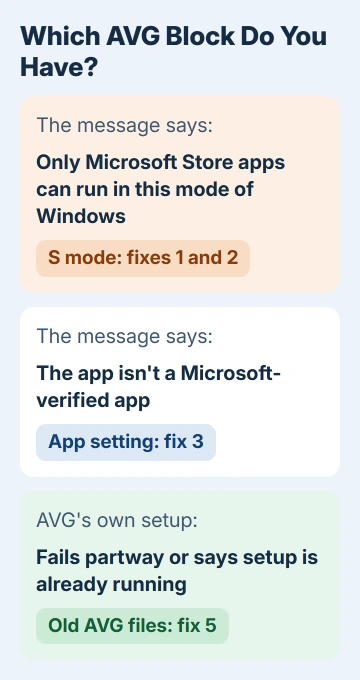
- A message that this mode of Windows only runs Store apps. One asker described it as "not an approved app from the Windows Store". That's S mode: fixes 1 and 2.
- A pop-up saying AVG isn't a Microsoft-verified app, with a link to app recommendation settings. That's an app setting on a normal copy of Windows: fix 3.
- AVG's own setup starts, then fails or says setup is already running. Leftovers from an older AVG are in the way: fix 5.
1. Check whether Windows is in S mode
Open Settings > System > About and look under Windows specifications. An Edition line reading Windows 11 Home in S mode means S mode is on; plain Windows 11 Home means it isn't, and you can go straight to fix 3.
S mode is a setting some laptops ship with that lets only Microsoft Store apps run. It exists only on the Home edition of Windows 11, and it arrives switched on from the factory.
If you moved from an old PC, that's the catch: your Windows 10 machine ran normal Windows, while the new one may have arrived in S mode without saying much about it.
2. Switch out of S mode, free but one-way
AVG can't run in S mode at all, so this is the real fix for that message. AVG's support staff say the same to customers who ask: S mode only allows apps from the Microsoft Store.
The switch is free, but it's one-way: once you leave S mode, you can't go back to it.
- Open Settings > System > Activation.
- Expand the S mode section and select Open Store.
- On the Switch out of S mode page in the Microsoft Store, select Get, then confirm.
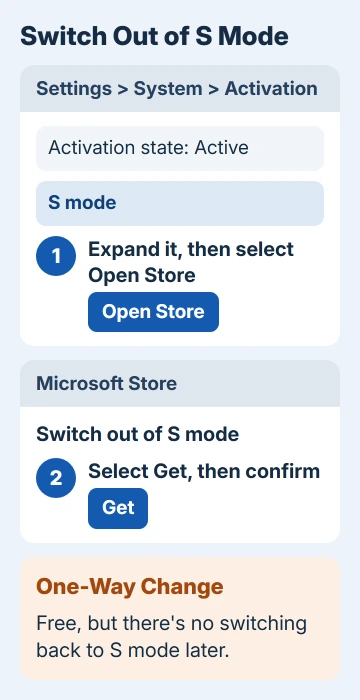
Once it confirms, apps from outside the Store install normally, and AVG's setup file should run.
Don't use any link that offers to upgrade your edition of Windows. That route sells Windows 11 Pro and isn't the free S mode switch. Our comparison of Windows 11 Home and Pro explains what Pro actually adds.
3. Let Windows accept apps from any source
On a PC that isn't in S mode, the Microsoft-verified warning comes from a setting that limits where apps can come from. Open Settings > Apps > Advanced app settings, find Choose where to get apps and set it to Anywhere.
Run AVG's installer again straight away. The setting applies immediately, so you don't need to restart.
If your Advanced app settings page doesn't show that option at all, this isn't the block you're hitting. Go back to the pop-up's wording, or move on to fix 4.
4. Download the Windows 11 version of AVG
The copy you had on Windows 10 doesn't move to a new PC by itself, and an old setup file you kept can be out of date. AVG's Windows 11 page puts it plainly: "just uninstall it and download the new version for Windows 11".
Download a fresh installer from avg.com for your edition, AVG AntiVirus FREE or AVG Internet Security, and open it from your Downloads folder. Windows then asks if AVG's installer may make changes to your PC; select Yes.
Check the basics while you're there: AVG wants 4 GB of RAM and 2 GB of free disk space. On laptops with ARM chips, such as Snapdragon models, it supports Windows 11 only.
5. Clear an old copy with the AVG Uninstall Tool
When setup fails partway, or says setup is already running, an older AVG is still partly installed. AVG's Uninstall Tool deletes every AVG file while Windows runs in Safe Mode, a basic startup where those files aren't in use.
- Download the AVG Uninstall Tool. Right-click the downloaded avg_av_clear.exe, pick Run as administrator, then answer Yes to the permission prompt.
- On the Reboot to safe mode tile, click Reboot, then Restart now.
- In Safe Mode, click Reinstall on the Remove & Reinstall tile, or Remove on the Remove only tile, then Uninstall.
- Click Restart now when it's done. If you chose Reinstall, follow the installer from there.
Uninstalling doesn't cancel a paid subscription, so this costs you nothing you've paid for.
6. Activate a paid AVG on the new PC
AVG Internet Security needs its activation code again on a new computer. Open AVG, go to Menu > Enter activation code, paste the code and select Enter.
If AVG rejects the code of a subscription that's still valid, the activation form on AVG's website gets you a working code through your AVG Account. Sign in with the email you bought it with, and keep the order email handy.
When AVG still won't install
Write down the exact message, then contact AVG's support from avg.com. If the laptop is new and the S mode switch won't complete, the laptop maker's support can check how Windows was set up at the factory.
You aren't unprotected in the meantime. Windows Security is built into Windows 11 and keeps scanning until another antivirus takes over.
The Short Version
AVG won't install in S mode. Check Settings > System > About, and if the Edition line says in S mode, switch out free under Settings > System > Activation. It's permanent, so decide first.
Otherwise set Choose where to get apps to Anywhere, download AVG's Windows 11 installer, and run the AVG Uninstall Tool if setup fails or says it's already running.
Checked November 19, 2026.