

A Trojan:Script/Wacatac.B!ml warning that keeps coming back after Remove or Quarantine, for a file you can't find anywhere, is usually a leftover in Windows Security's detection history, not a file still on your PC.
Emptying that history and the quarantine folder in Safe Mode, then running an offline scan, got rid of it for three owners on a busy Microsoft forum thread.
The name covers a lot of ground, though. Wacatac.B!ml is a broad label for suspicious script behavior, so it catches real malware and, now and then, files that are fine.
In this guide
Which Wacatac warning do you have?
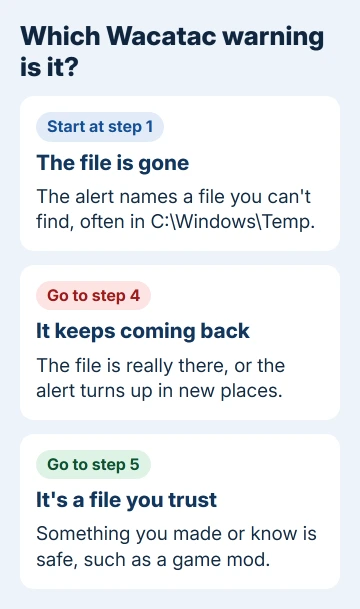
Open Windows Security > Virus & threat protection > Protection history and click the Wacatac entry. The Affected items line shows the file it flagged, and that file tells you where to start.
If the file is gone but the warning stays, start at step 1. In the original thread, both flagged files were PDFs in C:\Windows\Temp with names like PFFC44.pdf. Neither could be found, and full and offline scans didn't clear them.
If the warning returns for a file that's really there, or keeps turning up in new places, something on the PC is recreating it. Treat it as real and go to step 4.
If it flags a file you made or trust, such as a game mod or your own script, go to step 5. One owner's homemade game skin was flagged while three other scanners called it clean.
1. Update Defender, then scan the whole drive
In Windows Security, open Virus & threat protection, click Protection updates and choose Check for updates. Do this first, because every scan after it relies on Defender's latest list of threats.
Then go back, open Scan options, pick Full scan and click Scan now. It checks every file on the drive, so it takes a while; keep a laptop plugged in. If you've never run one, the Windows 11 virus scan steps explain each scan type.
If the warning is still there afterwards, don't keep pressing Remove. Move on to the cleanup.
2. Empty the Temp folders in Safe Mode
Microsoft's page for this detection tells you to clear the Temp folders in Safe Mode, and the flagged PDFs from that thread sat in one of them.
Start Safe Mode first. On Windows 11, open Settings > System > Recovery and click the Restart now button beside Advanced startup; on Windows 10 it's under Settings > Update & Security > Recovery.
When the blue menu appears, choose Troubleshoot > Advanced options > Startup Settings > Restart, then press 4 for Safe Mode when the list comes up.
In Safe Mode, press Windows+R, type C:\Windows\Temp and press Enter, then select everything with Ctrl+A and delete it. Do the same for %LOCALAPPDATA%\Temp, and %APPDATA%\Temp if it exists, skipping anything Windows says is in use.
3. Clear Defender's history and quarantine, then scan offline
Stay in Safe Mode. The ProgramData folder is hidden, so in File Explorer open View > Show and tick Hidden items first (on Windows 10, tick Hidden items on the View tab).
Go to C:\ProgramData\Microsoft\Windows Defender\Scans\History\Service and delete everything inside the Service folder. Then open C:\ProgramData\Microsoft\Windows Defender\Quarantine and delete what's inside it too.
Anything in quarantine is gone for good after this. If Defender caught a file you need, restore the quarantined file before you empty the folder.
Restart normally, open Windows Security > Virus & threat protection > Scan options, choose Microsoft Defender Offline scan and click Scan now. The PC restarts, scans before Windows loads and restarts again when it's done.
That's the answer the asker accepted, and three more owners said it worked: one wrote "that worked for me" and another said it "worked perfectly." Open Protection history afterwards and the old entries should be gone.
One owner couldn't get past a permission prompt on the Scans folder. If Windows blocks you there, check that you're in Safe Mode and signed in with an administrator account.
4. When the same warning returns for a real file
A warning that returns for a file that exists, or keeps finding new copies, means something is still running. The malware behind these detections tries to stay on the PC and switch Defender off, so don't ignore it.
Disconnect from Wi-Fi and Ethernet and repeat the Safe Mode and Temp steps. After that, open Task Manager, go to Startup apps and disable anything you don't recognize, especially entries running from AppData or Temp.
Reset your browsers to clear out extensions and proxy settings, then run the offline scan again. Change your important passwords from another device too, because this kind of malware steals information.
If it still comes back, back up the files you can't lose and reset Windows from the same Recovery page you used to reach Safe Mode, or let a repair shop clean it.
5. If it flags a file you trust
Because the label is broad, it can catch a file that's perfectly fine. Start by clearing Defender's cached signatures, the patterns it matches files against, and downloading a fresh set.
Type cmd into Start, right-click Command Prompt, choose Run as administrator and run these three lines:
cd "C:\Program Files\Windows Defender"
MpCmdRun.exe -removedefinitions -dynamicsignatures
MpCmdRun.exe -SignatureUpdate
Then right-click the file and choose Scan with Microsoft Defender (on Windows 11 it's under Show more options) to see whether it's still flagged.
If it is, send it to Microsoft for a second look through its file submission page. Home customers need a Microsoft account here, since the page won't take an upload until you're signed in, and the same account lets you track the result.
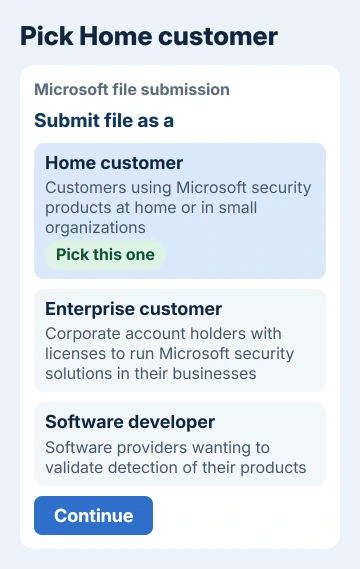
Pick Home customer (the first of the three choices), click Continue and sign in, then upload the file and say you believe it's a false positive, meaning a safe file flagged by mistake.
I'd hold off on adding an exclusion until the answer comes back, since an exclusion stops Defender scanning that file at all.
When nothing clears it
If the warning survives every step and the file really isn't there, contact Microsoft support with a screenshot of the Protection history entry. If you'd rather hand it over, a repair shop can scan the drive from another PC.
The Short Version
A Wacatac.B!ml warning for a file that's already gone is usually stale. Update Defender and run a full scan, then in Safe Mode empty the Temp folders, Defender's Scans\History\Service folder and the Quarantine folder.
Restart, start an offline scan from Scan options and check Protection history. If it keeps returning for a real file, treat it as an infection; if it flags a file you trust, refresh the signatures and submit it.
Checked November 19, 2026.
 If you have any business, I can build it online






