

PowerPoint 2016 bought as a one-time purchase can play a Morph transition, but it can't create one. That's why Morph is missing from its Transitions tab, or sits there grayed out after you add it through Customize Ribbon.
To create Morph, you need PowerPoint for Microsoft 365, PowerPoint 2019 or a later standalone version. A quick look at File > Account settles which copy you have, so start there.
In this guide
Check which PowerPoint you have
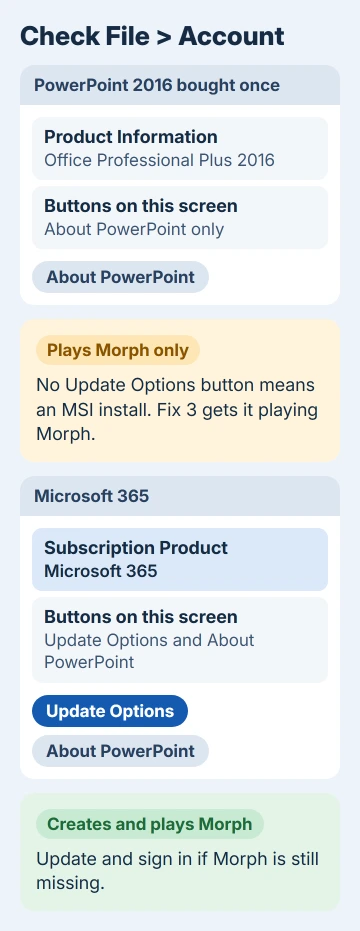
Open PowerPoint and choose File > Account. A subscription copy says Subscription Product under Product Information, with Microsoft 365 or Office 365 in its name.
A one-time purchase shows its edition there instead, such as Office Professional Plus 2016.
The same screen also tells you how PowerPoint was installed, which matters later if you only need to play Morph. An Update Options button means a Click-to-Run copy, the kind that updates itself.
Only an About PowerPoint button, with no Update Options? That's an MSI install, usually a volume license on a work PC.
If Product Information says 2016, you have your answer. PowerPoint 2016 never got the ability to create Morph, and with support for Office 2016 over since October 14, 2025, it isn't coming now.
Adding the button through Customize Ribbon won't help either. One owner of a 2016 copy tried exactly that, and the Morph button just sat there grayed out.
What each version can do with Morph
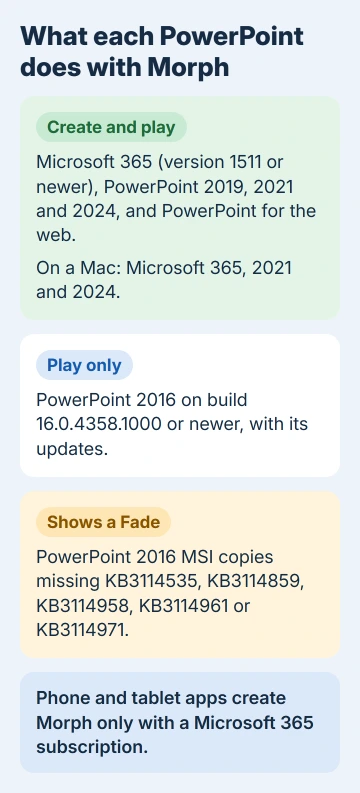
Microsoft's Morph page sorts PowerPoint versions into two groups. PowerPoint for Microsoft 365 from version 1511, PowerPoint 2019, 2021 and 2024, and the web version can all create Morph and play it.
PowerPoint 2016 is in the other group: it can only play Morph. On a Mac, Morph is in PowerPoint for Microsoft 365 (Office 365 for Mac version 15.19 or newer) and in PowerPoint 2021 and 2024 for Mac.
The phone and tablet apps can create Morph too, but only with a Microsoft 365 subscription. In the browser, subscribers can use it on files saved to SharePoint or to an organization's OneDrive.
If you're on 2016, I'd treat that list as the whole answer. The numbered fixes are for a subscription copy that still lacks Morph, a 2016 copy that won't even play it, and slides where Morph is on but nothing moves.
1. Update a Microsoft 365 copy
Morph needs version 1511 or newer, and any subscription copy that updates normally passed that years ago. If yours still lacks Morph, it hasn't been updating.
- Choose File > Account > Update Options > Update Now. If you only see Enable Updates, click it first.
- Let the update finish, then close and reopen PowerPoint.
- Back in File > Account, click About PowerPoint to see the version number. Version 1511 or anything newer can create Morph.
No Update Options button on a work PC? Then your company manages updates, and your IT help desk has to send you a newer build.
Back in 2016, one owner with a business subscription had this exact problem. They only got Morph after installing a current build with the Office Deployment Tool, an installer meant for IT admins.
2. Sign in if PowerPoint shows Unlicensed Product
Glance at the top edge of the PowerPoint window. When Office can't confirm your license, it puts the words Unlicensed Product up there and switches off most features, so Morph goes gray along with them.
Go to File > Account and sign in with whichever Microsoft account pays for the subscription, then reopen PowerPoint. On a shared PC, make sure it's your account and not a family member's with no subscription.
Still seeing Unlicensed Product after that? The subscription itself may have lapsed. Check it on your Microsoft account page, renew it if needed, then sign out in File > Account and sign back in.
3. Get PowerPoint 2016 to play Morph instead of a Fade
When someone sends you a deck built with Morph and your 2016 copy shows a plain Fade, your copy is missing updates.
A Click-to-Run copy needs version 1511 (build 16.0.4358.1000) or newer, so run Update Options > Update Now and reopen the deck.
An MSI copy needs build 16.0.4358.1000 or newer plus five updates: KB3114535, KB3114859, KB3114958, KB3114961 and KB3114971. Without them, PowerPoint 2016 plays a Fade everywhere the deck uses Morph.
MSI copies get those updates through Windows Update, once it's set to update other Microsoft products too. In Windows 11, turn that on in Settings > Windows Update > Advanced options, then check for updates.
Windows 10 keeps that switch under Settings > Update & Security > Windows Update > Advanced options. On a work PC, the help desk may lock it and install the updates for you.
4. Make Morph actually move something
Morph is there and applied, but nothing glides? It needs the same object on both slides, so it has something to move.
Right-click the slide thumbnail, choose Duplicate Slide, move or resize the object on the copy, then apply Morph to that second slide.
Text, shapes, pictures, SmartArt graphics and WordArt all morph. Charts don't, so a chart simply jumps to its new spot.
Effect Options on the Transitions tab changes how the movement behaves, and Preview plays it without starting the slide show.
5. Pick a route if you're staying on 2016
On a 2016 one-time purchase, the way to create Morph is to move to Microsoft 365 or a newer standalone version such as Office 2024. Both include it.
Downloading PowerPoint covers installing either one on a PC or a Mac.
Until then, a colleague with Microsoft 365 can add the Morph transitions to your deck, and your updated 2016 copy will play them. That works well when one person builds the slides and others present them.
On your own, I'd fake the simple moves with a Motion Path animation on the Animations tab. It slides one object smoothly across a slide, which covers a lot of what people use Morph for.
If the result looks clumsy, removing the animation takes a few clicks.
When Morph still won't appear
If File > Account shows a Microsoft 365 subscription, PowerPoint is up to date, you're signed in and Morph is still missing, contact Microsoft support through support.microsoft.com.
Have the version and build number from About PowerPoint ready, because they'll ask for them straight away.
On a work PC, start with your IT help desk instead. They control both the license and how Office gets its updates, and they'll know whether yours is a 2016 volume license that will never get Morph.
The Short Version
PowerPoint 2016 bought outright can play Morph but never create it. Check File > Account: a Microsoft 365, 2019, 2021 or 2024 copy creates Morph once it's updated and signed in.
On 2016, install the updates so Morph plays instead of fading, and use Microsoft 365 or Office 2024 to build new Morph slides.
Checked November 20, 2026.
 If you have any business, I can build it online






