

The "OneNote can't start" message blames free disk space or permission to write to your user settings folder. Yet it often turns up on PCs with hundreds of gigabytes free and an administrator account.
The usual culprit is a leftover OneNote file in the Windows temp folder, or a damaged notebook cache. Several owners on Microsoft's forum got OneNote back by clearing those temp files, so start there.
A different prompt, "We couldn't start OneNote the last time we tried," comes from a license check rather than your files, so it has its own fix in section 5.
In this guide
What the message really means
The message opens with "OneNote can't start" and then guesses at two causes: "not enough free disk space" or no "permission to write to files in your user settings folder."
OneNote keeps its settings and a working copy of your notebooks in folders under your Windows profile. When something in those folders is stuck or damaged, OneNote can't write to them and reports it as space or permission.
That's why reinstalling Office rarely helps. The bad files sit in your profile, and a reinstall leaves them alone.
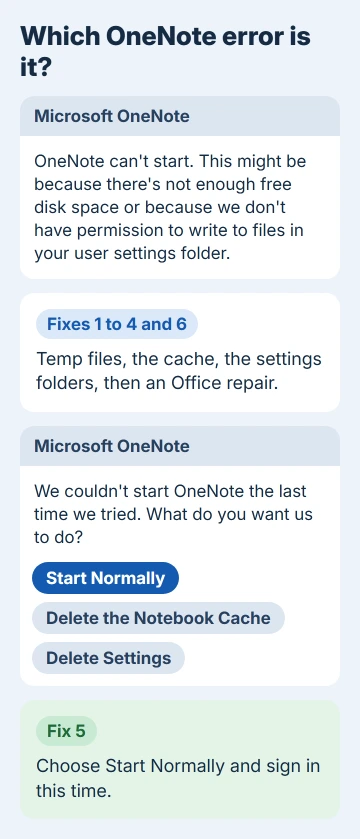
The fixes run from quickest to deepest. Close OneNote before each one, and if it still shows in Task Manager after you close it, end ONENOTE.EXE there first.
1. Rule out a nearly full drive
It takes a minute, so check it first. Open File Explorer, click This PC and look at the bar under the C: drive. Windows 11 also shows it under Settings > System > Storage.
If C: is down to its last gigabyte or two, empty the Recycle Bin and let Storage Sense or Disk Cleanup clear temporary files, then try OneNote again.
Plenty of space free? Then the message is pointing the wrong way, and fix 2 is next.
2. Delete OneNote's leftovers from the temp folder
This is the fix owners thanked most often. Press Windows key + R, type %temp% and press Enter to open your temp folder in File Explorer.
- Type onenote in the folder's search box, or sort by Name and scroll to the OneNote entries.
- Select every file and folder with OneNote in its name and delete them. Windows may refuse one or two that are still open, so skip those.
- Start OneNote again.
One owner put it simply: "Worked for me." Another owner said it worked, and they'd found it "after two hours of searching". A third had it working once they found the Run box from the Start screen.
3. Rename the notebook cache
Still stuck? The cache, the local working copy of your notebooks, may be damaged. An owner whose OneNote wouldn't start said deleting those offline cache files fixed it.
I'd rename the cache folder instead of deleting it, because it can hold changes that never reached OneDrive. If you can, open the notebook in a browser through OneDrive first and check that your latest pages made it.
- Press Windows key + R, type %localappdata%\Microsoft\OneNote and press Enter.
- Open 16.0 for OneNote 2016 or OneNote for Microsoft 365, or 15.0 for OneNote 2013.
- Rename the folder called cache to cache-old, then start OneNote.
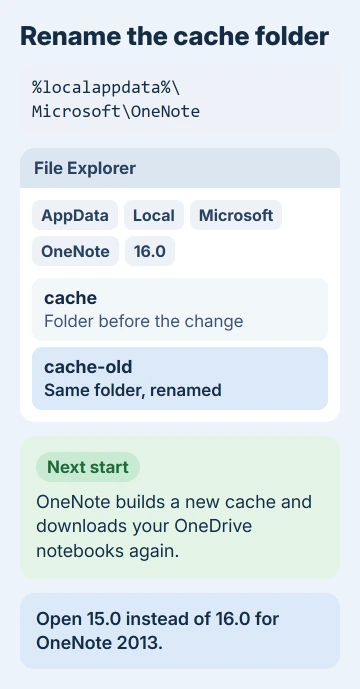
OneNote builds a fresh cache and downloads your OneDrive notebooks again, so the first start is slow. One owner whose error also showed the code 0xE000089D got OneNote running again with this temp and cache cleanup.
If OneNote opens but then shows a sync error, OneNote error 0xE000002E walks through a refresh that keeps your notes.
4. Give OneNote fresh settings folders
Right-click OneNote in Start and pick Run as administrator. Two owners found OneNote opened that way when it wouldn't open normally, which tells you it can't write to its own folders under your profile.
Running it as administrator every time isn't a real fix. Instead, close OneNote and rename its two settings folders so it can create new ones:
- Press Windows key + R, type %localappdata%\Microsoft and press Enter, then rename the OneNote folder to OneNote-old.
- Press Windows key + R again, type %appdata%\Microsoft and rename the OneNote folder there too.
- Start OneNote normally and sign in if it asks.
One owner who deleted both folders got OneNote running, though they still had to use Run as administrator afterward. If that happens to you, the repair in fix 6 or the account test in fix 7 is the cleaner way out.
Your notebooks reappear under File > Open once you're signed in.
5. Fix "We couldn't start OneNote the last time"
This prompt offers Start Normally, Delete the Notebook Cache and Delete Settings. It often appears after someone cancels the sign-in box on OneNote's first launch, because OneNote uses that sign-in to match its license to your Office.
Choose Start Normally and sign in this time.
Delete the Notebook Cache or Delete Settings will get OneNote open, but it then says "You don't have any open notebooks." Reopen them from File > Open, and notebooks stored on OneDrive come straight back.
If the prompt keeps coming back, the Microsoft Learn article on this prompt gives a registry fix. Back up the registry first with File > Export in Registry Editor.
- Press Windows key + R, type regedit and press Enter.
- Go to HKEY_CURRENT_USER\Software\Microsoft\Office\16.0\OneNote.
- Double-click FirstBootStatus, change its value to 02000202 and click OK, then start OneNote.
6. Repair Office
When the folder fixes don't help, the program files themselves may be damaged. In Windows 11, go to Settings > Apps > Installed apps, open the menu beside your Microsoft 365 or Office entry and choose Modify.
On Windows 10, the same list is called Apps & features.
Pick Quick Repair first. It's fast and works offline. If OneNote still won't start, run Online Repair, which takes longer and needs an internet connection.
7. Try a second Windows account
Create a second Windows account under Settings > Accounts > Other users (Family & other users in Windows 10) and sign in to it.
If OneNote starts there, the damage is in your own Windows profile. Moving to the new account, or having a technician repair the old one, ends the error for good.
When OneNote still won't start
Your notebooks aren't stuck with the desktop app. Notebooks saved on OneDrive also open in the browser version of OneNote, so your notes stay reachable while the PC gets sorted out.
Using OneNote on Windows covers reopening them in the desktop app afterward.
Then open a support request at support.microsoft.com. Include the exact message, any error code it shows, your Office version from File > Account, and the fixes you've already tried.
The Short Version
Close OneNote, open %temp% and delete everything with OneNote in its name. If it still won't start, rename the cache folder under %localappdata%\Microsoft\OneNote\16.0, then the OneNote settings folders in Local and Roaming.
For the "couldn't start OneNote the last time" prompt, choose Start Normally and sign in. Repair Office, and try a fresh Windows account if nothing else works.
Checked November 20, 2026.
 If you have any business, I can build it online






