Tables are one of the few things PowerPoint won't group, on Windows, Mac or the web. The Group button goes gray as soon as a table is part of the selection, and it's a design limit, not something wrong with your copy.
You can still move a table together with the shapes around it, scale a whole slide with the table inside, or paste the table as a picture that groups like anything else. Which one fits depends on how often the table's contents will change.
In this guide
Why the Group button goes gray
The note on Microsoft's grouping page is short: "If Group is grayed out, you may have selected an object that can't be grouped, such as a table." Pictures, shapes, 3D models, charts, icons and text boxes all group. Tables don't.
Content placeholders from the slide layout, the boxes that say Click to add text, act the same way. If Group stays gray with no table in the selection, check whether one of your objects is a placeholder.
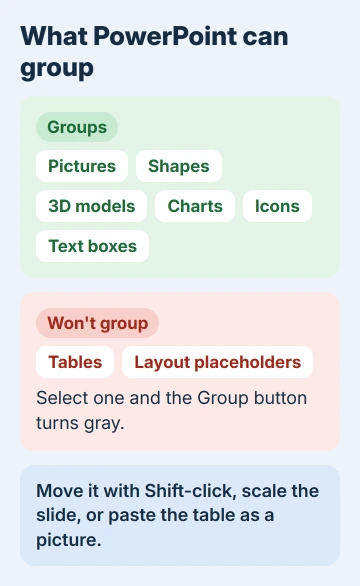
Selecting the table does work. Ctrl+A picks up tables too, though a selected table gets a different frame from the shapes around it. To select the whole table rather than a cell, click its outer frame.
The first two fixes keep your table a real, editable table. The other three turn it into something else or change the file itself.
1. Move the table with its neighbors
You don't need a group to move things together. Click the table's frame, then hold Shift and click each shape or text box that goes with it. Drag any of them and the whole selection moves, or nudge it with the arrow keys.
For a whole slide, press Ctrl+A first. To line the pieces up, keep them selected and use Arrange > Align on the Home tab.
The selection doesn't stay together after you click away, which is the one thing a group would give you. If you rearrange the same set often, fix 3 or fix 5 may suit you better.
2. Scale the whole slide, table included
One owner who hit this needed to resize everything on a slide at once for large printed posters. Changing the slide size does that without grouping, because PowerPoint scales all the content, tables included.
- On the Design tab, select Slide Size > Custom Slide Size.
- Enter the new width and height and click OK.
- If PowerPoint asks, choose Maximize to make the content bigger when scaling up, or Ensure Fit to shrink it so everything stays on the slide.
On a Mac, open Design > Slide Size > Page Setup, choose Custom and enter the dimensions. When it asks, Scale resizes the content with the slide, while Don't Scale leaves it at its current size.
Changing the slide size covers the preset sizes and what each choice does. Afterward, check the table's text size and the spacing inside its cells, since small text in a big table tends to look off first.
3. Paste the table as a picture, then group it
Once a table is a picture, it groups like any other picture. That same owner did this to resize a table in proportion, and noted the catch: "of course one then loses the ability to edit the table."
- Click the table's frame and press Ctrl+C.
- On the Home tab, select Paste > Paste Special, choose Picture (Enhanced Metafile) or Picture (PNG) and click OK.
- Shift-click the picture and the shapes that go with it, then choose Shape Format or Picture Format > Group.
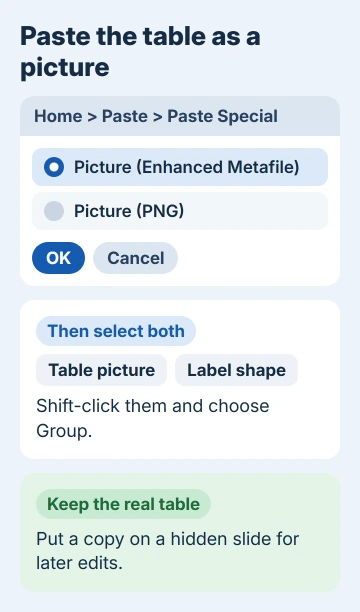
I'd pick Picture (Enhanced Metafile) for anything you'll print large. It's made of lines and text shapes rather than pixels, so it stays sharp when you scale it up, while a PNG blurs.
Keep the real table somewhere you can find it. Paste a copy onto a spare slide, right-click that slide's thumbnail and choose Hide Slide. When the numbers change, edit the hidden table and paste a fresh picture.
4. Rebuild a small table from text boxes
A table with two or three columns and a handful of rows is easy to rebuild from shapes. A filled rectangle behind each row and a text box for each cell give you something that looks like a table, stays editable and groups normally.
Adding a text box shows the basics, and Arrange > Align plus Distribute Horizontally keeps the columns even. It's more work than a picture, so I'd only do it for a table that changes often and must stay grouped.
5. Unlock grouping inside the file (advanced)
A PowerPoint MVP, one of the volunteer experts who answer on Microsoft's forum, traced the block to one setting in the file's XML (the text PowerPoint stores the slide in). Each table carries a lock called noGrp, set to 1.
Changing that 1 to 0 lets the table group. That explains how another adviser once received a client's deck with a table and a text box grouped together.
Edit a duplicate of the presentation, never the original, because a single typo can leave a file PowerPoint has to repair.
- In File Explorer, turn on View > Show > File name extensions. Rename the copy from .pptx to .zip and extract it to a folder.
- Open the ppt folder, then slides. The slide files are numbered in the order slides were added, which may not match their current order, so open each in Notepad and search for the table's text.
- In that slide file, find noGrp next to graphicFrameLocks, change its value from 1 to 0, keeping the quote marks around it, and save.
- Open the extracted folder, select everything inside it, right-click and choose Compress to ZIP file (Send to > Compressed (zipped) folder in Windows 10). Rename the new zip to .pptx.
- Open it in PowerPoint and group the table with its neighbors.
The same MVP expected Microsoft might close this gap one day, so stick with the picture route for anything that has to keep working in future versions.
When you still need a grouped, editable table
No setting switches table grouping on and no update adds it, so reinstalling or repairing Office won't change anything. These five routes are what works today.
If you'd like Microsoft to add it, send a suggestion with Help > Feedback inside PowerPoint and describe what you're trying to do, such as keeping a table and its labels together on a poster.
The Short Version
PowerPoint won't group tables. Select the table's frame with Shift-click or Ctrl+A to move it with other objects, change Slide Size to scale everything, or paste the table as a picture and group that.
For a small table, rebuild it from text boxes. Changing the noGrp lock from 1 to 0 in a duplicate file is the advanced route.
Checked November 20, 2026.
 If you have any business, I can build it online