A WHEA-Logger entry in Event Viewer is a hardware error report. The processor, a PCI Express link or the memory told Windows something went wrong, and Windows wrote it into the System log, whether or not you noticed anything.
A corrected-error warning on a PC that runs fine can usually wait. Restarts or freezes need action, so start with a BIOS update: it ended one owner's gaming restarts after a new power supply and RAM tests didn't help.
In this guide
Read the event before you change anything
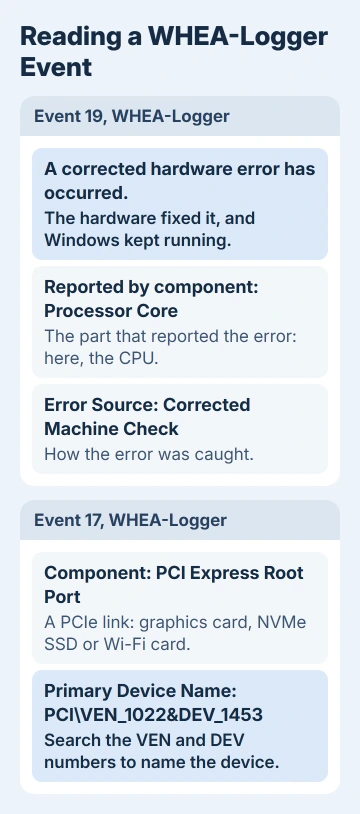
Right-click Start and open Event Viewer. Go to Windows Logs > System, choose Filter Current Log in the Actions pane, and pick WHEA-Logger under Event sources. Open an entry and read its General tab.
Three parts of it tell you most of what you need:
- The first line. "A corrected hardware error has occurred." means the hardware caught the error and fixed it, and Windows kept running.
- The component. "Processor Core" with the error source "Corrected Machine Check" is the CPU reporting on itself, which shows up as Event 19. "PCI Express Root Port" with "Advanced Error Reporting (PCI Express)" is a PCIe link, usually Event 17.
- The device line. PCIe reports also list a Primary Device Name with VEN and DEV numbers (the vendor and device IDs). Search those numbers to find the card or drive behind the link.
A fatal error is different. The hardware couldn't fix it, so Windows stops with a blue screen, and the crash shows WHEA_UNCORRECTABLE_ERROR. That stop code has its own guide.
One owner saw Event ID 1 instead, next to Kernel-Power 41 entries from restarts during one game. Kernel-Power 41 only says Windows didn't shut down cleanly; the WHEA entry beside it points at why.
Corrected warnings on a PC that runs fine
Corrected errors are the hardware doing its job. Windows logs one when errors from the same source cross a set limit, and the PC carries on. I wouldn't chase a handful of them on a PC that never crashes.
Note the date and how many there are, then check again in a week. It's time to act when they climb to dozens a day, or when restarts, freezes or blue screens start.
1. Update the BIOS
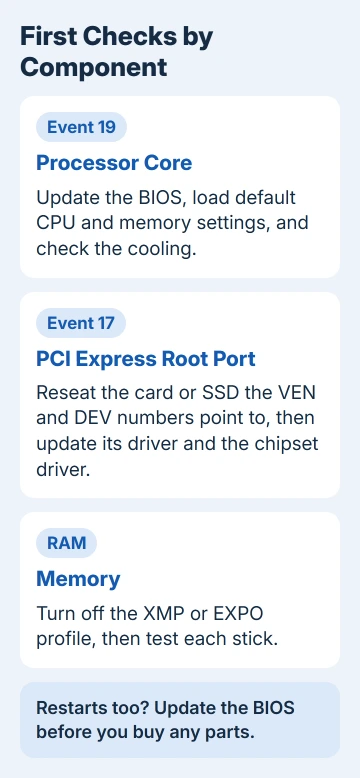
This is the fix with a real result behind it. The owner with the Event ID 1 entries had a Ryzen 5 5600X desktop that restarted whenever Battlefield 2042 launched, even though CPU and GPU stress tests ran clean.
They eventually found a newer BIOS for the board, and after installing it, they said the problem looked fixed.
- Press Windows + R, type msinfo32, and note BaseBoard Manufacturer, BaseBoard Product and BIOS Version/Date. On a laptop, note the System Model instead.
- Download the newest BIOS for that board or model from its maker's website. The release notes often mention stability fixes.
- Install it with the maker's own update tool, and leave the PC alone until it restarts by itself.
A power cut during the update can leave the board unable to start at all, so keep a laptop on its charger the whole time.
2. Put CPU and memory settings back to default
Overclocking here means more than raising the CPU speed by hand. Precision Boost Overdrive, an undervolt, and an XMP or EXPO memory profile all run parts outside their stock settings, so they count too.
One owner with Event 19 warnings had both a factory overclock and an undervolt running. Microsoft's notes on the related blue screen say to try turning overclocking off.
Open the BIOS, use its option to load default settings, save, and restart. Then use the PC normally for a few days. If the errors stop, bring your settings back one at a time while you watch the log, or leave them at default.
3. Check cooling
Heat can trigger that crash too. Make sure every fan spins, clear dust out of the heatsink and vents, and watch the CPU temperature during a game in the board or laptop maker's monitoring app.
4. Trace a PCI Express error to its device
For Event 17 and other PCIe reports, the Primary Device Name tells you where to look. A graphics card, an NVMe SSD and a Wi-Fi card each sit on their own PCIe link, the fast connection between that part and the motherboard.
With the PC off and unplugged, reseat the card or drive the hardware ID points to (take it out and push it firmly back in). Then install that device's newest driver and the chipset driver from the motherboard maker's page.
One owner with Event 17 errors still had restarts after a new BIOS and AMD's latest chipset drivers. Treat these steps as checks rather than cures, and write down what you changed and when.
5. Power supply and RAM tests
Sudden restarts during games make people blame the power supply first, and Kernel-Power 41 can come from an interruption in power. For the Battlefield 2042 owner, a new power supply changed nothing.
Turning off the CPU's C-states (its power-saving modes) in the BIOS didn't help either. Neither did testing each RAM stick alone or swapping in a known-good graphics card.
Those are sensible tests, but they cost time and money, so run them after the free fixes. When the restarts come without any blue screen, reading the Event 41 entry shows which kind of shutdown it was.
When the part itself is failing
WHEA errors that survive a BIOS update, default settings and good cooling point at the hardware named in the Component line. A processor that's starting to fail is one known cause of the WHEA_UNCORRECTABLE_ERROR crash.
Send the event text to the PC's maker (or the motherboard's, on a self-built PC), say what you've already ruled out, and ask about a warranty claim. Out of warranty, a repair shop can swap in a known-good part to confirm the fault.
The Short Version
A WHEA-Logger entry is your hardware reporting an error. A few corrected warnings on a stable PC can be watched. With restarts or crashes, update the BIOS, load default settings, check cooling, and trace PCIe errors before buying parts.
Checked November 20, 2026.
 If you have any business, I can build it online