Visual Basic 6 still installs on Windows 11, and the hang near the end has a known cause: the Data Access components, ADO and RDS in particular. Run setup as an administrator, pick Custom and leave those two out, and it finishes.
Already frozen at "Setup is updating your system"? A locked registry permission causes that, and a quick change in Registry Editor lets setup run again. Two owners got through with the Custom route alone.
In this guide
What still works on Windows 11
Microsoft's support statement for VB6 splits it in two. Programs built with VB6 get "It Just Works" compatibility on supported Windows versions, but the VB6 editor itself (the development environment) lost support on April 8, 2008.
So your finished apps keep running, but installing the editor is a do-it-yourself job with no official help if it misbehaves. The steps that follow are the ones owners got working.
Before you start
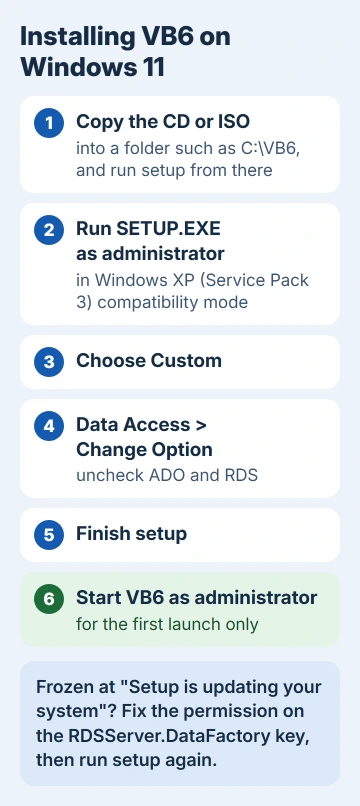
Copy everything from the VB6 CD or ISO into a new folder on drive C:, such as C:\VB6, and run setup from that folder instead of the disc. Keep the product ID from the CD case handy, and close other programs.
The same steps cover the full Visual Studio 6.0 suite. One owner who'd been stuck at "Setup is updating your system" ended up with both VB6 and Visual C++ 6 working.
1. Run setup as administrator in compatibility mode
- Right-click SETUP.EXE in that folder and choose Properties.
- On the Compatibility tab, check the compatibility mode box and pick Windows XP (Service Pack 3) from its list.
- Check the box that runs the program as an administrator, then select Apply and OK.
- Double-click SETUP.EXE to start.
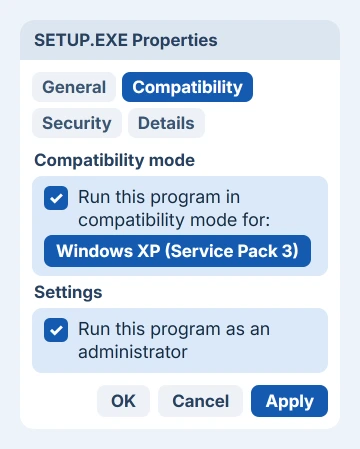
One owner who asked about the hang used these settings and a step-by-step video, and wrote back that it "indeed worked".
No Compatibility tab? One Windows 10 owner saw only General, Security, Details and Previous Versions. In that case, right-click SETUP.EXE and select Run as administrator instead.
2. Choose Custom and leave out ADO and RDS
Click through the setup screens until it asks for the installation type, then pick Custom. In the component list, select Data Access, choose Change Option, and uncheck the ADO and RDS item before you continue.
Leave that item checked and setup stalls at the very end and never finishes. Skipping it worked for two owners who'd hit the same stall. If you don't need database features at all, unchecking Data Access entirely is even simpler.
RDS stands for Remote Data Services, and installing it means writing to the protected RDSServer.DataFactory registry key from step 3. Leave it out and setup never has to touch that key, which is why this route avoids the freeze.
3. Frozen at "Setup is updating your system"? Fix one permission
A Microsoft engineer who hit this freeze at two companies traced it to one registry key, HKCR\RDSServer.DataFactory\Clsid. By default, only the built-in TrustedInstaller account has full control, so setup stalls trying to change it.
- End the frozen setup in Task Manager.
- Press Windows + R, type regedit, and press Enter.
- Go to HKEY_CLASSES_ROOT\RDSServer.DataFactory\Clsid, right-click Clsid, and choose Permissions.
- Select Advanced, choose Change next to the owner, type your user name, and select OK twice.
- Back in Permissions, select Administrators, check Allow for Full Control, and select OK.
- Run SETUP.EXE again.
Once VB6 is installed, put the key back the way it was: make NT Service\TrustedInstaller the owner again and remove the Full Control you added. A reader who tried the fix wrote back to say it helped.
4. Start VB6 as administrator the first time
For the first launch, open Start, find Visual Basic 6.0, right-click it and select Run as administrator. After that, it can open normally.
No shortcut in Start? Look for VB6.EXE in C:\Program Files (x86)\Microsoft Visual Studio\VB98. Right-click it, then go to Show more options > Send to > Desktop (create shortcut).
If Run as administrator is missing from that shortcut later, fix the grayed-out option first.
If setup sits at "searching for installed components"
That stall comes earlier, and it's usually just slow: setup scans your folders for older copies before it installs anything. One owner waited about 12 minutes before it moved on, so be patient before you end it.
If it really never moves, one support answer suggested disconnecting a second hard disk and running setup again, since the scan reads through your drives looking for old copies.
When the editor still won't behave
Sometimes setup finishes and the editor still misbehaves. One owner who forced setup past several files got an "Unexpected Error" message when opening VB6 afterwards, and no fix turned up for them.
Before anything bigger, try Windows' Program Compatibility Troubleshooter. It's under Settings > System > Troubleshoot > Other troubleshooters; run it from there and point it at VB6.EXE.
If it still misbehaves, run VB6 in a virtual machine (an older Windows running in a window on your PC), the fallback one adviser suggested. Other old programs hit the same walls on a modern PC, as Paint Shop Pro 7 owners found.
Programs you've already built don't need the editor at all, because the VB6 runtime that runs them is still supported on Windows 11.
The Short Version
Copy the VB6 files to a folder, run SETUP.EXE as administrator in XP mode, pick Custom and uncheck ADO and RDS. If setup froze, give Administrators control of the RDSServer.DataFactory key, then restore it. Open VB6 as administrator once.
Checked November 20, 2026.
 If you have any business, I can build it online