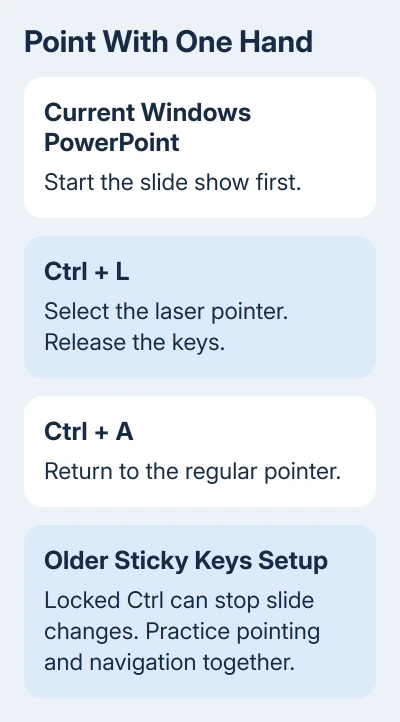
Yes, PowerPoint can show a laser pointer without keeping Ctrl held down. In current Windows desktop versions, start the slide show and press Ctrl+L to select the laser pointer; Ctrl+A returns to the normal pointer.
For an older PowerPoint setup that relies on Ctrl plus a mouse click, Sticky Keys can lock Ctrl. However, that can stop normal slide navigation, so use PowerPoint's own pointer command first.
In this guide
1. Select the laser pointer with Ctrl+L
Start the show with Slide Show > From Beginning, or press F5. Press Ctrl+L once, release both keys, and move the mouse over the slide. PowerPoint's keyboard shortcut selects the laser pointer without asking you to keep Ctrl pressed.
Press Ctrl+A when you want the ordinary pointer again. These shortcuts belong to the running slide show; in the editing window, the same keys can do other jobs. Switch back to the show before trying them.
Microsoft includes these shortcuts in the presentation keyboard shortcuts. Those instructions cover supported desktop editions. PowerPoint 2010 may handle those shortcuts differently.
I'd try this before changing Windows keyboard settings. It changes the pointer inside PowerPoint, so you won't leave Ctrl held down for commands in other apps.
If you need your notes while presenting, Presenter View keeps them separate from the audience's slides. Rehearse with the same view you'll use during the talk, including returning to the ordinary pointer.
2. Use Ctrl and the mouse for a brief highlight
For a temporary laser dot, hold Ctrl, then press and drag the left mouse button across the slide. Release the controls to finish pointing and resume normal slide navigation. This remains useful when you only need to highlight one detail.
Press Ctrl before moving the mouse to show the audience the laser dot before the ordinary pointer. The dot moves with the mouse while you're pointing, rather than marking a permanent spot on the slide.
The limitation is physical: it requires a keyboard hand and a mouse hand. You'll still need both hands, but this checks whether the laser tool works before you try Sticky Keys.
If this combination works but Ctrl+L doesn't, try the older-version workaround. If neither works, check that desktop PowerPoint's slide show is active. The browser edition has different controls.
3. Lock Ctrl with Sticky Keys on an older setup
One owner in the original Windows 8 discussion confirmed that Sticky Keys could keep Ctrl active after they released the key. They pressed Shift five times to enable Sticky Keys, accepted the prompt, then pressed Ctrl twice.
After that, pressing the left mouse button produced the laser dot without holding a keyboard key. If the Shift shortcut doesn't open a prompt, use Windows' accessibility settings to turn Sticky Keys on instead.
On Windows 11, open Settings > Accessibility > Keyboard > Sticky keys. Windows 10 puts it under Settings > Ease of Access > Keyboard. Enable Sticky Keys and open its options to allow locking a modifier key when pressed twice.
On Windows 8, the keyboard prompt links to the Ease of Access Center. Open the Sticky Keys settings there and enable the option to lock modifier keys when pressed twice in a row. Ctrl is one of the modifier keys covered by that setting.
Before using it, also enable the option to turn Sticky Keys off when two keys are pressed together. That gives you the exit used in the confirmed workaround: press Ctrl+Shift together to leave Sticky Keys mode.
Try the setup in a practice show. Once the laser dot appears, try moving to the next and previous slides too. You'll need both pointing and navigation to work during your presentation.
4. Release Ctrl when slide navigation stops
The same presenter later reported that locked Ctrl stopped the usual slide controls from working. Mouse clicks, Page Down and the directional keys didn't advance the show. Pointing worked with one hand, but slide navigation didn't.
If that happens, leave Sticky Keys mode with Ctrl+Shift when the two-key exit option is enabled. Then advance the slide normally. This lets you keep using the older setup, although you must switch modes between pointing and navigating.
Sticky Keys affects Windows keyboard input, so leaving Ctrl locked after the show can change what your usual commands do in other apps. Finish the practice by opening another app and checking that typing and shortcuts behave normally.
A Windows 8 tablet owner could display the on-screen keyboard but couldn't activate the laser with it. That didn't solve their problem, so don't rely on the on-screen keyboard as a replacement for a physical one.
The older add-in workaround and its limit
Later replies confirmed a setup with more steps, using Shortcut Manager for PowerPoint and its companion Shortcuts for PowerPoint. Those are third-party add-ins, even though the discussion described them as Microsoft add-ons.
The presenter assigned Ctrl+Right to Next slide on all slide shows and Ctrl+Left to Previous slide on all slide shows. With Ctrl locked, the directional keys could then move through slides while the mouse provided the laser dot.
That owner confirmed the combined setup worked, but also reported having to leave Sticky Keys before restarting the show after its end. I'd save this older workaround for an older setup, after trying PowerPoint's own pointer shortcut.
For a managed computer, ask IT about compatibility before adding software. The PowerPoint add-ins guide explains the different add-in types; installing one doesn't give every PowerPoint edition the same commands.
Before presenting to remote viewers
Run a short rehearsal with a viewer on the receiving end. Point at a specific word, advance a slide and switch back to the normal pointer. Screen sharing, window sharing and an uploaded presentation can handle pointers differently.
If the laser works locally but viewers can't see it, ask the meeting organizer to check how the presentation is being shared. Give them the PowerPoint version, meeting app and sharing mode rather than changing Sticky Keys again.
The Short Version
Use Ctrl+L in a current Windows slide show, then Ctrl+A to return. Older setups can lock Ctrl with Sticky Keys, but slide navigation may stop. Rehearse pointing and slide changes, and release the locked key afterward.
Checked November 21, 2026.
 If you have any business, I can build it online