The old OneNote sign-in loop on a freshly rebuilt Windows 7 PC was fixed for several owners by installing Internet Explorer 11. The correct password was accepted, but the sign-in window closed without connecting OneNote to the account.
That was a 2016 repair, not a supported setup to rebuild today. For a Windows 7 machine still holding notes, preserve them first and open the account on a supported computer before changing the old installation.
In this guide
1. Match the disappearing-window symptom
Check what happens after entering the password. In the saved discussion, an incorrect password produced an error, while the correct one made the window vanish without signing OneNote in. That differs from an explicit wrong-password message.
The original report followed a Windows 7 rebuild and a password change. The owner could sign in through a browser, but the desktop program kept acting as though they hadn't signed in. Reinstalling OneNote and restarting hadn't resolved it.
On a supported computer, try opening that account in a current browser. If it opens the account and notebook there, you have a working route to the cloud notes while planning the old PC's replacement.
A browser login checks the account separately from the old desktop client. It doesn't confirm that recent notes on Windows 7 uploaded. Keep the old notebook available until you've compared its contents with the online copy.
If the browser also refuses access, follow its account recovery or verification instructions first. Write down the error text so support can distinguish account access from a desktop sign-in window that silently closes.
2. Understand the fix owners confirmed in 2016
One owner reported fixing the loop immediately after installing Windows 7 and OneNote from scratch by upgrading Internet Explorer to version 11. A later reply reports another successful IE11 installation.
That later reply added a second action: signing into the notebook website in IE, then choosing its old Edit in OneNote command. OneNote opened and was signed in. That success was with the older Windows and OneNote setup.
The asker later said a community member's solution worked after earlier advice failed. That supports the old fix. The download may no longer be available, and the sign-in service may no longer work on Windows 7.
Microsoft's browser lifecycle guidance explains that Internet Explorer support follows the relevant operating system. Windows 7 itself is out of support, so IE11 isn't a lasting fix for a computer you use today.
Consider that difference before following a search result to an archived installer. The old success explains why another password reset wasn't needed for those owners. It doesn't justify installing an unknown browser package now.
3. Save the notes that haven't reached the account
If OneNote still opens its local notebooks, inspect the pages edited most recently. Compare them with the online notebook on the supported computer. Look at attachments and ink as well as text.
Put any missing text in a separate document. Save important attachments as individual files too. Keep that copy on storage you can read from the newer computer. Start with recent work that isn't visible online.
Where the desktop app offers File > Export, export the page or section you need and inspect the result. A PDF keeps a readable copy; a OneNote-format file serves a different purpose. Choose based on what needs preserving.
Keep the original notebook files and a backup of the old PC while you check the exported material. Don't remove OneNote just because the web notebook opens: the web copy may still lack the final work from that machine.
If the notebook itself is missing, rather than OneNote just showing you as signed out, use the missing OneNote notebook checks. Locate the material before treating the login loop as its only obstacle.
I'd preserve the last edited section before spending time on any old sign-in workaround. Replacing software is straightforward compared with reconstructing notes that never reached the account.
4. Open the notebook in supported OneNote
On a supported Windows computer, install or open the current OneNote desktop app from the official Microsoft source. Sign in with the account containing the notebook, then open it from that account's notebook list.
If the notebook opens first in OneNote for the web, use Open in Desktop App to open it in the installed app. That is the current equivalent of the old website's desktop-opening command; it doesn't require Internet Explorer.
Compare the notebook with the saved material from the old PC. Add missing notes to the intended section only after confirming which copy is current. Avoid editing on both computers while you're bringing the pages together.
Make a small new edit in current OneNote and confirm it reaches the web copy. Then check that the notebook reopens normally. Those checks show that OneNote on the new computer can open the notebook and sync your changes.
For a notebook kept only on that PC, transfer its local files or exports too. Signing in doesn't upload a local notebook automatically. If its format won't open, ask support about conversion before discarding it.
For the different case of OneNote 2010 failing to connect to Windows Live, check how two-step verification affects sign-in. Don't assume every old OneNote login failure has the same cause.
5. Keep account security in place
The original asker disabled two-step verification and got the tablet signed in, but the PC still failed. Turning that protection off didn't solve the desktop loop. Keep it enabled while you move to a current client.
The saved replies don't confirm that making Internet Explorer the default browser fixed anything. One owner objected to that suggestion, and the successful reports specifically mentioned installing IE11 on the old system.
Don't copy those historical browser steps onto a Windows 11 computer. A current OneNote sign-in failure needs its own error details and current support advice, rather than changes designed for Windows 7's older components.
If current OneNote fails too, note whether other Office apps can sign in and whether the browser opens the notebook. Tell support what type of account you use and whether the prompt closes silently or displays a message.
Ask for help preserving an old notebook
From current OneNote, open its help options and request support for transferring the old notebook. At work, ask IT to handle the move, giving them the Windows version and the page titles that haven't uploaded.
Ask specifically for local notebook transfer or conversion help if the newer app can't read the saved copy. Keep the old PC and backup intact until the transferred notes are complete and readable.
The Short Version
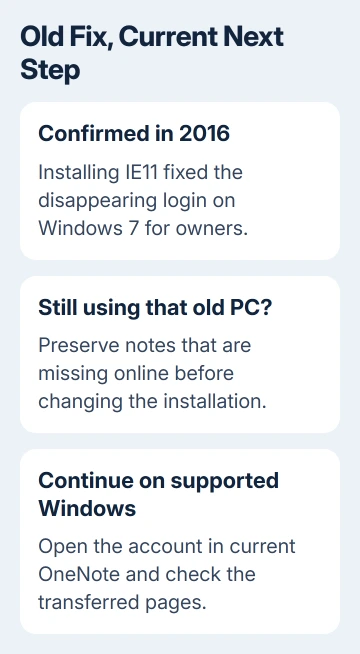
IE11 fixed this specific Windows 7 loop for owners in 2016. Today, save local-only notes and use supported Windows and OneNote to access the account. Check the transferred pages and sync before retiring the old installation.
Checked November 21, 2026.
 If you have any business, I can build it online