

Tiny PowerPoint menus between monitors usually point to mismatched display scaling. Update both PowerPoint and Windows first: early PowerPoint 2016 needed fixes to resize its editing controls when moved between screens.
Blurry text is a related but different result. If the ribbon stays tiny, check that the sizing fix is installed. If it's large enough but looks soft, try the compatibility and scale checks next.
In this guide
1. Check the PowerPoint build and installation type
Open File > Account in PowerPoint. Look for Update Options and open About PowerPoint to note the full version. Update Options identifies Click-to-Run; an MSI installation uses Windows Installer and doesn't show that control.
Microsoft's PowerPoint sizing fix lists these historical minimums for Windows 10 version 1607 or later: 16.0.7369.2024 for Click-to-Run and 16.0.4483.1000 for MSI.
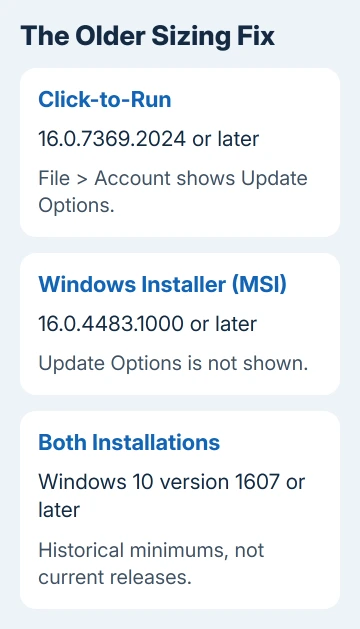
These are minimums for the historical fix. Press Windows+R, enter winver, and check Windows too. An early Windows 10 release could still prevent resizing even after Office received the update.
With Click-to-Run, choose File > Account > Update Options > Update Now. Close Office when prompted, then reopen PowerPoint. For MSI, ask your administrator to check installed Office updates against the MSI minimum.
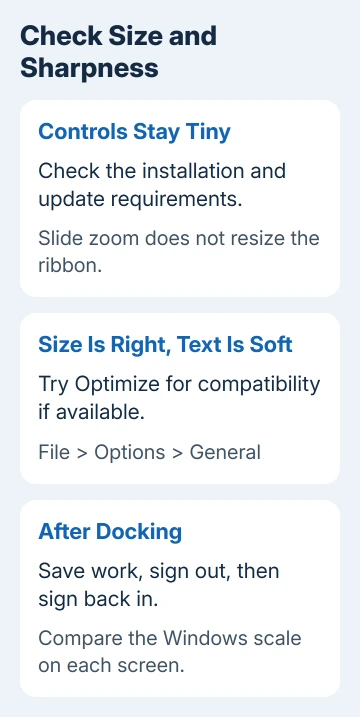
Drag the editing window onto the other screen. Its ribbon and menus should resize for that display. The slide zoom slider magnifies slide content only, leaving the size of PowerPoint's controls unchanged.
If the controls resize but text remains soft, continue to compatibility mode. If they don't resize at all, keep the build and installation type ready for the next checks.
2. Separate the old sizing fix from later display improvements
The archived 2016 discussion announced an initial fix for Click-to-Run. The later support article also lists an MSI sizing fix. Don't treat the early announcement as the final word on whether MSI ever received a repair.
There is another important limit: later improvements that keep text sharp while moving between screens were distributed to Microsoft 365 and Office 2016 Click-to-Run. Office 2016 MSI couldn't receive that broader set of improvements.
MSI can have the sizing fix without the sharp text of newer subscription builds. Correctly sized controls can still look soft when displays use different scales. Check both readability and size when judging the result.
Check the failure you actually have after updating. Does the ribbon stay small, become correctly sized but blurry, or look right until the laptop docks? Those results point to different remaining adjustments.
If several apps look soft, use the Windows second-monitor scaling checks. This PowerPoint guide focuses on its version requirements and the difference between tiny controls and blurry text.
3. Try compatibility mode for a window that looks soft
Open File > Options > General. Under User Interface options, look for When using multiple displays. If available, choose Optimize for compatibility, confirm the choice, and restart PowerPoint.
Compare the same slide and ribbon on both displays. This mode changes how Office handles the displays. Keep it only if PowerPoint is easier to use on your monitors.
If that setting isn't present, don't search for a replacement registry switch. The controls available depend on the Office build. Continue with signing out and comparing the Windows scale values instead.
I'd adjust just one control, then move PowerPoint between the displays before trying another. Otherwise a new primary screen, a different scale and an Office mode change can hide which adjustment helped.
If compatibility mode makes the result worse, return to the previous mode and restart PowerPoint again. A blurry but readable window and a crisp but tiny window are different tradeoffs; judge both size and sharpness.
4. Refresh the display setup after docking
Save open documents, connect your usual monitors, then end your Windows session by signing out. Sign in again with that display setup connected. Signing out closes the session, so it isn't the same as locking the PC and unlocking it.
Open PowerPoint again and check the primary monitor first, then the other screen. This can help when the trouble started after docking, undocking or changing scale settings, because apps can retain the earlier display setup.
If that restores a clear window until the next docking change, note the timing. Tell IT when it happens, so they can repeat the same docking steps and see the problem.
If the second monitor doesn't show a picture at all, check the HDMI display settings first. PowerPoint scaling changes can't repair a display Windows hasn't detected.
5. Compare matching scale values on the two screens
Open Settings > System > Display. Select each monitor using its numbered rectangle and note its current scale. Use Identify if you aren't sure which rectangle represents the laptop screen.
On Windows 10, the control appears under Scale and layout as Change the size of text, apps, and other items. On Windows 11, use Scale under Scale & layout. Check resolution separately; it isn't the same setting.
Try the same available scale value on both screens. For example, try 125% when one screen normally uses 150% and the other 100%, provided both displays offer that value.
After saving your work, sign out, then log in again to apply those values. Move PowerPoint between displays again. Matching scales avoids resizing between screens, though laptop text might be less comfortable to read.
If the matched value makes one screen hard to read, restore that screen's original scale. This is a comparison and possible workaround, not a reason to keep text too small for everyday work.
Avoid editing powerpnt.exe.manifest to force scaling. One owner reported success with that workaround, but it modifies an Office program file and changes rendering behavior. The supported controls and update checks are the better route.
When PowerPoint still refuses to resize
Tell IT both scale percentages, the Windows version, PowerPoint build and installer type. Describe whether controls, slide-show output or sharpness fail, and what happens when you move the window after a fresh sign-in.
Support for Office 2016 on Windows ended on October 14, 2025. Ask IT to compare a supported Office version on the mixed-display setup if the older app remains unusable. A new 2016 patch isn't coming.
The Short Version
Check PowerPoint's update requirements for Click-to-Run or MSI first. Separate tiny controls from blurry text, then try compatibility mode, a fresh Windows sign-in and matching scale values. Slide zoom won't resize the ribbon.
Checked November 21, 2026.
 If you have any business, I can build it online






