

A frozen OneDrive account can trigger Android OneNote error 0x803D0013 without an account warning in the app. Open OneDrive using OneNote's account address and resolve its storage or access warning first.
Several owners restored OneNote this way after reinstalling hadn't helped. If OneDrive opens normally, check that OneNote is signed into the notebook owner's account before resetting its sign-in.
In this guide
1. Find the account OneNote is actually using
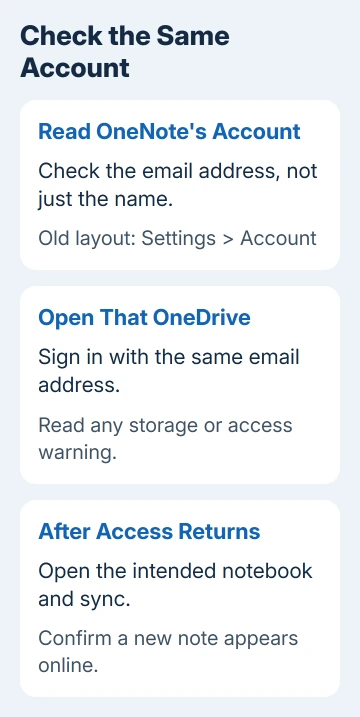
Open OneNote's account controls and read the email address. In versions with the older notebook interface, the route is Notebooks > three-dot menu > Settings > Account. In a newer layout, start with the profile picture or initials.
Write down the email address. You can't reliably match the accounts by display name alone. A personal address and a work or school address can look similar in the app while leading to different notebook storage.
One owner discovered OneNote was using their calendar account instead of their notebook account. Restoring the calendar account's OneDrive access let them open the intended notebook and remove the unwanted account.
If an old app won't get past its startup error, disable Wi-Fi and the cellular connection, then try opening it again. That owner reached the account controls offline. Turn the connection back on before trying to sign in or sync.
Opening offline can show the account details, but syncing requires internet access and an account that works. If it doesn't get you into the app, use the accounts you recognize to check OneDrive rather than repeatedly reinstalling OneNote.
2. Open that same account in OneDrive
In a browser, open OneDrive and enter the account address you recorded in OneNote. If the browser has opened a different account automatically, use its account menu to switch before judging the result.
Look for an account-frozen, storage-full or access warning. In the original Android thread, owners found a frozen-account notice here that OneNote hadn't shown. Restoring the account's access let the app load again.
Microsoft's frozen OneDrive account instructions explain the current storage route. An account can be frozen after remaining over its storage allowance or after a long period without signing in.
Follow the warning displayed for that account. If OneDrive displays files and opens the notebook without a warning, continue by checking the notebook account and syncing instead of buying storage for an account that isn't full.
An actual Microsoft account security block is different from a OneDrive storage restriction. Follow the sign-in page's recovery instructions for that account rather than treating every access message as the same error.
3. Resolve the storage warning and allow it to clear
When personal storage is over quota, delete unwanted content or increase its storage allowance. Check the account address again before changing a subscription, particularly when the browser remembers multiple accounts.
Preserve the notebook and any files you need before deleting cloud content. Synced deletions can reach your other devices; removing the wrong notebook would turn a sync problem into missing work.
The OneDrive storage cleanup guide explains how to review usage and clear unneeded content. Use the actual storage meter and warning rather than the amount of free space on your Android phone.
Cloud storage and phone storage are separate. A phone with plenty of space can still fail to sync to an account that's over its cloud allowance, so clearing the phone's photo cache doesn't resolve that quota.
Allow as much as 24 hours for the storage change to apply. If the account remains frozen after 48 hours, use the support route in the frozen-account help page and give support the account warning and time you reduced its usage.
The 2017 thread described an unfreeze link followed by a possible 24-hour wait. Don't expect that exact old button on today's account page; follow the warning and storage controls your account shows now.
4. Return to the intended notebook and force a sync
Once OneDrive access works, return to OneNote with internet access enabled. Open the notebook belonging to that same account. Keep the app in the foreground while it catches up, especially if this is its first successful download.
In the notebook list, open the three-dot menu and choose Sync all if available. To sync a single notebook in the older Android interface, open its menu and choose Sync (account name) notebook.
If you're changing accounts, add the intended account through OneNote's account controls and open a notebook from it first. Check that its expected sections and recent pages appear before removing an account you no longer want in the app.
The owner who found the unwanted calendar account also selected a section in the intended notebook for new individual notes. Check where your next quick note is going so you don't keep writing into the old account by accident.
Check that notes actually sync once the error disappears. Add a short test note, let it sync, and open that notebook online to confirm the new note arrived. Then check that the pages you were waiting for have arrived too.
If a notebook is simply missing from the list, follow the missing OneNote notebook checks. Reopening the correct notebook is a different job from unfreezing its storage account.
5. Refresh sign-in only after protecting local notes
If OneDrive works in the browser but Android still shows the error, compare the newest pages online with those on the phone. Copy any phone-only text or handwriting somewhere safe before signing out.
In the older layout, choose Notebooks > three-dot menu > Settings > Account > Sign Out, then confirm. Close OneNote through Android's recent-apps view, reopen it, then enter the notebook owner's sign-in details.
On Android phones with gesture navigation, swipe up and hold to reach recent apps; with navigation buttons, use the Recent apps button. Swipe OneNote away, then launch it again. The button's position varies between phones.
I'd refresh sign-in after the browser check, not before it. New credentials won't remove a cloud storage restriction, and the original discussion includes a reinstall that left the same error in place.
If the account now works but one section still fails, keep its exact error and section name. Don't clear Android app storage as a routine next step while it holds changes you haven't preserved.
When the account works but the error remains
Use OneDrive support if a personal account stays frozen. For workplace and school accounts, ask your administrator to review notebook permissions and licensing. Their recovery process differs from personal storage.
Give support your Android and OneNote versions, code and account type. Describe browser access, where startup stops and any phone-only notes. That comparison tells support whether to work on account access or OneNote.
The Short Version
Match OneNote's account with OneDrive, resolve its access or storage warning, then return to the intended notebook and sync. Protect phone-only notes before refreshing sign-in. Reinstalling the app won't remove a frozen cloud account.
Checked November 21, 2026.
 If you have any business, I can build it online






