

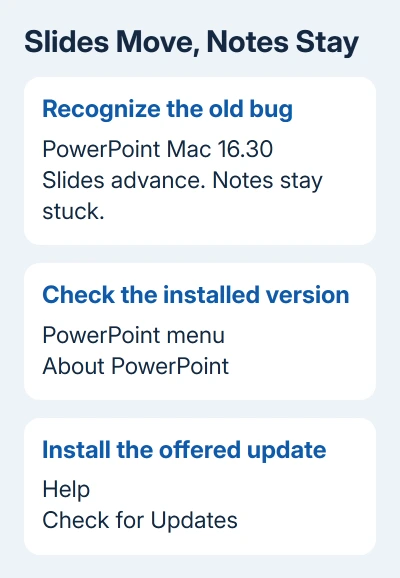
PowerPoint for Mac 16.30 had a bug that left presenter notes stuck while slides advanced. Owners fixed it with version 16.31. Check PowerPoint > About PowerPoint, then update the installed app.
That report dates to 2019. On a current version, first check whether the notes actually change between slides in the editor. Missing notes, stale notes during delivery and a frozen entire slide show need different next steps.
In this guide
1. Check for the specific 16.30 fault
Open the affected presentation and choose PowerPoint > About PowerPoint from the Mac menu bar. Note both numbers: the app version and its build. The original report named 16.30 (19101301); other owners saw the same behavior on macOS Mojave.
In Presenter View, advance through several slides that have different notes. Watch for a changing slide preview alongside stuck speaker text. In the reported bug, a click inside the notes pane refreshed its text.
Clicking gives you the next speaking prompt, but it doesn't fix the bug. The original asker had already checked the clicker: the notes also stuck when they used PowerPoint's own navigation.
Several owners in the original discussion confirmed that changing versions restored the notes. Those owners were dealing with this old bug. A notes problem in a current version needs its own checks.
If your version is already much newer, check for updates, then compare the notes in a small test presentation. Don't try to install an old release just because its number appears in that discussion.
2. Update the app with AutoUpdate or the App Store
Finish and save your Office work before updating. I'd update PowerPoint before rebuilding the deck: the fault followed an Office update, and reinstalling that version hadn't helped the asker.
For Office installed from Microsoft, use these steps:
- Open PowerPoint and choose Help > Check for Updates in the Mac menu bar.
- In Microsoft AutoUpdate, select Update beside PowerPoint, or Update All for the offered Office updates.
- Let the installation finish, reopen PowerPoint and check About PowerPoint again.
- Run the same slides in Presenter View and watch the notes as each slide advances.
Microsoft's Mac update instructions include the App Store installation route too. For that installation, open App Store > Updates and install the offered PowerPoint update there.
If Check for Updates is missing from a Microsoft-installed copy, the same support page provides the current Microsoft AutoUpdate tool. A work-managed Mac may need IT to install the approved update.
After a successful update, the speaker text changes with each slide without a click in the notes area. Check several transitions, since the original fault sometimes refreshed for a few slides before sticking again.
3. Keep the old Insider advice in its 2019 context
The accepted answer suggested switching to Insider Fast to get 16.31. At that time it was a preview release. A later reply from an owner confirmed that 16.31 fixed the notes after an initial update attempt offered 16.30 again.
Another owner couldn't get that preview and recovered by returning to 16.29. Those were ways around a release-specific fault in October 2019, rather than instructions to use a preview channel or an old installer today.
Use the regular updates available for your licensed Office installation. If the Mac can't run them, ask IT which supported Office and macOS combination the computer can use before changing its update channel.
The archived Office for Mac release history lists the later public 16.31 release. What fixed the fault was leaving the affected version, not choosing a channel with that old name.
Check your license before assuming the presentation is damaged. The discussion also explains why a standalone Office license or a managed installation didn't necessarily offer the same preview choices as a Microsoft 365 subscription.
4. Compare the saved notes with what Presenter View shows
Leave the show and select the first affected slide in Normal view. Open the Notes area and read its saved text. Select the next slide and check that it has its own notes.
If both slides contain the same words in the editor, Presenter View is displaying the saved content. Correct those slide notes, save the presentation and try the show again. A display update can't supply notes that were never entered.
If each slide has different text in the editor but the presenter pane repeats an earlier slide, make a new two-slide presentation. Add a short, different note to each slide and run it through the same presenter setup.
The two-slide check shows whether this happens in other presentations, too. Keep the original untouched while comparing; a small practice file is easier to describe to support than a long confidential presentation.
For the ordinary controls and display choice, the Presenter View guide explains where the private notes belong. Notes on the audience screen are a display-selection problem, rather than this stale-text fault.
Get the presentation ready while support checks the fault
If clicking the notes area refreshes it, use that only if someone can operate the laptop during the talk. Printed speaking prompts are more practical when you're walking with a clicker and can't reach the keyboard.
Check the audience display during rehearsal. For missing pointing controls as well, the Mac laser pointer steps cover that separate menu and shortcut problem.
If updated PowerPoint still repeats old notes, choose Help > Contact Support if offered, or contact workplace Office support. Include the app build, macOS version, practice-deck result and whether clicking the pane refreshes its text.
The Short Version
Owners fixed the Mac 16.30 notes bug by changing versions. Apply an update through your installation's usual updater, then compare saved notes against the presenter pane. Send support a small example if updated PowerPoint repeats the fault.
Checked November 22, 2026.
 If you have any business, I can build it online






