When a copied OneNote page or paragraph link pastes into another app but does nothing in your notes, try Insert > Link and paste the address into the link dialog. That bypassed the broken direct-paste behavior for the original owner.
Their second fix briefly toggled automatic sync in OneNote for Windows 10. That app is now transitioning to read-only use, so use supported OneNote on Windows to keep editing.
In this guide
1. Insert the copied address through the Link dialog
Right-click the destination page's tab and choose Copy Link to Page. Return to the note that needs the link, click the insertion point, and choose Insert > Link.
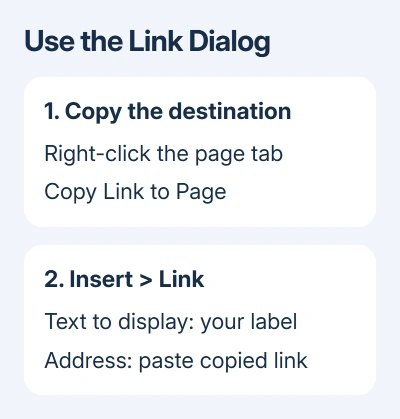
Enter a useful label in Text to display. Click Address, paste the copied link with Ctrl + V, and choose OK. The label should appear as a link in your notes instead of leaving the page unchanged.
For a paragraph destination in desktop OneNote, right-click the paragraph's handle beside its text and choose Copy Link to Paragraph. Use that address in the same dialog when you need the reader to reach that particular passage.
Microsoft's OneNote link instructions describe both the Insert Link dialog and copying a page-tab link. You don't need to recreate the destination page just because direct pasting has stopped.
Click your new link and check its destination, even if the label looks correct. If it reaches the right page or paragraph, you can finish the table of contents while checking direct pasting separately.
2. Check whether copying or pasting is failing
Copy the page link again and paste it into a blank Notepad document. This is just a check of what reached the clipboard; don't send the notebook address to a public website or someone who doesn't need it.
If an address appears in Notepad but Ctrl + V does nothing in OneNote, copying succeeded. That's the original report's pattern. Try Insert Link in OneNote instead of recreating all the links you copied.
If nothing appears in Notepad either, repeat Copy Link to Page from the actual page tab. Make sure you're choosing a link command, rather than copying the title text or selecting the whole page.
Try pasting a short ordinary sentence into OneNote as well. If ordinary text also fails, the problem affects more than notebook links. Note that before repairing Office so you can tell support exactly what won't paste.
Check whether your old links still open, too. They show that existing navigation works even though creating new links is failing. Don't remove a half-finished table of contents when its completed entries still work.
If a link is inserted successfully but won't open, use the OneNote hyperlink-opening checks. Trouble opening a link calls for different checks than trouble inserting one.
3. Identify the old Windows 10 app before using its workaround
The successful report concerned OneNote for Windows 10, version 16001.12827.205378.0. Its controls lived under Settings and More, not the desktop app's File menu.
That app's support ended October 14, 2025. It is transitioning to read-only use, with creating, editing and syncing unsupported. A sync toggle won't restore its support.
Open supported OneNote on Windows and sign in with the notebook's account. Check recent pages and attachments before removing the old app. Seeing the notebook's title doesn't tell you whether its latest content has transferred.
For unsynced changes recovered during migration, open File > Options > Save & Backup in supported OneNote to locate the backup folder. Open the recovered .one section files and copy their content into the correct notebook.
Retry Insert Link in the supported app. If it works, continue there. If links still fail, keep the clipboard comparison from section 2 for the support report.
4. Understand what the automatic-sync toggle actually fixed
For the historical Windows 10 app, the owner opened Settings and More > Settings > Options, switched Sync notebooks automatically off, and tried direct pasting again. Page and paragraph links then pasted normally.
They switched automatic sync back on and reported that pasting still worked. This was a temporary toggle, not a recommendation to leave syncing disabled. The thread doesn't explain why that reset the pasting behavior.
Updating, reinstalling and resetting had failed for that owner. Their later success reply is the useful evidence; the earlier suggestions weren't successful repairs.
I'd use the working Insert Link route before a reset. It's a small change to how you create the link and lets you keep writing. Reinstalling an app is a much bigger step when the copied address is already valid.
If you're reading this while reviewing an old installation, preserve any unsynced notes before changing its data or removing it. For your day-to-day work, use the notebook in supported OneNote instead of relying on the old toggle.
5. Use the right app for paragraph destinations
The web version can create and follow page links, but links within a notebook work at page level rather than paragraph level there. A link reaching the page without locating the paragraph can therefore be a platform limitation.
Use desktop OneNote when the destination must be a particular paragraph. For a table of contents shared with browser users, a page link is a better choice; place the heading near the start of the target page.
If a Planner attachment rejects the copied notebook address, choose the OneNote page's web URL for that separate task. It doesn't repair pasting inside OneNote, and a paragraph link isn't a substitute for the web page URL.
If Insert Link also fails, open Help > Support or take the problem to your Microsoft 365 administrator. Send the build from File > Account > About OneNote and whether plain text, page links and paragraph links paste.
Explain whether the address appears in Notepad and whether existing links still open. Ask for help with inserting internal notebook links, so the case doesn't get treated as a general sign-in or browser-opening problem.
The Short Version
Use Insert > Link for the copied address. Check it in Notepad to separate copying from pasting. The sync toggle fixed one owner's retired Windows 10 app; supported desktop OneNote is the choice for current editing and paragraph links.
Checked November 22, 2026.
 If you have any business, I can build it online