Windowed PowerPoint shows need Presented by a speaker (full screen) in their show settings. Black bars mean the slide's shape doesn't match the display; changing show type won't remove those.
Start with what you see: a title bar calls for a show-type check. Check the display settings for slides on the wrong monitor, or the playback controls for a full-screen slide that won't advance.
In this guide
1. Change a windowed show to full screen
In desktop PowerPoint for Windows, open Slide Show > Set Up Slide Show. Under Show type, select Presented by a speaker (full screen), choose OK, then start the show with Slide Show > From Beginning.
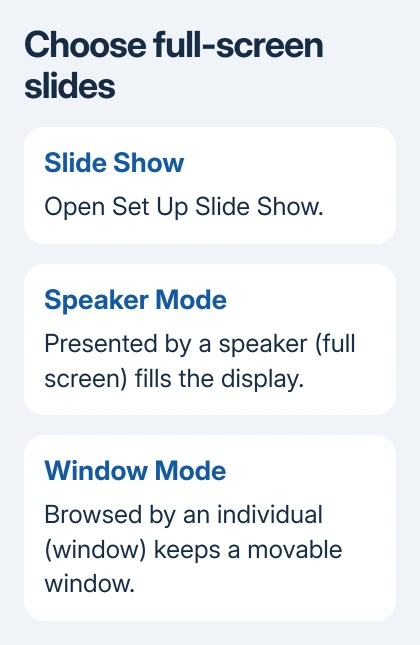
The show should fill your selected display instead of appearing inside a movable window. If it does, save the presentation so that the show setting stays with this file.
Browsed by an individual (window) is the setting for a windowed show. Maximizing PowerPoint's editing window doesn't change it. Microsoft explains these show-type choices, including the full-screen speaker presentation.
On Mac, open the Slide Show tab and its Set Up Slide Show control to choose the speaker full-screen mode. Some Mac versions show a shorter setup label. Start with Slide Show > From Beginning, not by maximizing the editor.
Use the ribbon if your laptop's function keys change brightness or volume instead of sending F5. On Windows, F5 starts from the beginning when the keyboard sends the actual function key; Fn may be needed on your keyboard.
2. Put the audience's slide show on the right display
Look at both screens before changing slide size. Presenter View shows notes, previews and presentation controls, while the audience display shows the slide. Seeing the notes screen on your laptop can be normal.
On Windows, check the Monitor choice on the Slide Show tab and choose the audience display. If Presenter View is on the wrong screen during the show, its Display Settings menu lets you swap the views.
On Mac, the presentation controls can include Swap Displays. The Slide Show tab also offers Presenter View or mirroring choices, depending on the version. Choose the arrangement that keeps your notes on your own screen.
On Windows, press Windows+P and choose Extend if you need separate views. Duplicate mode shows matching content on both displays; extending lets PowerPoint place the audience show and presenter controls separately.
The Presenter View setup explains the notes side in detail. If the audience screen now has the slide but black bands remain, you've solved the monitor placement and can move to the shape check.
3. Fix black bars by matching the slide shape
Black bands don't necessarily mean the show failed to enter full screen. A wide slide on a less-wide screen needs unused space to keep the whole slide visible without stretching it.
Check the display's resolution, then compare its shape (width compared with height) with your slides. For example, 1920 x 1080 is 16:9, while 1920 x 1200 is 16:10. Those are different shapes even though both are wide displays.
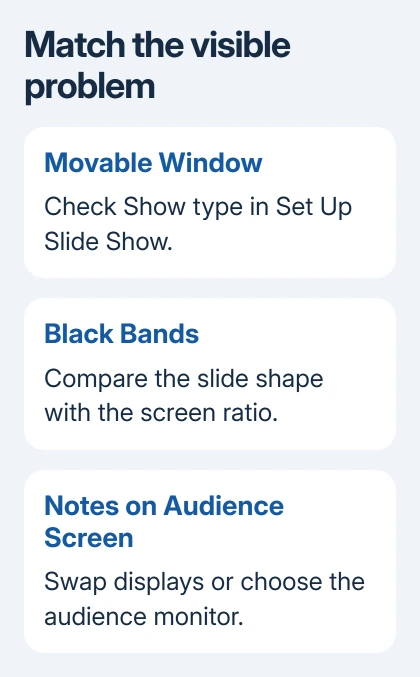
Save a separate copy before resizing the deck. In PowerPoint, open Design > Slide Size and choose Widescreen (16:9), Standard (4:3) or Custom Slide Size to match the intended screen.
On Windows, Ensure Fit keeps content inside the new slide, though objects can become smaller. Maximize can push content outside it. Review titles, photos and objects near the edges after resizing.
On Mac, choose Design > Slide Size > Page Setup for custom dimensions. Its resize choices are Scale and Don't Scale. Scale changes content with the slide; Don't Scale leaves the objects' sizes unchanged.
The slide-size guide covers custom dimensions. If the presentation must stay in its existing format, keeping the black bands is often better than distorting images or redesigning a deck immediately before presenting.
One owner confirmed that selecting the primary monitor restored full-screen playback and speaker mode let slides advance, but black bands remained.
The accepted answer suggested matching shapes, but no later reply confirmed that resizing removed the bands.
4. Check a full-screen show that won't advance
Click inside the actual slide show, then press N, Page Down or Space to move forward. Make sure the slide show is active so these keys control it, rather than the editing window behind it. Press Esc to leave the show.
If one click plays an animation, wait for it and try again. A slide with several animation steps can take several clicks before the next slide appears. Watch whether an object changes before deciding that the show has frozen.
Return to Slide Show > Set Up Slide Show and check that the deck isn't set to Browsed at a kiosk (full screen). Kiosk mode is for a presentation that runs unattended, so its navigation works differently from a speaker-led show.
For a talk you control, select the speaker show type and advance slides manually. An automatic show needs slide timings instead. Manual or timed advancing is separate from whether the show fills the screen.
5. Compare this deck with a new presentation
Create a blank presentation with two simple slides and run it from the beginning on the same display. If that show fills the screen and advances, return to the original file's show settings, timings and slide dimensions.
If both fail, note whether PowerPoint itself responds and whether the failure affects only the external display. Reconnect the display and restart PowerPoint before your next comparison. Save any editing work before closing the app.
The asker had reinstalled Office and still had the fault. I'd check the show settings and a two-slide file before repeating that. A reinstall won't select your presentation's intended mode or dimensions.
If PowerPoint still fails, contact support through its Help menu. Give your app and system versions, display resolution and two-slide test result. Say whether the show opens in a window, has black bands or won't respond.
The Short Version
Choose the speaker full-screen show type for a windowed presentation. Check the audience monitor for misplaced slides, match slide dimensions for black bars, and check kiosk mode or animations when a full-screen show won't advance.
Checked November 22, 2026.
 If you have any business, I can build it online