

Bing AI's network-settings error can appear even while ordinary websites load. Start by clearing the image and file cache in Edge, then compare the same chat on another connection if the message returns.
The older message says your network settings are preventing access to this feature. A stale session and a blocked connection need different fixes, so don't reset Windows networking just because that sentence appears.
In this guide
1. Clear the cache without erasing your passwords
In Edge on Windows, press Ctrl + Shift + Delete. On a Mac, use Command + Shift + Delete. These shortcuts open the browsing-data dialog directly.
Choose All time, uncheck everything except Cached images and files. Use Clear now or Delete now, depending on your Edge version. Close the affected chat tab and open a new one.
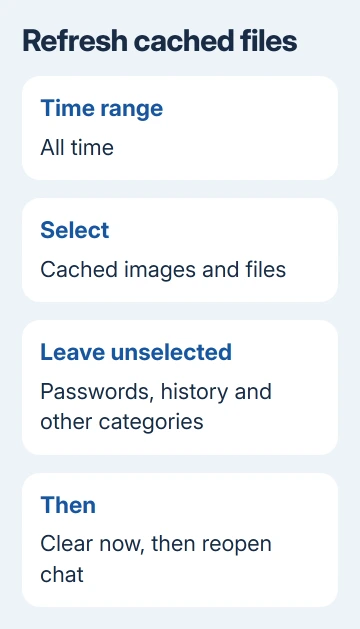
One owner in the original error discussion reported that cleaning the browser cache fixed it after speaking to support. They were seeing this exact message, so clearing the cache is a sensible first try.
The cache stores files from pages you've already opened. Removing them makes Edge fetch fresh copies; selecting that category alone doesn't ask it to delete your saved passwords, history or favorites.
Once the dialog closes, send a short new message. The chat page can load while messages still fail. Wait for a reply to confirm that chat is working again.
For the full dialog and its separate data categories, follow the Edge cache-clearing steps. If the same warning returns immediately, continue with a separate session.
2. Compare an InPrivate session with your normal window
Press Ctrl + Shift + N on Windows, or Command + Shift + N on Mac, to open InPrivate. Visit the same service and use the same account if that feature requires sign-in. Try the same short request.
If chat works in InPrivate, something about your usual browser session is different. It doesn't mean that your Microsoft account is broken, particularly if the private window is signed out and the normal one isn't.
If both windows show the warning, keep your usual profile intact and compare connections next. Deleting more browser data won't repair a restriction affecting every session.
If only the normal window fails, open edge://extensions there and turn extensions off temporarily. Reload the chat. If that works, enable them individually until the error returns, then remove or reconfigure the extension involved.
Start with privacy add-ons and extensions that filter or change browser requests. InPrivate normally runs without add-ons, except ones you've allowed there. Check which extensions are enabled in each window.
If extensions make no difference, remove cookies for the affected service through Edge's site-data settings, then sign back in. Expect that site to sign you out, and have your account sign-in method ready.
3. Check whether the warning follows the connection
Try the same laptop on another connection you control, such as your phone's hotspot. Keep the browser, account and request the same. That way, you're changing only the connection.
If chat works on the hotspot but fails on the usual Wi-Fi, the connection is what makes the difference. A router filter, workplace restriction or provider connection can be involved even when ordinary Bing searches still load.
At home, restart the router, reconnect and retry the request. If only that Wi-Fi still fails, check your parental controls or security filters. Change a filter only when its log or rule names the blocked service.
For a school or workplace connection, give the administrator the blocked request and its destination. Don't remove an organization-managed proxy, certificate or security app to get one browser feature working.
If you're using a personal VPN, compare with it disconnected on a trusted connection. If disconnecting helps, the VPN connection is involved. Another VPN server or account might behave differently from the one you tried.
When other websites also stop loading, use the wider network-issue checks for Edge. A browser feature failing on its own is a narrower problem than a PC losing internet access.
4. Update Edge before trying a browser repair
Open edge://settings/help. Wait for the update check to finish, then select Restart if requested. Reopen the service from its current official address instead of reusing an old Bing AI bookmark.
This message was reported in 2023, when the service used Bing AI and Bing Chat branding. Copilot has changed since then. An old screenshot or bookmark doesn't mean the same feature is still offered in the same place.
If several sites now fail in Edge while another browser works, Microsoft's browser troubleshooting steps include repairing Edge through Windows Settings. Save this for a wider Edge problem.
On Windows 11, open Settings > Apps > Installed apps, find Microsoft Edge, open its three-dot menu and select Modify > Repair. On Windows 10, start from Settings > Apps > Apps & features and select Edge there.
Repair needs an internet connection and administrator approval. Repair should preserve browser settings and data. A missing Modify control on an organization-managed PC needs its administrator's help; don't force an uninstall.
When the message still blocks chat
I'd stop short of header-changing extensions for this error. The old discussion includes one, but its steps rely on an attached image and aren't a dependable current fix for both the chat page and sidebar.
Later replies also describe a workaround working on the main page while the sidebar stayed broken. Treat those as separate results. Getting a reply on the browser page doesn't mean the sidebar is working too.
Use Settings and more > Help and feedback > Send feedback in Edge. Include the exact message, Edge version, the InPrivate result and the result with that account on your hotspot. Attach a cropped image without account details.
For a fault limited to the signed-in service, use its Help or Feedback control too. Ask support to check account access and the failed chat request, with the time it happened. That helps support see which request failed and when.
The Short Version
Refresh cached files without deleting other categories. Compare private browsing and a second connection before touching Windows networking. Give support the results for the session, account and connection if access stays blocked.
Checked November 23, 2026.
 If you have any business, I can build it online






