

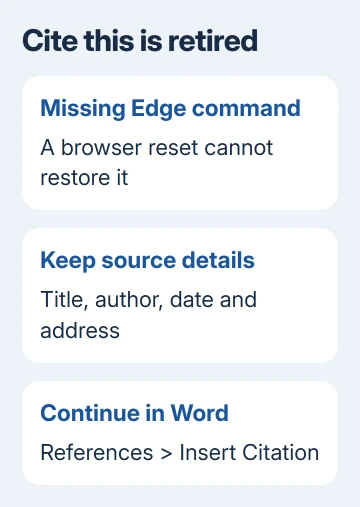
Edge's missing Citations command was retired, so a browser reset won't bring it back. Keep Edge updated and move the citation work to a supported tool, such as desktop Word's References tab, instead of searching for a hidden toolbar switch.
The old command created formatted references for web sources. A bookmark or a link attached to a Copilot answer isn't the same thing, which explains why those can still appear while Cite this is missing.
In this guide
Confirm which citation feature disappeared
The affected feature was Edge's built-in Citations or Cite this command. Owners reported it vanishing from More tools, toolbar options and Appearance settings after a browser update in August 2023.
Microsoft's archived Edge release notes list Citations among the features deprecated with version 117.0.2045.31, released September 15, 2023. This is a retired browser feature, rather than a broken installation on one PC.
An earlier adviser reply named version 116.0.1938.62, before the later release note. The official note confirms the retirement, but doesn't say every copy of Edge lost the command on the same day.
Check edge://settings/help if you're unsure which browser version you're using. Let any offered update finish. Keep Edge current rather than installing an older release to recover the removed command.
If a Copilot response is missing source links, this retirement doesn't explain that. Those links are part of Copilot's answer. Check that response rather than searching Edge's former citation settings.
1. Save the source details before leaving the page
Keep the original page open while you make its reference. Copy its address and record the page title, author or organization, website name and publication date when those are shown.
Use the actual source page rather than a search-results snippet. A snippet can omit the author, shorten the title or display a crawl date that isn't the article's publication date. Open the page and check the details it publishes.
For a PDF, inspect its title page and publication details. The browser tab or filename may not be the work's actual title. For example, a download named report-final.pdf tells you little about the document's author or date.
Don't invent missing information to fill every field. Use the missing-author or missing-date convention required by your assignment's citation style. A source without a named person may list an organization as its author.
I'd keep a short source note beside the draft until the reference is complete. Recording the address and visible details now is easier than trying to recognize the same page among several similar tabs later.
2. Enter the source through Word References
In Word for Windows, place the cursor after the sentence that needs the citation. Open References > Style and choose the required style, such as APA, MLA or Chicago, from the available list.
Choose References > Insert Citation > Add New Source. Select the appropriate Type of Source first. For an ordinary web page, select Web site, then enter the details you recorded from the page.
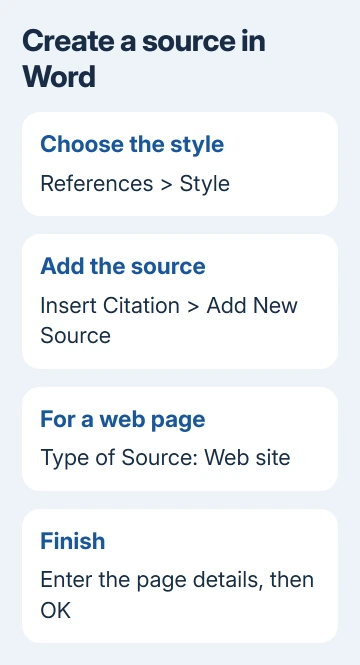
The fields depend on the source type. A journal article, book and website don't need identical information. If a needed field isn't visible, look for Show All Bibliography Fields in the source dialog.
Confirm with OK. Word inserts a citation at the cursor and saves the source for reuse in the document. To cite it again, return to References > Insert Citation and choose that source from the list.
These are the supported citation and bibliography steps. You can use them to create the references Edge used to help with, though the command stays missing from Edge.
Word online doesn't offer all the desktop tools for storing sources and citing them again. If your document is open online and the controls aren't there, use Open in Desktop App when your license includes desktop Word.
3. Build the bibliography from the saved sources
Place the cursor where the reference list should start. In desktop Word, choose References > Bibliography, then select the required format. Word builds the list from the sources cited in the document.
After adding another source, click the existing bibliography and select Update Citations and Bibliography. Otherwise, the reference list can remain unchanged even though a new citation appears in the body.
Check one entry against the original page before submitting the document. Correct the source details if the title, author or date is wrong, then update the bibliography. A neatly formatted entry can still contain a typing error.
Check the requested style edition and any department-specific format against the finished reference. A similarly named style can still need changes to meet your assignment's instructions.
For a document that uses footnotes, the Word footnote steps explain inserting an actual linked note. A footnote number provides the note location; it doesn't automatically supply a complete academic reference.
4. Choose a reference manager for repeated research
For a project with many sources, use a reference manager that saves source records and inserts citations into your writing app. That avoids rebuilding every reference by hand each time you cite the same work.
The Chicago citation extension guide explains how a browser connector saves sources to a reference library. Follow its supported browser and desktop-app setup rather than assuming an extension alone creates a complete reference library.
Check the saved record after importing it. A connector can collect details such as the page title and author, but the page may leave some details out. Correcting the library record once helps keep later citations consistent.
Why the old Collections workaround isn't dependable
An early reply suggested adding the page to Collections to reveal a citation control. Another owner replied that the control was absent there too. It wasn't a reliable workaround even when the problem was first reported.
Don't reinstall Windows or clear your whole Edge profile to recover Citations. Neither brings back a retired feature. Keep your source details and continue writing with the citation tool you've chosen.
To request the browser feature again, press Alt + Shift + I in Edge to open feedback. Describe the citation workflow you need. That asks for the feature to return; it has no promised return date.
The Short Version
Edge retired Citations. Record each source's details, use desktop Word's References tools or a reference manager, and check the finished reference against your required style.
Checked November 23, 2026.
 If you have any business, I can build it online






