

Changing Edge to Light only controls the browser interface; it doesn't undo every setting that darkens websites. If the toolbar turns light but pages stay black, check the force-dark flag and Page colors before reinstalling anything.
A dark toolbar, altered website colors and a site's own night mode have different controls. Start with the part that stayed dark so you don't keep changing a theme that is already working.
In this guide
1. Turn off the flag that forces websites dark
Enter edge://flags/#enable-force-dark in Edge's address bar. If the experiment is present, set Auto Dark Mode for Web Contents, or its older name Force Dark Mode for Web Contents, to Disabled.
Use the Restart or Relaunch button the page offers. Reopen the affected website and compare its background and text. Restarting puts the experiment change into effect.
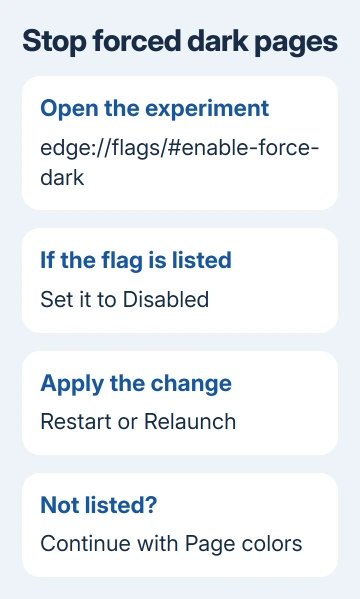
One owner in the dark-theme discussion confirmed that disabling the experiment fixed it. Changing Appearance, resetting Edge and trying re-registration hadn't corrected their page colors.
This is an experimental setting, so its name can change or it can disappear between Edge versions. If that address doesn't highlight a matching setting, search the flags page for dark. If it still isn't listed, continue with Page colors.
Change only the matching experiment for this check. Other flags can affect unrelated browser features, so using Reset all is a broader action than this fix needs.
If the page looks right after relaunch, the experiment was forcing its dark colors. Keep your preferred toolbar theme separately. A later reply reported failure on five PCs, so continue if changing the experiment hasn't helped.
2. Check Page colors and contrast settings
In Edge Settings, type Page colors into the search box. In versions using the earlier layout, it is under Accessibility. Newer layouts may group accessibility choices under Appearance, so Settings search helps you find Page colors directly.
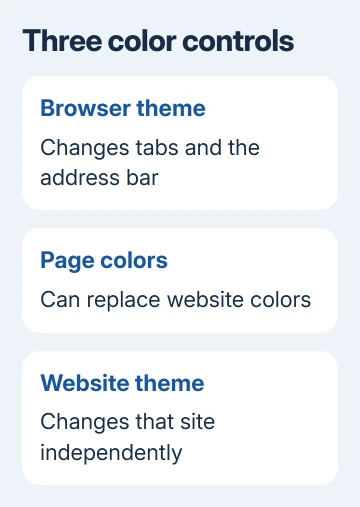
Page colors can replace a website's usual colors with a selected scheme. That is separate from the browser's overall theme. A black page with unusual link colors can come from this accessibility setting.
Choose Default in Page colors if available to restore normal site colors. For a custom scheme, inspect Only apply page colors when high contrast themes are on. Windows' normal Light theme doesn't rule out a page scheme.
When that option is off, the selected page scheme can affect all sites. Turn it on to limit the scheme to contrast-theme use, then check the Windows contrast setting next.
Microsoft's Page colors explanation describes this separate control, introduced in Edge 130 for Windows and macOS. It also allows site exclusions, so compare an affected page with another site.
On Windows 11, open Settings > Accessibility > Contrast themes. Choose None, then Apply, if an unwanted contrast theme is active.
On Windows 10, open Settings > Ease of Access > High contrast. Set Turn on high contrast to Off to remove the unwanted scheme.
Keep an accessibility scheme you rely on. If only one site is hard to read, consider excluding that site through Page colors rather than removing the scheme everywhere. Test its text and links after the change.
3. Set Light when the toolbar itself is dark
If the tabs, address bar and Settings pages are the dark parts, open Settings > Appearance. Find Overall appearance or the browser theme control and choose Light, rather than System default.
System default follows your operating system's appearance preference. Choosing Light makes the browser's own interface stay light regardless of that preference. Check the tabs and address bar to see whether that worked.
The Edge theme instructions describe the overall appearance choice. A website keeping its own dark design afterward doesn't mean the toolbar setting failed.
If a decorative browser theme is installed, return that theme to the default appearance too. Changing the light/dark preference can leave a custom theme active, so check both controls.
For pages that look yellow rather than dark, use the separate Edge color-profile checks. That symptom involves a different display change and shouldn't send you back through dark-mode controls.
4. Turn off a site's own night mode or an extension
If only one website stays dark, open that site's own settings and look for Appearance, Theme or Dark mode. Choose its light option and reload the page. The site can store that preference in your account or browser session.
Compare a second site that normally has a white background. If that page is normal, broad Windows changes are less useful than checking the affected site's preference or a site-specific extension rule.
Open edge://extensions and temporarily turn off dark-mode or page-styling extensions. Reload the affected page. If its normal colors return, adjust that extension's site rule or remove the add-on if it isn't useful anymore.
If several extensions could change pages, disable them together for the comparison, then enable them individually. Test after each one so the extension that brings the unwanted color change back is clear.
I'd check these controls before clearing all browsing data. A site preference or page-styling extension can recreate the dark appearance immediately, leaving you signed out of sites without fixing the cause.
For a page that seems stuck on an old saved appearance after its own setting changes, the Edge cache guide explains clearing cached files without selecting passwords or all other data categories.
When dark pages still won't return to normal
Don't edit the old MicrosoftEdge registry path mentioned in the original thread. It belongs to Edge Legacy, the earlier browser. The modern Chromium-based browser uses a different settings system.
The owner also tried resetting and re-registration commands without success. They later confirmed that turning off the force-dark experiment fixed it. Repeating those installation changes misses the setting that caused their problem.
Update through edge://settings/help if the relevant settings are missing or behave inconsistently. If the problem persists, use Settings and more > Help and feedback > Send feedback to report the version and affected page address.
Say whether the toolbar is light, whether Page colors is active, and whether disabling extensions changes the page. Include a cropped image of the colors without private account details so support can see which part is still dark.
The Short Version
Disable the force-dark experiment if present, then check Page colors. Set the toolbar to Light separately, and inspect a website's own theme or extensions when only its content stays dark.
Checked November 23, 2026.
 If you have any business, I can build it online






