

Missing images inside Edge pages can come from a blocking extension, even when the image opens in a separate tab. Turn off extensions and reload first. Removing AdBlock for YouTube fixed the reported case.
Those images were called favicons in the original question, but they were buttons inside a page. A missing icon on a browser tab or saved favorite is a different problem. Check where the blank space appears before changing settings.
In this guide
1. Test the page with extensions turned off
Enter edge://extensions in Edge's address bar. Turn off the extension switches, so you can test without uninstalling them. Return to the page with missing images and reload it with Ctrl+R on Windows.
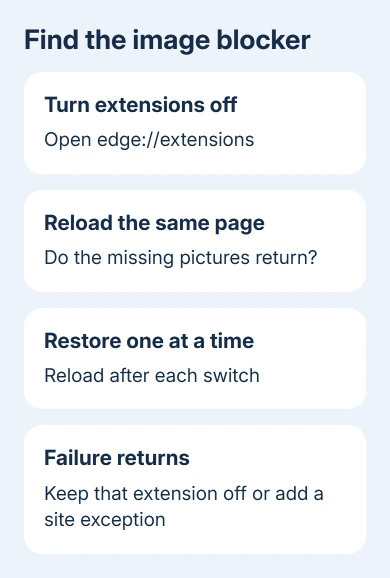
Keep the same website and account for the retry. If the images return, enable one extension, reload, and check again. Repeat until one extension brings back the blank spaces. That's the extension to check.
One owner initially dismissed extensions because their work PC had the same ones and worked properly. Removing AdBlock for YouTube restored the images. The same extensions don't always behave the same way on two PCs.
Check the extension for a website-exception setting. Allowing this website may let you keep the extension without breaking its pictures. If the failure persists, disable or remove the extension from edge://extensions.
Microsoft's extension controls include both the off switch and Remove. Try the switch first so you can turn the extension back on if it isn't responsible.
If the pictures remain missing with every extension off, move on to image permissions. Reinstalling extensions won't explain why the page still fails with them off.
2. Check whether images are allowed for that website
Enter edge://settings/content/images in the address bar. Allow sites to display images, then inspect blocked-site entries. Remove the affected website from the blocked list if you previously added it there.
If the internal address takes you to general Settings, search Settings for Images. Edge has changed its settings layout over time; use the image permission rather than an unrelated setting for downloads, camera access, or desktop icons.
Refresh that website with the new permission. A site-wide image block usually affects more than one little button, while an extension can block selected requests. If the pictures return, that website permission was blocking them.
A message that the setting is managed points to a work or school rule. Ask the administrator whether the website or its image-hosting domain is blocked. Changing a personal browser setting can't override a rule they enforce.
3. Compare an image with the page containing it
Right-click a missing image or its placeholder. If Edge offers Open image in new tab, select it. An image that opens alone is available to the browser, even though something prevents it from appearing correctly inside the page.
That exact comparison worked in the original report. The small images loaded separately but were missing inside YouTube pages. That's a reason to check blockers and permissions before changing saved favorites.
If the separate image shows an access error or won't load, note the message and retry in another installed browser. Use the identical image for this comparison; pictures elsewhere on the site can load differently.
When the image is unavailable in both browsers, report it to the website with the page link and the approximate time. Deleting Edge's passwords or resetting Windows won't repair a missing file on the website's server.
4. Is the missing icon inside the page?
A tab icon sits beside the page title in the tab strip. A favorite's icon sits beside its bookmark. Pictures inside a YouTube channel page are website content, even when their artwork matches a tab icon.
For missing pictures inside a page, check permissions, blockers, and the cache. A missing favorite icon while page images load is different; the extension fix for page images doesn't tell you whether saved favorites are damaged.
Avoid the old Omnibox UI show flag instructions attached to the 2021 question. The asker couldn't find that flag, and it was for icons in address-bar suggestions, rather than the page buttons they were describing.
Don't delete and recreate all your favorites as a test. If you actually need to remove saved links, use the full favorites manager and keep an export first. Bookmark cleanup and image troubleshooting are separate jobs.
5. Refresh saved page files, then update Edge
If extensions and image permissions aren't responsible, clear Edge's cached images and files. Keep passwords and unrelated data unselected. Reload the affected page so Edge fetches fresh copies of the page files.
Clearing cache and cookies didn't solve the original owner's problem, so continue to the update check if that doesn't help. It isn't useful to erase the same data repeatedly while leaving the offending extension active.
Enter edge://settings/help to check for an Edge update. Finish any offered update, including its requested restart. Open the affected page again after the restart, keeping the extensions you identified as troublesome turned off.
A blank or unresponsive Edge window is broader than missing pictures. Tell support about that wider behavior rather than reporting only the small missing icon that first caught your attention.
When the page still has blank spaces
Press Alt+Shift+I to report a problem you can reproduce only in Edge. Include the page URL, Edge version, whether all extensions were off, and whether the image opens in its own tab.
Send a cropped screenshot without account details. For a private work page, give IT the same comparison and any blocked-image address. They can check access rules without guessing what a missing favicon means.
The Short Version
Test extensions first for missing Edge page images, then image permissions and the cache. Removing a blocker fixed the reported YouTube case. Distinguish pictures inside the page from tab and bookmark icons.
Checked November 23, 2026.
 If you have any business, I can build it online






