

GiftRap.Client failing to open from Rehab Optima can be a ClickOnce launch problem. Enabling ClickOnce fixed the 2020 Edge reports, but Edge 87 and later enable it by default. Check work policies before following old flag advice.
ClickOnce lets a website launch a Windows application through a downloaded application file. A failed launch, an application error after launch, and a rejected account sign-in need different help. Check how far the launch gets.
In this guide
1. Check Edge's version and the point of failure
In Edge, open Settings and more > Help and feedback > About Microsoft Edge. Note the version. Apply any update offered and complete the requested restart, unless IT handles your updates.
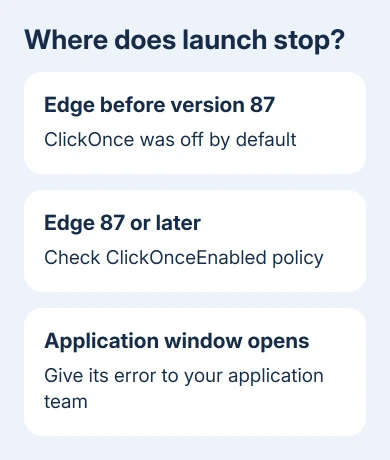
Return to your employer's normal Optima or Net Health launch page. Use its launch command once and watch what happens: nothing, a downloaded .application file, a permission prompt, or an application window with its own error.
If the application window opens, Edge has let the launch through. Keep any error from that window for application support. Edge flags won't resolve a server name or account permission inside the app.
Microsoft's ClickOnce policy description explains the version difference: before Edge 87 the feature wasn't enabled by default; from Edge 87 onward it is. That changes how the 2020 workaround applies today.
For a current Edge installation, check work policies next. Don't install an obsolete browser just to make your screen resemble an old forum picture. The application team can confirm the currently supported client and browser combination.
2. Check whether a work policy disables ClickOnce
Enter edge://policy in Edge's address bar. Use the page's search or Ctrl+F to look for ClickOnceEnabled. Record its value if it appears. This check only reads the setting; it doesn't change Windows settings.
A false value disables ClickOnce. Edge downloads a copy without starting ClickOnce, and this policy takes priority over the user's flag setting. Ask IT whether ClickOnce is permitted for your approved Optima client.
A value of true enables it. If the policy isn't listed, the browser uses its normal behavior, which allows ClickOnce in Edge 87 and later unless the user's ClickOnce setting disables it.
No listed policy means this particular rule isn't blocking ClickOnce. It doesn't explain the application's error. Check the ClickOnce setting if it's available, then the launch prompt. Give application errors to your support team.
Don't bypass work policy with registry edits. A managed healthcare app needs your organization's approved setup. Have your administrator review this PC instead of copying registry settings from a coworker.
3. Use the ClickOnce flag only when it exists
Open edge://flags and search for ClickOnce. If ClickOnce Support appears, check whether it's disabled. For an approved application that needs it, choose Enabled and use the offered restart button after saving your open work.
The original owner said Optima support directed them to this setting, and enabling it restored the launch. Several later owners reported success too. That's why this old setting is still useful to check if it's available.
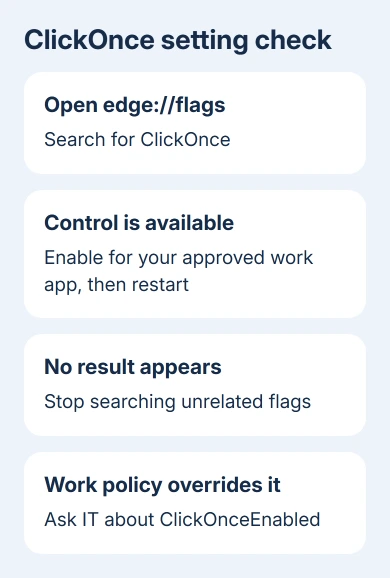
If the search has no result, leave unrelated flags alone. A later owner couldn't find it either. Current Edge supports ClickOnce already; bring the policy result to IT instead of hunting for a hidden extension.
Leave experimental JavaScript flags alone. A reply added them to the workaround, but another corrected its claim that Chrome couldn't run JavaScript. ClickOnce launching and ordinary website JavaScript are different things.
ClickOnce support is built into Edge; it isn't a store extension. A random helper isn't needed to add its Windows support or policy. Follow IT's separate deployment instructions if your organization supplies them.
4. Check the application launch prompt
After restarting Edge, try the approved portal's launch command. Read any open-application prompt and its publisher or destination details. Proceed only for the work app and portal your organization uses.
The browser's ClickOnce and DirectInvoke flow can pass the request to the Windows program set up to open it. If that program or the application installation has a problem, the next failure can happen outside the web page.
Record whether a prompt appears and what follows. A download that never opens, a Windows error, and a client unable to reach its service are different stages. Capture the exact error for the team handling that stage.
Avoid repeated Launch clicks while prompts remain open. Close the failed attempt, then retry once after each change. That keeps a delayed window from an earlier attempt from looking like a successful new launch.
If Edge itself hangs before showing any launch prompt, use the Edge not responding checks. Repairing a frozen browser is a separate job from changing the Optima client's server or login details.
5. Have IT check the client installation and account
If ClickOnce is allowed but GiftRap.Client fails, give IT the Edge version, policy result, and error. Ask them to check your supported Optima or Net Health client, ClickOnce deployment, and work launch address.
The old discussion includes a later owner for whom enabling ClickOnce didn't restore the application. If that's what happens on your PC, ask support to check further. The flag doesn't fix every Net Health or Rehab Optima installation.
Don't substitute Internet Explorer because an early reply said it worked in 2020. That report predates today's browser setup. The application vendor and your employer should decide whether a supported compatibility configuration is needed.
If IT determines Edge needs reinstalling, choose the correct Edge installer for the PC. Installing the browser alone doesn't install the clinical application or supply your organization's connection details.
What to send application support
Use your employer's help desk or approved Net Health support channel. Report the last working stage, the error, and whether another authorized PC launches the service. Ask for an installation and launch check, not just a password reset.
Keep patient details out of screenshots and browser feedback. Crop to the error and software version. The support team needs the launch failure, not the contents of a clinical record.
The Short Version
The old GiftRap.Client fix enabled ClickOnce. Current Edge enables it by default. Check ClickOnceEnabled policy, any available user setting, and the launch prompt. Give client or server errors to your application support team.
Checked November 23, 2026.
 If you have any business, I can build it online






