

An Edge Out of Memory error in just one profile can come from its settings rather than low RAM. If another profile works, check enhanced security first. Owners restored browsing by turning it off during a March 2024 fault.
A working separate profile lets you update Edge when the affected profile's Settings crashes too. The old workaround changed a synced setting through Edge Beta. It helped then, but a current crash can have a different cause.
In this guide
1. Turn off enhanced security if Settings opens
In the affected profile, open Settings > Privacy, search, and services > Security. Find Enhance your security on the web and turn it off temporarily. Depending on the version, Settings search can find the control faster.
Close and reopen Edge, then retry the same failed page in that profile. If the page loads, check a second site and Settings itself before deciding that the profile is working again.
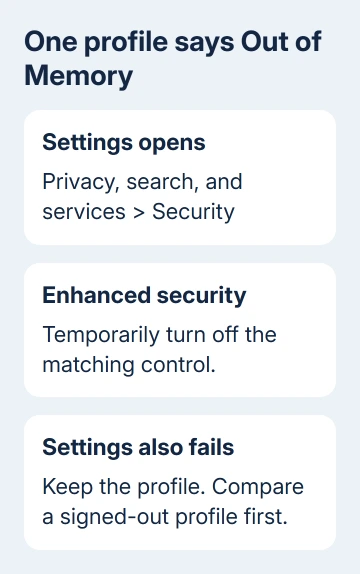
This removes an extra browser protection, so keep the check brief and use trusted sites. It doesn't require turning off Microsoft Defender SmartScreen or Windows antivirus protection.
The enhanced-security explanation describes compatibility problems with some sites, particularly in Strict mode. This setting adds protection when Edge runs website code. It doesn't show how much RAM your computer has available.
If only one trusted site fails, its site-information menu may offer an enhanced-security exception. Use that narrower exception when it solves the problem instead of leaving the extra protection disabled for every site.
If your version has no matching control, don't change unrelated security switches to imitate an older workaround. Continue with the profile comparison and update. Ask your administrator about a control managed by your organization.
2. Confirm whether the error follows the profile
Select Edge's profile icon and choose Browse as guest, if offered. Alternatively, choose Set up a new profile (or Add profile), then Personal or Work or school, followed by Start without your data.
Confirm the new profile if prompted. Leave it signed out during this comparison and visit the address that failed in your usual profile.
If the page opens there, your original profile's settings, extensions or saved data may be causing the problem. This doesn't tell you which one, but you can check without deleting the old profile.
In the original report, both windows were open at the same time: the usual profile failed while a new profile worked. The asker had already tried increasing virtual memory, reinstalling and deleting user data without success.
Since those changes didn't help the asker, I'd compare profiles before trying them again. If your new profile fails too, use the ordinary memory checks in section 5 instead of assuming you have the same historical fault.
Keep the existing profile intact while comparing. It can contain favorites, passwords or other data that haven't synced. You can use the working temporary profile before moving anything into it.
I'd leave the comparison profile signed out at first. Signing in and restoring settings immediately can bring the same behavior back before you've checked whether the clean profile works.
3. Update the stable browser from a working profile
In the working Edge window, open Settings and more > Help and feedback > About Microsoft Edge. Wait for the update result. Select Restart if the update requires it. Save unfinished work in other Edge windows before restarting.
The update applies to the browser installation, while profiles keep their own settings and data. Once the update finishes, switch into the affected profile. Retry its failed address before changing anything else.
Check the version after restarting. Downloading the update doesn't always finish installing it. If updating fails, keep the exact error for IT or Microsoft Support.
The Edge recovery guide covers a browser that cannot open any usable window. A profile-specific tab error needs the comparison here before a whole-browser repair.
4. Use the old Beta workaround only for the matching case
An owner in the March 2024 discussion reported that Settings also showed Out of Memory. They installed Edge Beta, signed in with the affected account and disabled enhanced security there.
The setting synced into their normal Edge profile and pages loaded again. Another owner restored InPrivate by changing its Strict enhanced-security option. Both reports concern that older fault; today's error can have a different cause.
If the affected profile's Settings remains inaccessible and you want to try that route, use the official Microsoft Edge Insider download page. Select the Beta channel for your operating system, rather than Dev or Canary.
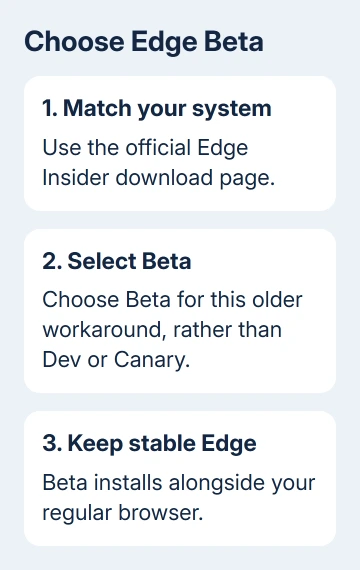
Preview software can have its own problems. On a work computer, ask IT to approve this route; use the working stable profile in the meantime. Don't replace the stable browser with an unofficial older build.
Beta installs alongside the released Edge browser. Open the Beta app, sign in with the same affected account, and check that settings sync is enabled before trying the enhanced-security change from section 1.
If Beta's Settings opens and the matching control exists, turn enhanced security off there, allow the account to sync, then reopen the regular Edge app. Check its setting and failed page; success means regular Edge now loads them.
If the control is missing, sync isn't permitted or the change never reaches stable Edge, stop this route. Keep the original profile and pass those results to support. Available settings can differ between browser versions.
5. Follow a real memory shortage when profiles all fail
Close extra tabs, pause downloads and quit demanding apps, then reload the page. On Windows, press Ctrl+Shift+Esc and check Task Manager's memory use. If several apps are using lots of memory, the problem goes beyond one Edge profile.
The low-memory warning explanation covers Windows memory limits and the page file. Don't enlarge it repeatedly when the same site already works in another Edge profile on the same computer.
For a profile that opens Settings, temporarily disable extensions through Extensions > Manage extensions. If that helps, enable them individually and retry the page to identify which extension brings the failure back.
If every profile fails despite available memory, ask support about repairing the browser installation. Share the exact error text and what happens. An Out of Memory message, a whole-window crash and a frozen page are different problems.
What to give support if the profile stays broken
From a working window, select Send feedback through Edge's Help and feedback menu, or contact Microsoft Support. Include the browser version, operating system and results in Guest or the signed-out comparison profile.
Say whether enhanced security changed the result, whether Settings itself fails and whether Beta was tried. For a managed account, ask IT to check synced browser settings and security policies before removing profile data.
The Short Version
Check enhanced security for a one-profile memory error, preserve the original profile and update Edge from a working one. The Beta-and-sync route worked for owners in 2024. Use ordinary memory checks when other profiles fail too.
Checked November 23, 2026.
 If you have any business, I can build it online






