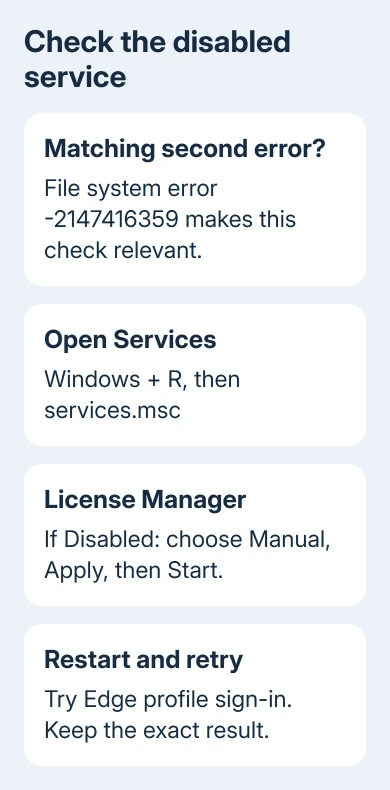
Code 5, 2, -2147023838 in Edge points to a disabled Windows service. Check Windows License Manager Service first, especially with file system error -2147416359. One owner restored sync while fixing that file-system error.
The code doesn't identify the service by name. Browser sign-in, website access and sync are separate checks, so keep the full message and note which one fails. The matching file-system error makes the service check especially relevant.
In this guide
1. Check Windows License Manager Service
Press Windows + R, enter services.msc, and press Enter. Find Windows License Manager Service. Open its properties and note the current Startup type and service status before changing anything.
The signed number -2147023838 corresponds to 0x80070422. The Windows error within it is 1058: a service can't start because it's disabled or has no enabled associated devices. That's why checking the service settings can help.
If this service is Disabled on your personal PC, set Startup type to Manual, select Apply, then Start and OK. Restart Windows and check Edge sign-in. A stopped service with Manual startup isn't the same as a disabled one.
Microsoft's error 1058 instructions explain how to open a disabled service's properties, change its startup type, apply the change and try Start.
Don't set every stopped service to Automatic. On a company-managed PC, have IT review the account services and any policy that disables them. Include the complete code. A managed setting can return after a local change.
In March 2024, the asker said their file-system error and Edge sync were both fixed, and linked to the Windows License Manager repair. They didn't list every step they took. If this service already works on your PC, keep going.
2. Compare browser sign-in with account access
For a personal account, try signing in at account.microsoft.com. An employer or school account uses myaccount.microsoft.com instead. Complete the normal verification prompt and check whether the account page opens.
If website sign-in fails too, deal with the account error there first. A locked account or failed identity check needs account repair, rather than a browser installation. Send work-account access failures to the account administrator.
If web access works but the profile button still returns the code, continue with Edge and Windows account checks. Your account details worked on the website, but the browser profile still hasn't signed in.
If profile sign-in succeeds and only sync remains stuck, switch to the Setting up sync fixes. Repeated sign-outs can turn a sync problem into another sign-in attempt without helping the original failure.
The original asker had already signed out because sync wasn't working. They then couldn't sign in again. That order matters: they lost access to the browser profile after signing out, rather than just being signed out of a website.
3. Refresh Edge's sign-in data and update it
Open edge://settings/clearBrowserData. Choose All time for the time range, select Cookies and other site data and Cached images and files, then select Clear now. Leave saved passwords unchecked.
Expect websites to request sign-in again after their cookies are cleared. Make sure you can complete their sign-ins again before doing this, especially on a PC that relies on a phone for verification.
Restart Edge, enter edge://settings/profiles, and try signing in again. Removing old session data can fix authentication trouble. If the same service code returns, move on instead of clearing the data again.
Next, enter edge://settings/help, wait for the updater's result and complete any restart. Use the Edge updater checks if that page shows a separate update error.
These checks come from the browser's sign-in troubleshooting steps. In the original discussion, repairing and resetting Edge didn't help the asker. Changing DNS, using another network and trying a new Windows account failed too.
4. Check sign-in policy and Windows account status
Enter edge://policy and look for BrowserSignin. A value of 0 disables browser sign-in, 1 allows it, and 2 requires it. Send an unexpected restriction to your administrator rather than deleting company policy entries.
On either Windows version, visit Settings > Accounts > Your info to review the connected account. For an organization account, also review Accounts > Access work or school to see which organization is connected.
Microsoft's Edge sign-in troubleshooting includes these checks and a restart of Token Broker, the Windows service involved in handling account sign-in information.
For your personal PC, search Start for Command Prompt, choose Run as administrator, then enter these commands separately:
net stop TokenBroker
net start TokenBroker
Read each command's result. If Windows says the service wasn't started, the second command is still the start attempt. If it says the service is disabled or access is denied, record that result for support. Don't keep issuing the commands.
Reopen Edge and retry. I'd leave disconnecting and reconnecting a work account to IT, because that can affect device management and access to company resources beyond the browser.
5. Keep Windows repair for a continuing system failure
The accepted reply suggested reinstalling Windows over the existing copy, but no reply confirms it worked. A repair installation is a later option when Windows account components still fail, rather than a confirmed cure for this code.
Back up important work first. In supported Windows 11 builds, visit Settings > System > Recovery > Fix problems using Windows Update > Reinstall now. The repair replaces Windows components and keeps your apps, settings and personal files.
Leave the PC online and plugged into power until the repair finishes. Older builds and managed PCs may lack this control. On Windows 10, ask support how to reinstall over your existing copy; this Settings option isn't available.
What to send when the code remains
Choose Contact Support on Microsoft's support site, or open a case with the workplace help desk. Include the full code, Edge version, Windows build from winver, account type, website sign-in result and the service command results.
Ask support to identify which disabled service is preventing your account from signing in. Keep passwords, verification codes and unedited account diagnostic exports out of public posts.
The Short Version
With error -2147416359 too, check Windows License Manager. Compare web and profile access, refresh Edge's session data, then review policy and Token Broker. Keep Windows repair for continuing system trouble.
Checked November 23, 2026.
 If you have any business, I can build it online