

The Welcome to Microsoft Edge for Business banner can become unclickable when Edge is full screen on a Mac. Leave full-screen mode, then select Dismiss in the normal window. That worked for an owner whose banner kept returning on every tab.
This applies to the browser's work-account welcome message. A website popup, a required company sign-in and a banner with a working close button need different treatment. Try changing the window view before you reset your profile.
In this guide
1. Leave full screen before pressing Dismiss
With Edge active on your Mac, press Control + Command + F. The browser should return to a normal desktop window. Wait for the welcome banner to appear, then click Dismiss or its close button once.
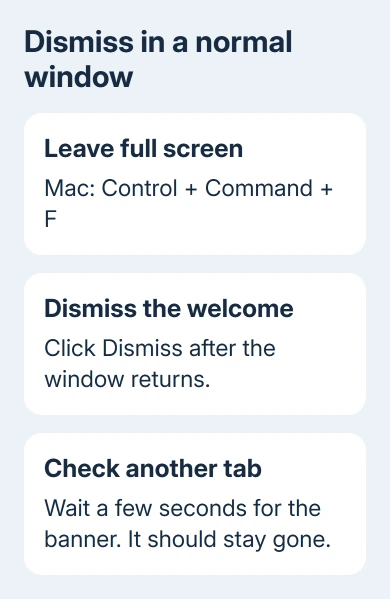
The important change is leaving full screen, rather than hiding the browser or switching to another tab. A normal window has its own title bar and leaves room for other windows on the desktop.
If the shortcut doesn't change the window, move the pointer to the top-left corner. Use the green window control's Exit Full Screen choice. Apple's Mac keyboard shortcuts also list Control + Command + F for this action.
Now open another tab and give the banner time to return. For the affected owner, a new tab looked clear at first, but the message appeared a few seconds later. An instant glance at the empty tab isn't enough to check the result.
If Dismiss works, return to full screen and open a fresh tab. The welcome message should stay gone. If full screen brings it back, keep Edge in a normal window until you've updated it and sent feedback.
I'd try this before clearing anything. It changes the window without removing cookies, saved passwords or browser preferences. The original full-screen workaround was reported on a Mac; it isn't a confirmed Windows cure.
2. Check that it's the work-profile welcome message
Look at the message and the profile icon. The reported banner welcomed the user to the new experience when signed in with a work account. It wasn't a warning that a webpage wanted permission to open another window.
Edge for Business connects a work profile to your organization's account. Its favorites, passwords and other data can stay separate from a personal window's data. Dismissing the introduction leaves that work profile in place.
Open the profile menu and read its account name. Compare the work window with a personal window, if available. If the welcome message appears only in the work window, focus on that work profile.
Don't disconnect the Mac or Windows device from an employer's management just to hide this introduction. A banner problem doesn't require changing the device's access to company services.
If Windows keeps signing you back into the browser without asking, follow the separate automatic Edge sign-in controls. That behavior can continue after a welcome banner has been dismissed.
3. Install the current Edge update
Enter edge://settings/help in the address bar. Let the About page finish checking for an update, then complete any Restart prompt. Finish or save anything you're typing in open tabs before restarting.
The Mac reports date from August and September 2023. An affected owner named Edge 116.0.1938.54, an M2 MacBook Air and macOS 13.5. Those details date the report to that older release.
Use the current release offered to your device. Then return to the same work profile and try dismissing the banner in a normal window again. Check a new tab afterward, rather than assuming the installation itself removed the message.
Both Intel-based and Apple silicon Macs use this window shortcut and About-page update check. The M2 report doesn't mean the fault needs an Apple silicon reset or a different macOS startup procedure.
If About shows an update error, record it. The Edge update repair steps cover that failure. Fix an update that won't finish before checking whether the banner still returns in the newer release.
4. Use the right full-screen control on Windows
On Windows, F11 toggles Edge's full-screen view. Some laptop keyboards require Fn + F11. Leave that view, wait for the banner and try its close control in the normal window.
Maximizing a window is different from full screen. A maximized window still has ordinary window controls and can be restored with the button next to Close. Restore it to a smaller window if you're unsure which view you're using.
This checks whether the window view matters on Windows too; the confirmed fix was on a Mac. If the button remains unresponsive, check whether Edge's other controls work. Try opening Settings and switching between two existing tabs.
If those controls are frozen too, treat it as a wider browser failure and close the stuck browser session. If only the welcome message ignores clicks, say that in your feedback. It points support toward the banner.
5. Skip resets that didn't solve the reported fault
Refreshing cleared the banner only temporarily for one owner. Another found that neither Dismiss nor the close button responded after the suggested fixes. A refresh can hide the message without saving a dismissal.
A reply also suggested restoring Edge's default settings, without a clear successful outcome for this fault. Resetting preferences changes more than the window view. Try the confirmed window fix first.
Leave the current profile intact. Deleting it can remove unsynced data. Signing out can interrupt your company pages without correcting a welcome message that ignores clicks.
When the banner still returns
Use Settings and more > Help and feedback > Send feedback. Include the banner wording, Edge and operating-system versions, and what happened outside full screen. Crop a picture to the banner so support can see the failed control.
For a managed profile, send IT those results and ask them to check your Edge version and work-profile setup. Explain whether it happens in every work window or only one profile.
The Short Version
On a Mac, leave full screen with Control + Command + F, then dismiss the banner in the normal window. Check a new tab, update Edge and report a continuing banner-only failure with its version and window behavior.
Checked November 23, 2026.
 If you have any business, I can build it online






