Norton extensions caused both Edge and Chrome to close at launch after a Windows 11 update in one confirmed case. Update Norton first, then check the extensions. Switching off its main protection didn't help the affected owners.
The original reports followed Windows 11 23H2 in November 2023. Those reports don't explain every browser startup failure today. Try these steps when both browsers close before you can open their Settings, especially if Norton is installed.
In this guide
1. Update Norton from its own app
Open your Norton device security app from Start. In the current interface, choose Security, then Open in the LiveUpdate tile. Under Check for Updates, use Update Now or Check Now if an update is needed.
Older Norton layouts put LiveUpdate inside Device Security > Security. Follow the LiveUpdate control in your installed app, complete its updates and restart Windows if requested. This step works even when Edge and Chrome won't stay open.
The reason to start there is compatibility. Program updates can fix interactions with Windows and browsers. Updating virus definitions alone isn't the same as finishing every available Norton program update.
Microsoft's Edge startup recovery guidance also recommends updating third-party security software when Edge doesn't open. Try Edge and Chrome again after that update completes.
If both stay open, check a familiar page before restoring many tabs. If they still disappear, move to the extension check. Don't spend time opening browser Settings in a window that closes before you can click it.
2. Compare Edge with a temporary profile
Close the browsers first. Press Ctrl + Shift + Esc to open Task Manager, select remaining Microsoft Edge and Google Chrome browser tasks, and use End task. Ending tasks can lose unsaved work in their tabs.
Open Command Prompt from Start. Enter this command to open Edge with a separate temporary profile. It won't load the extensions and preferences from your usual profile:
"C:\Program Files (x86)\Microsoft\Edge\Application\msedge.exe" --user-data-dir="%TEMP%\edge-startup-check"Leave this window signed out. Check whether it stays open. Signing in and restoring extensions now would bring your usual setup into the temporary profile before you've checked it.
If Windows can't find the program, check where Edge is installed. That message isn't a second browser crash. Use Open file location from Edge's Start shortcut or ask IT to confirm where the browser is installed.
If the temporary window stays open, suspect your usual profile or its extensions. If it closes too, continue to the repair section. Keep the existing profile folder intact while testing; that's where local browser data lives.
For a browser that freezes rather than disappearing, the broader Edge recovery checks include graphics and tab-load comparisons. The Norton fix here applies to the shared crash described in these reports.
3. Remove the crashing extension files from the test path
Clearing Extensions let the affected owners open their browsers again. I'd back up and move the folder's files out of use, rather than delete them permanently. That preserves a copy while removing the active extension files.
Close both browsers and their remaining tasks again. Press Windows + R, enter this Edge profile path, and press Enter:
%LOCALAPPDATA%\Microsoft\Edge\User Data\DefaultCopy the Extensions folder to a separate backup folder, then rename the original Extensions folder to Extensions.saved. Reopen Edge and see whether startup now completes. Leave unrelated files and folders alone.
The matching Chrome location is:
%LOCALAPPDATA%\Google\Chrome\User Data\DefaultMake the same extension-folder backup and rename there, with Chrome closed. Then test Chrome separately. Default is the first profile; other profiles can use folders such as Profile 1. Apply this only to the profile that crashes.
If a folder can't be renamed, check Task Manager for a remaining browser process. If you can't identify the right profile or the PC is managed, ask IT to do the extension-file check. Don't delete the entire User Data folder.
Once it opens, enter edge://extensions or chrome://extensions. Review the list and keep the affected Norton add-on disabled or removed. Restore other needed extensions individually, checking startup after each.
The repair-shop reply named a Norton 360 extension without its exact product name. One owner later recovered both browsers and raised AntiTrack with support. The report doesn't identify Password Manager as the cause in every case.
If the usual profile still closes while the temporary one works, keep the extension backup and send that comparison to support. Ask support to help identify the damaged profile or crashing add-on before you move more folders.
If only the vault popup fails while Edge itself stays open, use the Norton Password Manager fixes. A working browser with a failed vault needs extension-access repair rather than startup recovery.
4. Repair Edge if a clean profile also closes
Open Settings > Apps > Installed apps in Windows 11. Find Microsoft Edge, open its menu, choose Modify, approve the permission request, then click Repair. Keep your internet connection on until the repair finishes.
On Windows 10, the equivalent list is Settings > Apps > Apps & features. Choose Edge, then Modify > Repair. The original 23H2 reports concern Windows 11; this Windows 10 path is for a similar current browser failure.
Repair should retain browser data and settings. If Modify is unavailable, ask the organization that manages the browser to repair it. Chrome doesn't use Edge's Modify command, so a disabled Chrome Modify control isn't itself an error.
The original asker reinstalled Chrome and still had the same immediate closure. An Edge repair also failed in a later reply. That's why I'd check the shared extensions before trying another installation.
When both browsers still disappear
Use Norton's Contact Support if moving extension files changed startup. Send the Norton product, both browser versions and the winver result. Explain whether the temporary profile stayed open and whether your normal profile still crashed.
If the browser still closes without extensions, send the crash records to Microsoft Support or your workplace help desk for review. Include the security product and installed update's KB number.
The Short Version
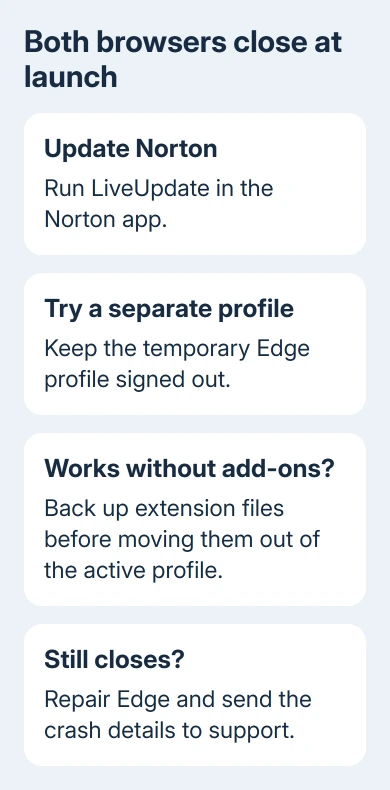
Update Norton, then compare Edge with a temporary signed-out profile. Back up extension files before removing them from the active profile. If the temporary profile closes too, repair Edge and report the remaining failure.
Checked November 23, 2026.
 If you have any business, I can build it online