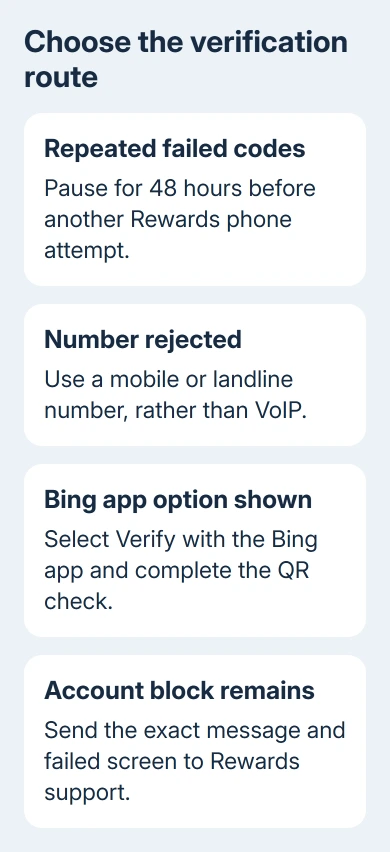
Microsoft Rewards can block phone verification after repeated attempts or reject an ineligible number. Pause for 48 hours after too many failed phone checks. If Verify with the Bing app appears, QR verification offers another route.
An account page saying Try another verification method points to an account check, rather than a mistyped redemption code. Note that screen before changing numbers. Updating security methods doesn't itself finish Rewards verification.
In this guide
1. Find which verification screen is refusing you
Start from the Rewards account holding your points and note what happens after choosing a reward. Does it ask you to add a number, reject a submitted code, say the number has been used elsewhere, or offer Bing app verification?
If the block appears while adding a number to the Microsoft account, record that wording too. The original complaint reached an account-verification message after following Rewards' Add your phone number link.
Microsoft's Rewards redemption help covers failed phone checks, number eligibility and reuse limits. Check those number rules before resetting Edge for a message about your account.
Keep the account with the points. Another Microsoft account has its own balance and verification setup. Your points won't move to it. Confirm the account shown in Rewards before trying to fix its phone prompt.
If the issue is points never arriving from Bing searches, use the missing search-points checks. Earning credit and passing redemption verification are separate problems.
2. Let a repeated-attempt block expire
After too many unsuccessful Rewards phone-verification attempts, wait 48 hours before attempting it again. Leave the code-request buttons alone during that break. Repeating a request can keep an account-verification block active.
For the broader Try another verification method account message, the guidance differs: waiting a day can help, and a continuing block can need a longer pause, up to a week. Neither wait promises that verification will work afterward.
One owner submitted a support form and waited two days before their number was accepted. They hadn't received a support reply, so they couldn't say whether support changed anything.
Waiting helped that account, but later replies describe continuing failures. An earlier repair stopped working for another owner, whose number disappeared again. Retry after two days, then use support if the rejection returns.
I'd stop after the first repeated rejection rather than alternate between several numbers. That keeps a temporary block from turning into a stream of requests while you check the message and the number's eligibility.
3. Check the number and the code
Rewards accepts a mobile or landline number, rather than a VoIP number. VoIP means a number supplied through an internet calling service. A number receiving ordinary messages elsewhere can still be ineligible for Rewards.
Read the number-use message. A number already associated with other Rewards accounts can hit the service's reuse limit. Another account won't release that number or move your points; this needs an eligible number or support review.
If a verification code arrives, enter the code from that request exactly as shown. If the request is blocked before any code is sent, follow the account-block steps instead of guessing codes.
Turn off a VPN before redeeming and use your normal region. A VPN can make redemption appear to come from somewhere else. It doesn't help resolve a phone-verification restriction.
For account setup itself, the Microsoft account phone-number guide separates sign-in aliases from security information. Those entries serve different purposes from the verification Rewards asks for when you redeem points.
Removing all account security information can create a separate security-change waiting period. Keep working recovery methods in place while the redemption issue is being checked.
4. Use Bing app verification when it's offered
Open rewards.microsoft.com in a web browser on your PC or phone and choose the reward. At the verification prompt, look for Verify with the Bing app. Select that choice if it's available.
Scan the QR code using your mobile device. Complete the displayed 6-digit verification code step and select Verify, then return to the original redemption screen to finish the reward request.
This is an alternative to SMS verification. It doesn't mean a normal Authenticator approval or an email code can replace every Rewards phone prompt. Use the particular choice offered by the redemption screen.
The QR choice doesn't appear for redemption inside the Bing app itself. Start on the Rewards website in a browser, even though the verification then uses the app. It also doesn't apply to Auto-redeem rewards.
QR verification isn't available in some regions because of app or service restrictions. If the choice is absent, return to the phone-verification checks or support. There isn't a hidden browser switch that forces it to appear.
If the QR process opens but fails, update the browser and phone operating system, then try a different browser, device or network. They can help when QR fails, but won't automatically remove a phone-number block on your account.
5. Stop repeating browser resets when the account is blocked
The original asker cleared the cache and tried their phone, yet the same rejection continued. For that account message, repeating the same cache clear is unlikely to help.
One later owner recovered redemption after resetting their password and verifying with the affected number. That is a single reported workaround, not a reason to change a working password whenever Rewards refuses SMS.
Fix any Microsoft account sign-in failure first, then return to Rewards. If sign-in works and Rewards alone rejects the number, send the case to Rewards support.
When verification still blocks redemption
Open Microsoft Rewards Support from the Need more help? section of the redemption help page. Provide the exact error, whether it occurs during account setup or redemption, the last attempt time and whether QR verification is offered.
Include the number type and whether the number was used on another Rewards account. Ask support why your account can't finish redemption verification. Keep the full phone number, password and codes out of public replies.
The Short Version
Pause repeated attempts, check number eligibility and use QR verification when offered. Keep Rewards verification separate from account security setup. Send support the failed screen and exact message if the block continues.
Checked November 23, 2026.
 If you have any business, I can build it online