Yes, expected DistributedCOM 10016 permission events can be ignored on a working PC. Leave DCOM permissions alone; event 10010, 10029 and Kernel-EventTracing messages need their own checks.
What matters is whether something actually fails. A red entry without a broken feature needs a different response than an entry that appears every time an app refuses to open.
In this guide
1. Read the event number and source together
Open Start, type Event Viewer, and open it. Expand Windows Logs, select System, and double-click the entry you want to check. Read Source, Event ID, the date and the full General description.
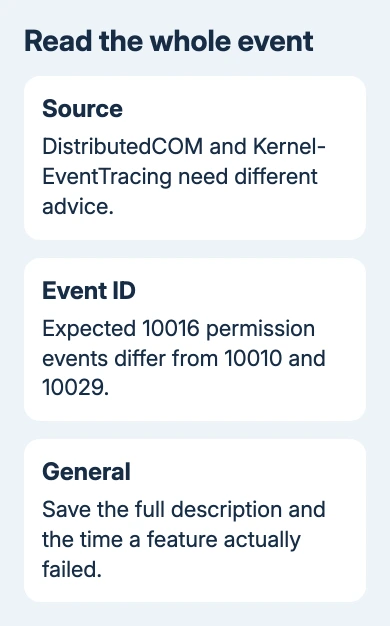
DistributedCOM lets Windows software request work from other components. The event number describes a particular kind of problem with that request. Advice for one event number won't necessarily fix another.
For a 10016 entry, look for wording about application-specific permission settings and Local Activation permission. Compare the complete message with the examples on the 10016 support page.
That page explains a normal request pattern: a component tries to get access one way and, if that attempt fails, tries another. The log can keep that first refusal even after a later request succeeds.
If the source is different, start again with that source's description. An Event ID without its source can send you toward advice for an unrelated Windows component.
Windows 10 offers the same log and properties controls as Windows 11. The number of old entries in the list doesn't change which event you selected or what its description means.
2. Leave expected 10016 permissions unchanged
Microsoft recommends ignoring the specific 10016 events its article describes because they don't stop features from working. On a PC that opens apps and performs its normal tasks, there isn't a repair to carry out for those entries.
Don't take ownership of registry keys or grant broad activation permissions just to remove the warning. The same support page warns that changing DCOM permissions can have unintended side effects.
I'd leave an expected 10016 entry visible rather than change a working PC to make the list look cleaner. The goal is a functioning computer, not an empty System log.
An error recorded near a crash needs a closer look. Check whether the same 10016 description appears during normal sessions too. Appearing at a similar time doesn't tell you which component made the app close.
For a blue-screen failure, record the stop code and follow the Windows blue-screen checks. That failure has its own crash information; changing DCOM permissions skips that information.
3. Treat 10010 and 10029 as separate messages
An event 10010 description can report that a server didn't register with DCOM within the required timeout. In this message, server can mean a local software component. It doesn't automatically mean an internet server or your router.
Read the name or identifier in the description and note the task in progress at that time. Was Windows shutting down, was a game starting, or did a specific app fail to open? Use that detail to decide which feature needs attention.
Try the affected feature once and note the time. Refresh the System log with F5, then compare the fresh entry with that attempt. If the same entry appears each time, you can give the app's support team a repeatable example.
When the app works without a visible failure, keep the event details and leave settings unchanged while you check for an app update. There is no single permissions command that repairs every timeout.
For 10029, read the full description instead of borrowing the 10016 advice. The original discussion mentioned a recording-service component, but that doesn't explain every 10029 entry on another PC.
When recording is the feature that fails, tell support which recorder you use and whether a clip is actually saved. A working alternative recorder doesn't repair a different recording component named in the log.
4. Separate tracing errors from DCOM warnings
The original question also included Kernel-EventTracing, event 3, mentioning PerfDiagLogger and code 0xC0000188. That is a tracing-session message, not a DistributedCOM permission event.
Tracing records diagnostic activity for Windows or an application. To understand why it failed, support needs both the session name and the status code. Don't apply a DCOM registry edit to an event from this source.
Copy the full description, including the session name, into the notes you'll send support. If the PC works normally, nothing in the original discussion supports disabling diagnostic services as a general repair.
The accepted reply only asked whether the problem was solved; it didn't describe a repair. The asker said the PC behaved normally, explaining why the discussion focused on whether action was needed.
For a real slowdown, app failure or restart, record that symptom separately and its time. Ask which component failed during that task, rather than how to remove every diagnostic entry.
5. Give support the event and the failed action
In the event's properties, use Copy if offered, or select Copy > Copy Details as Text from the event's context menu. Save the text together with your Windows version and the app version involved.
To find your Windows build, press Windows + R, type winver, and press Enter. Describe the failure in a sentence such as an app closing when you start recording, rather than reporting only that Event Viewer has errors.
For a Microsoft app, open Get Help from Start and describe the failed feature. For a work PC, send the record to IT. For another company's app, ask its support team to identify the component named in the fresh event.
If the computer restarts unexpectedly, distinguish that from a normal shutdown before following unexpected-restart checks. Keep the event timestamp to compare with the time of that restart.
Don't clear the log before collecting the relevant entries. Clearing removes records you might need and doesn't change the software behavior that generated them.
The Short Version
Expected 10016 events need no repair on a working PC. Read other DCOM IDs and tracing events separately. For a broken feature, save its event text and repair the feature rather than changing permissions to quiet the log.
Checked November 26, 2026.
 If you have any business, I can build it online