Windows 11 error 0xc000000f often means its startup files or boot configuration can't be read correctly. Run Startup Repair from Windows Recovery first, and note the file named on the recovery screen before trying a manual repair.
Searches sometimes shorten the code to 0xc00000f. The full code is 0xc000000f, and the file listed with it matters. A BCD entry, winload file, and named driver need different follow-up repairs.
In this guide
1. Record the file and disconnect unused drives
Photograph the recovery screen, including File, Error code or Status, and the explanatory message. BCD means Boot Configuration Data, the information that tells Windows Boot Manager which installation to start.
A path ending in \Boot\BCD or \EFI\Microsoft\Boot\BCD points toward the boot configuration. A winload.exe or winload.efi path points to the Windows loader, the program that starts loading the operating system.
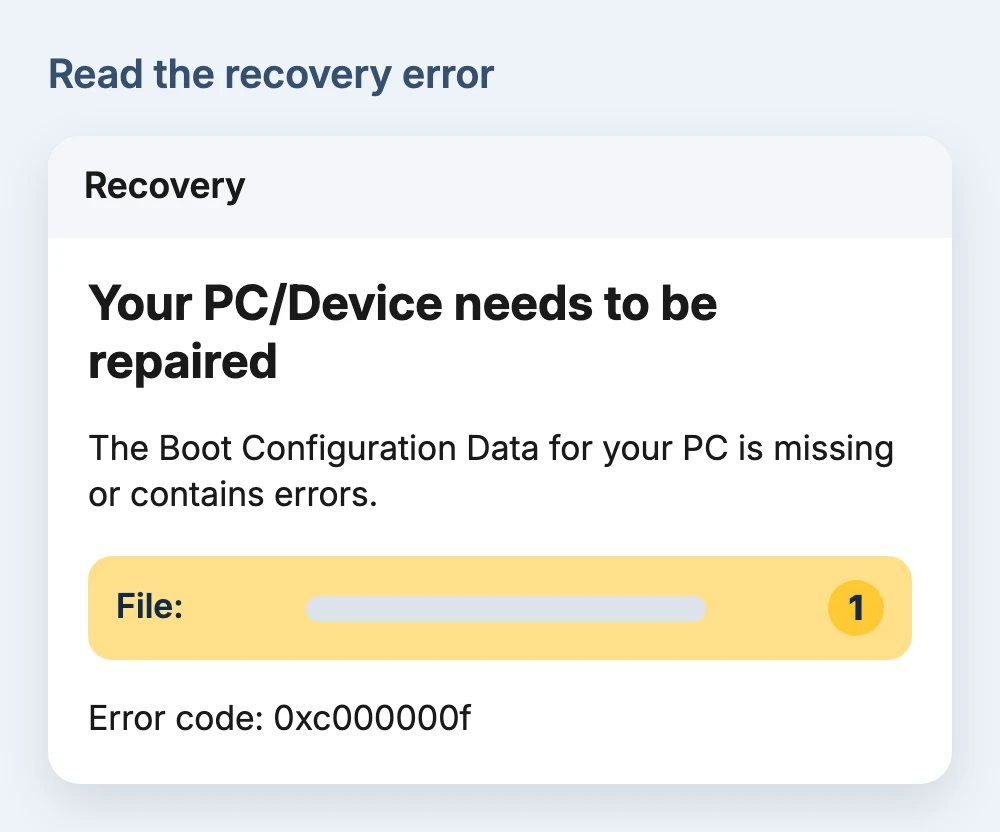
A path under \Windows\System32\drivers names a driver that may be missing or damaged. Keep that filename for the later repair decision. Don't download an individual driver or loader file from an unrelated repair site.
Shut down and remove unused USB storage and memory cards, leaving input devices and the display attached. Restart. After a drive clone or addition, confirm that firmware selects Windows Boot Manager for the intended installation.
If removing storage restores startup, check the boot order before reconnecting it. If the recovery screen returns, move on to the recovery tools. Leave unfamiliar BIOS storage settings alone to avoid adding a new fault.
2. Open recovery and keep the encryption key ready
If the recovery screen offers a key to open recovery tools, press that key. After repeated failed starts, Windows may also open Automatic Repair; choose Advanced options to reach the recovery tools.
If neither route works, use another functioning computer to create Windows 11 installation media. Start at the official Windows 11 download page and choose Create Windows 11 Installation Media.
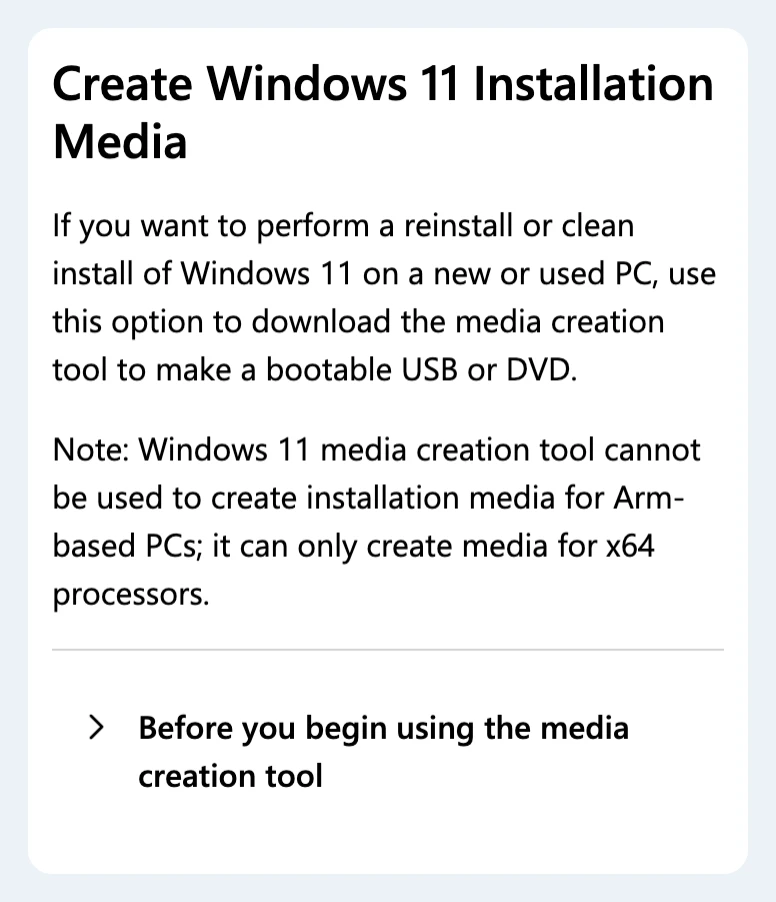
Prepare an empty USB flash drive, 8 GB minimum capacity. The media-creation process deletes its contents. Follow the Media Creation Tool, then use the affected PC's model-specific boot menu to start from the finished drive.
In Windows Setup, select the repair option, labeled Repair your computer or Repair my PC depending on the installer. This takes you to recovery tools. Don't choose a fresh installation to reach Startup Repair.
Have the 48-digit BitLocker recovery key ready if the Windows drive is encrypted. Compare the displayed key ID against the saved recovery key. Your organization's IT administrator may hold the key for a managed PC.
The BitLocker recovery guide explains where to look for that key. A Windows sign-in password doesn't replace it, and recovery tools may be unable to access the drive until it's unlocked.
3. Run Startup Repair before manual commands
Choose Troubleshoot > Advanced options > Startup Repair. Select Restart if the recovery tool asks. Keep the PC connected to power while it checks startup and tries repairs.
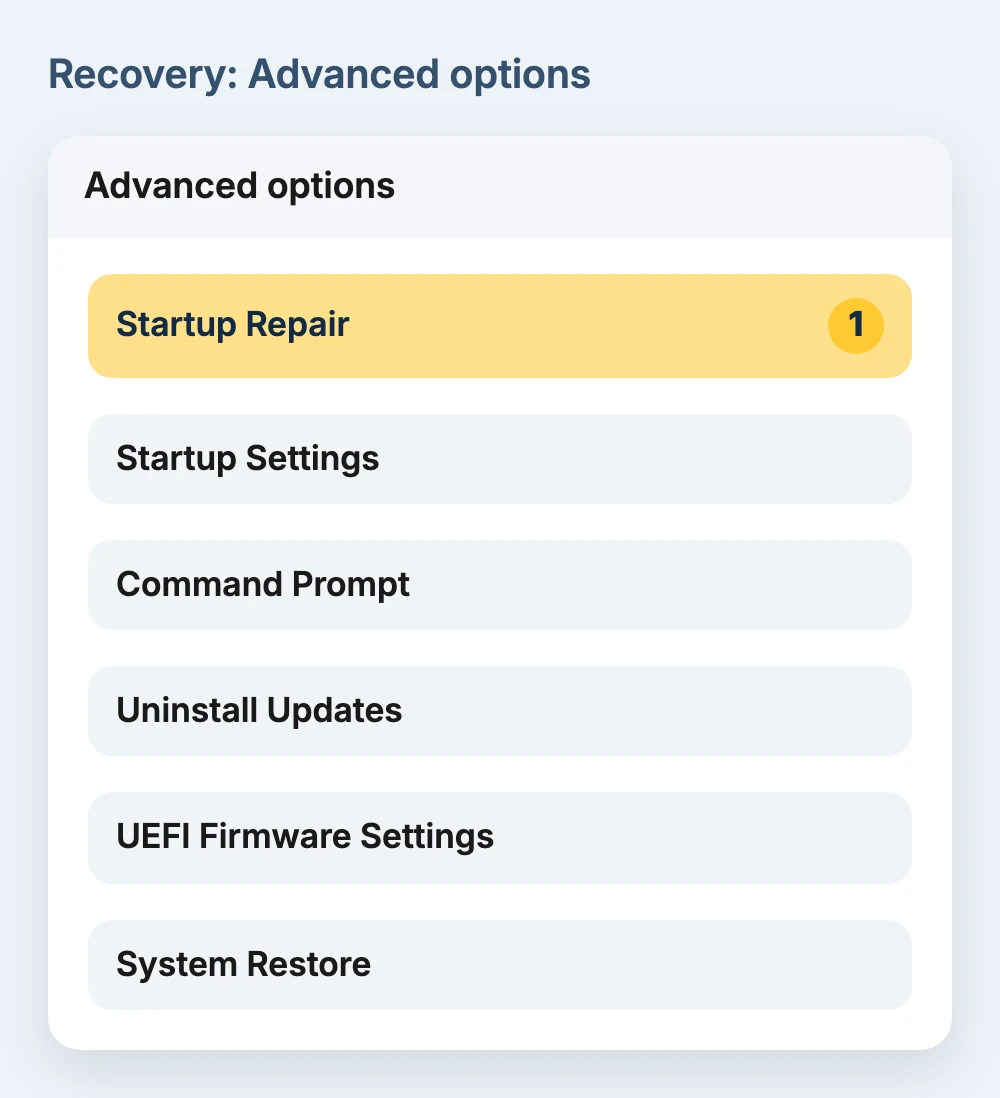
Microsoft says Startup Repair can address damaged system files, boot configuration, and other startup faults. It's the first repair I'd try because it handles several causes without guessing partition letters.
When it finishes, attempt a normal start from the internal Windows drive. If the desktop appears, confirm that your files and usual account are accessible before adjusting any more boot settings.
If automated repair reports that it failed, keep the original file path and any log path it displays. A failed automated repair narrows the next choice; it doesn't mean the only remaining option is erasing Windows.
4. Undo a recent driver or update when the timing fits
If the error began immediately after a Windows update, return to Troubleshoot > Advanced options > Uninstall Updates. Select the offered option for the type of update you just installed, then try starting Windows again.
For a newly installed driver or app, choose System Restore from Advanced options if a suitable saved restore point is available. Choose one from before this startup problem began and review affected programs before confirming.
System Restore brings back Windows settings and system files saved at that restore point. Personal files stay intact. Check the affected-programs list for any later apps or drivers that will be removed.
If the error names a driver you've just changed, start there. For a BCD error after a disk clone, boot-file repair is a closer match than repeatedly uninstalling updates. Match your repair to the change before the error.
If neither recovery option is available, move on to checking the startup configuration. The Windows 11 0xc0000185 guide covers a related device-access error, which needs attention to the drive connection too.
5. Rebuild boot files only after locating Windows
From Advanced options, open Command Prompt. Recovery can assign different drive letters from normal Windows, so check where Windows is installed before running a repair. Start with read-only checks such as:
dir C:\Windows
dir D:\Windows
Look for the Windows folder on the internal drive where you installed Windows. If the volume is locked, unlock it with the recovery key first. If it's missing or shows read errors, have the drive checked before writing boot files.
BCDBoot can copy fresh startup files from the Windows installation you've located and rebuild the information used to start it. For a straightforward single-installation PC where Windows is confirmed at D:\Windows, the command is:
bcdboot D:\WindowsReplace the example D: with your confirmed Windows volume letter. A successful run reports Boot files successfully created. Restart from the internal drive and check whether the recovery screen is gone.
With multiple disks, dual boot, or an unclear EFI system partition (which holds startup files), ask a technician where the files should go. Don't copy a command that formats an EFI partition or assumes disk 0 is always the Windows disk.
For a failed BCDBoot attempt, send its output, the recovery photo, and any disk-change history to a technician. Ask for boot configuration repair that keeps your files, and a drive-health check if Windows can't be read.
Back up accessible files before accepting a Windows reinstall or reset. A drive that keeps disappearing or returning read errors needs storage repair or replacement; rewriting the startup files repeatedly won't repair failing hardware.
The Short Version
Note the named file and start with recovery's Startup Repair tool. Undo a matching recent change, then rebuild boot files only after confirming the Windows volume. Stop for drive repair when the disk can't be read reliably.
Checked November 27, 2026.
 If you have any business, I can build it online