Command Prompt can open another PC's C drive through its C$ administrative share when the account and network allow it. Connect with net use, then list files with dir. A local admin password alone may not be enough.
For a few documents, choose a normal shared folder instead. Windows restricts administrative shares. Even with the right password, you'll see Access is denied if the other PC blocks remote access for that account.
In this guide
Prepare the computer that holds the files
Keep the other PC awake and connected to your network or approved work connection. These commands use Windows file sharing. They won't start a remote desktop or wake a sleeping computer.
Get the other PC's name and an account you have permission to use on it. On a managed network, get the account and share details from IT. Signing in to your own computer doesn't grant permission to browse another one.
C$ is Windows' hidden administrative share for drive C. The dollar sign hides its name from ordinary browsing; you still need permission to access it.
C: refers to a drive on the computer running the command; \\PCNAME\C$ refers to the other computer's shared drive.
To use the other PC's programs, choose a remote computer connection instead. Listing folders through a share won't display the other computer's desktop or open its running applications.
Connect with net use and a password prompt
Open Start, type cmd, and open Command Prompt. In the example, replace PCNAME with the destination computer's name. Replace DOMAIN\UserName with the account your administrator has authorized for that destination.
net use \\PCNAME\C$ * /user:DOMAIN\UserName /persistent:noThe asterisk opens a password prompt, keeping the password out of the command. Enter the remote account's password there. Your Windows Hello PIN unlocks the device it's set up on, so it isn't the password to enter here.
When the connection works, you'll see a completion message. If it asks for your sign-in details again or shows an error, read that message before continuing. The commands for viewing files can't fix a rejected sign-in.
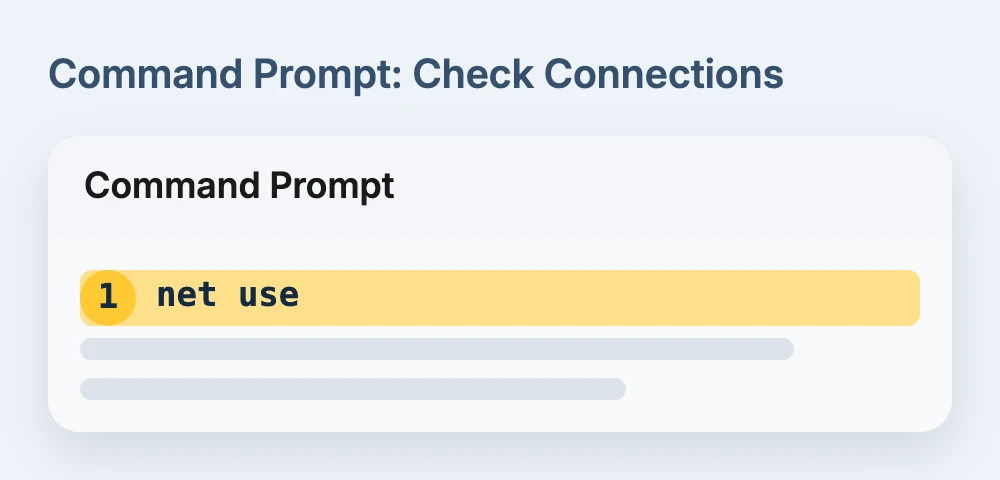
The net use command reference explains the account, password-prompt, and connection options. Use net use by itself to see existing connections in that command session.
Choosing Run as administrator locally won't change the other PC's permissions. The other PC checks the account you entered against its own security rules. That's why it can deny access even when Command Prompt is running as administrator.
List the drive or work inside a remote folder
After the connection succeeds, list the remote drive with:
dir \\PCNAME\C$\The result should show the folders and files your account can list at the remote drive's root. It isn't a list of your own C drive. Double-check the computer name before using any command that changes files.
To make a remote path the current working directory, use pushd rather than trying to switch directly to a network path with cd:
pushd \\PCNAME\C$With command extensions enabled, pushd accepts a network path and assigns a temporary drive letter. Your prompt then shows that drive letter. Run dir there to see the same remote location without typing its full network path each time.
When finished in that location, enter:
popdThat returns to the earlier directory and removes the temporary drive assignment made by pushd. It doesn't delete the remote files. Keep the temporary drive letter separate from any permanent mappings already on your PC.
Understand Access is denied before changing settings
A local administrator can receive System error 5 from C$, even with the right password. Remote restrictions can deny network access to an account that has full administrator rights at the keyboard.
Microsoft recommends creating a regular share with suitable permissions for this situation. I'd use that route for a one-time file transfer. That limits the transfer to your chosen folder instead of the whole system drive.
Ask the other PC's owner or administrator to share the folder containing your files and give your account access. Get that share's name, then use it instead of C$.
For example, if the owner created a share called Transfer, use:
net use \\PCNAME\Transfer * /user:PCNAME\UserName /persistent:no
dir \\PCNAME\Transfer\
These are example names, not existing folders on your computer. The other PC needs an actual Transfer share and an account with permission for that share. Changing only the text in the command can't create those permissions.
Separate a missing path from rejected credentials
For a network-path error, check the computer name and whether it's awake and connected. Use an address or approved VPN supplied by the administrator, rather than guessing a different machine's name.
When a regular share opens but C$ fails, file sharing is reachable. Ask the administrator whether administrative shares exist and your account can use them. A normal share is enough for most document transfers.
If Windows reports a conflict between sign-in details, run net use first to see the existing connections. Another connection may hold open documents or be used by a program. Removing every mapped drive can disrupt that work.
For a managed PC, send the administrator the destination name, share path, and exact error text. With those details, they can review sharing and account rules before changing account protections.
Disconnect when the work is finished
After leaving the remote folder with popd, disconnect the share created for this job:
net use \\PCNAME\C$ /deleteSubstitute the normal share path if that's the route you used. Close files using the connection before disconnecting it. Running net use again lets you check whether that connection remains listed.
If permission errors continue, ask the other PC's administrator for a transfer folder limited to the accounts that need it. To transfer files without administrative shares, Windows shared-folder setup explains the file-transfer route.
The Short Version
Connect to an approved C$ share with net use, list files with dir, or enter it with pushd. Windows can block local admins from remote administrative shares. Use a normal shared folder for document transfers.
Checked November 27, 2026.
 If you have any business, I can build it online