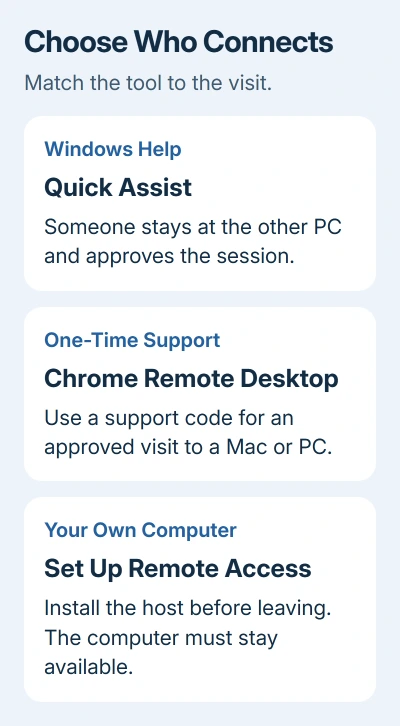
Connecting remotely to another computer is easiest with Quick Assist when someone can approve the session. For your own computer while you're away, set up Chrome Remote Desktop first, or use Windows Remote Desktop on a supported PC.
Choose based on whether someone will be at the other screen. A one-time help code lets them approve your visit; setting up access to your own computer lets you connect when they're not there.
In this guide
Choose a connection that fits the job
Quick Assist works well for helping someone on Windows. The person you're helping approves screen sharing, and you request control separately. I'd use it for a one-time session so you don't have permanent remote access to manage afterward.
Chrome Remote Desktop supports Windows, Mac, and Linux hosts. It has both a one-time support code and a remote-access setup for returning to your own computer. Install its host software on the computer you want to reach first.
Use Windows Remote Desktop for a Windows Pro computer you can reach over the network, including through your organization's VPN. Home edition can connect to another PC, but it can't receive connections through Windows Remote Desktop.
The computer you want to reach needs to be running and connected. These tools can't configure a switched-off laptop you've already left at home. Set up access and try connecting while both machines are still within reach.
Help someone on Windows with Quick Assist
Both people need an internet connection. On each PC, search Start for Quick Assist and open the app. Install it from Microsoft Store if it isn't present, then follow any setup prompts before exchanging a code.
Microsoft says its Quick Assist instructions separate permission to see the screen from permission to control it. Keep those two approvals in mind:
- On your computer, select Help someone. Complete any sign-in prompt, then send the six-digit code to the person receiving help.
- On their computer, enter that code in Code from assistant and select Submit.
- Ask them to select Allow to share their screen. Their desktop should appear in your Quick Assist window.
- Select Request control if you need to click or type. They must approve that request before you can operate their PC.
- When finished, select Leave to end the session.
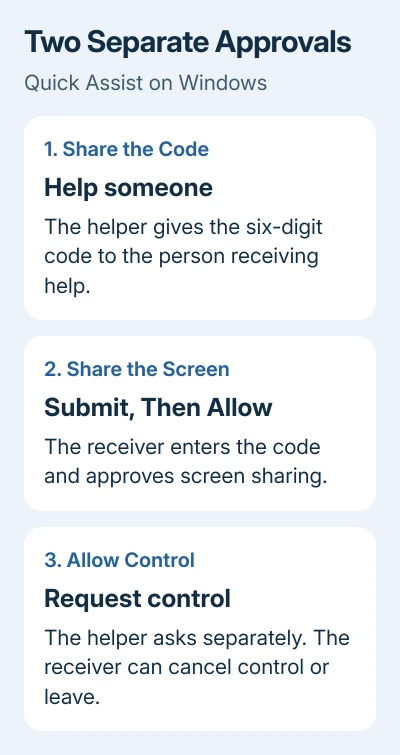
The person receiving help can select Cancel control to take control back while the session continues. That makes it possible to explain a setting and then let them make the change themselves.
Only approve a session you've arranged with someone you trust. The helper can see what's on the screen, and control permission lets them operate the computer. An unexpected caller asking for a code shouldn't get access.
Use the ordinary Quick Assist app when both people have Windows PCs. Its browser version and Mac version are for interactions with verified Microsoft support agents, so they aren't substitutes for helping a friend on a Mac.
Use a one-time code between Windows and Mac
Chrome Remote Desktop's support mode lets another person share their computer without setting up repeat access for you. The person sharing starts setup from the machine they want help with.
- Open Chrome on that computer and visit remotedesktop.google.com/support.
- Under Get Support, use Download if the host component isn't installed. Complete its installation and any requested system permissions.
- Select Generate Code, then send the code to the helper through your existing conversation.
- On the helper's computer, open the same support address. Enter the code under Give support and select Connect.
- On the sharing computer, check the email address in the approval dialog and select Share only when it's the expected person.
The helper can now access that computer's apps and files. It isn't limited to the browser tab where the connection began. Close anything private before approving the helper.
The code works once. During a longer session, the person sharing is asked to confirm continued sharing every 30 minutes. Select Stop Sharing on their computer when the help is finished.
Set up repeat access to your own computer
Do this on the computer you'll want to reach later. Use the Google account you'll also use from the other computer, then open remotedesktop.google.com/access in Chrome.
Under Set up Remote Access, select Download, then complete the installer. Follow the prompts to give the computer a name and set its PIN. A Mac may also ask for permissions in its system privacy settings.
From your other computer, open the same access address, sign in to the matching account, and select the configured computer. Enter its remote-access PIN and connect. Its desktop should open inside the remote session.
Try that connection before leaving the computer unattended. If it isn't available, check that it has finished setup, is powered on, and has internet access. An administrator may restrict remote access for a managed school or work account.
Finish a connection by closing the session tab or choosing Options > Disconnect. To stop future access, return to the computer list and use Disable remote connections beside that computer.
Connect to a Windows Pro PC on your network
For Windows Remote Desktop, check the receiving computer under Settings > System > About. It's that PC's edition that matters; buying Pro for the computer you're connecting from won't let a Home-edition PC receive the connection.
On the receiving PC, open Settings > System > Remote Desktop, enable it, and confirm. Note its PC name. Keep that computer awake while you need to reach it.
On another Windows PC, search Start for Remote Desktop Connection. Enter the receiving PC's name, select Connect, and sign in with an account that's allowed to use that PC. The receiving desktop should then appear in the connection window.
The Remote Desktop connection checks cover a host that never answers. When the connection reaches the sign-in prompt but rejects a PIN, use the RDP password steps.
For access from outside the network, use your organization's approved VPN or an internet-based tool described earlier. Don't expose the Windows Remote Desktop port on your router as a shortcut.
If a managed computer still refuses access, give IT the receiving PC's edition, the app used, and the exact error. Ask whether remote support or remote access is allowed for that device and account.
The Short Version
Quick Assist handles approved Windows help. Chrome Remote Desktop offers one-time support or repeat access to your own computer. Windows Remote Desktop needs a supported receiving PC and a reachable network.
Checked November 10, 2026.