OneNote's iPad eraser works on handwritten ink, not typed text or a picture of handwriting. Select Draw > Eraser and try a fresh pen stroke first. If a whole stroke disappears when you wanted a small correction, change the eraser type.
An eraser that works briefly, then stops, needs different checks from one used on the wrong kind of content. Check those cases separately before resetting an app that may hold unsynced class notes.
In this guide
1. Select the eraser and try a fresh ink stroke
Open a page in OneNote on the iPad and select Draw. Choose a pen and make a short mark in an empty area. Then tap Eraser and move your finger or stylus across that new mark.
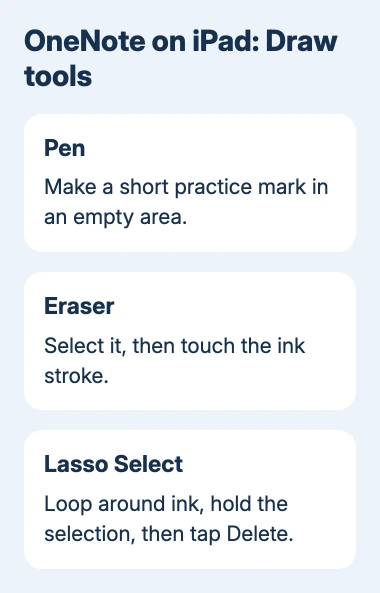
The mark should disappear. This tests OneNote's ink tools on a mark you've just made, rather than an old imported page, a picture or typed text. If the new stroke erases, the eraser can work on that page.
Tap Undo near the upper-left corner if you remove something you wanted to keep. Return to the pen tool before writing again, otherwise the next touch still uses the selected eraser.
Microsoft's iPad eraser instructions describe tapping ink or highlighter strokes with the eraser selected. A stylus doesn't need to have a physical eraser end for that toolbar tool to work.
If the test succeeds but the original content won't erase, check for text or pictures in the next section. If even the new mark stays put, skip to the app-update and restart checks after trying the alternate ink-selection method.
2. Tell handwriting from text, a photo or a printout
Ink made with OneNote's pen and highlighter is editable as ink. A photo of a handwritten page is one picture, even when its lettering looks like the notes you wrote with the pen tool.
Tap the stubborn content with the text or selection tool. A picture showing selection handles isn't a collection of pen strokes. The ink eraser won't remove a single handwritten word from inside that image.
For typed text, select the characters with the text-editing controls and delete them. For an unwanted picture, select the picture and use its deletion control. Choose the content first so you don't remove the wrong item.
The same distinction matters on a PDF printout. Notes you draw over it are ink; the printed material behind them isn't. Erase the annotation rather than expecting the eraser to edit the original document's text.
If the wrong object is selected, tap elsewhere and return to Draw before trying the test stroke again. Check what gets selected before trying to erase again. Repeated swipes won't change content that isn't ink.
3. Choose a stroke eraser or a small correction
Tap Eraser and read the available choices. Stroke Eraser removes an entire drawing gesture with one tap. Eraser lets you remove portions of a drawing for a smaller correction.
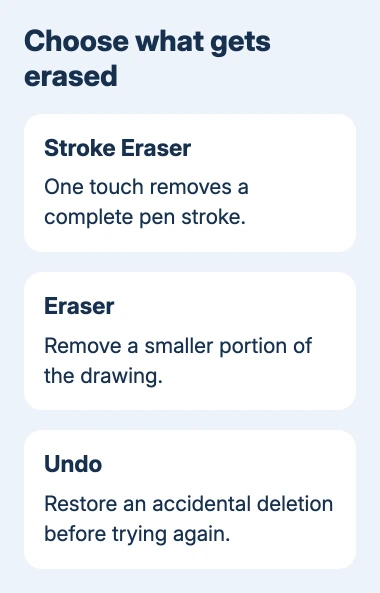
A handwritten word can contain several pen strokes, while a long connected line can be one stroke. With Stroke Eraser selected, touching a small part of a line can remove the whole line. That's how Stroke Eraser works.
Use Undo if too much disappears, select the other eraser choice and try again on the practice mark. A fresh test makes the difference easier to see than a crowded page of overlapping notes.
Some OneNote instructions or older app versions show a simpler Eraser control. Use the choices your installed app actually offers; Windows pen settings and a Surface Pen's eraser button aren't iPad controls.
If the screen tool erases correctly with a finger but a Pencil shortcut doesn't switch tools, keep using the screen control while checking that Pencil separately. The Apple Pencil troubleshooting steps cover the device and pairing branch.
4. Use Lasso Select when several strokes need deleting
On Draw, choose Lasso Select. Draw a loop around the ink you want to remove. Press and hold the center of that selection until the toolbar appears, then tap Delete.
I'd use this for a crossed-out paragraph or a sketch made from many strokes. It avoids repeated eraser passes through a busy part of the page.
Look at the selected strokes before deleting them. A loop that includes neighboring handwriting can remove those notes too. Use Undo immediately if the selection caught more than intended.
If lasso deletion works while the eraser doesn't, record that difference for the app report. It tells support that you can still select and delete the page's ink with another tool.
If neither works on one page but both work on a new page, keep the affected page while you check syncing and ask support for help. Don't delete the notebook just because a single page behaves differently.
5. Update and reopen OneNote if erasing stops working
Open the App Store, find Microsoft OneNote, and tap Update if that button appears. If it shows Open, there isn't an update offered through that page at the moment.
The original 2016 thread described erasing that worked again briefly after reopening OneNote. Its accepted reply announced a fix in version 15.22.1. That was the fix announced then, not a version to install on today's iPad.
Close and reopen OneNote if erasing keeps failing. Without a Home button, swipe from the iPad's bottom edge toward the center, holding until app previews appear. Push OneNote's preview upward to close it.
For a Home-button iPad, press Home twice. In the app switcher, dismiss the OneNote preview by swiping it upward. Reopen OneNote from its app icon and repeat the short pen-and-eraser check.
If erasing stops working again, reopening has only helped temporarily. One owner also reported that resetting the app didn't help. If you've already tried that without success, repeating the reset won't give you a different check.
6. Protect your notes and report a continuing app fault
Before signing out, resetting or reinstalling OneNote, confirm that the latest notes are saved online. Check the same notebook on another device or through its online copy, including the page you were editing when erasing failed.
If recent changes are missing, keep the iPad copy and use the iPad OneNote syncing checks. A reset can remove local notes that haven't reached the cloud, leaving an older online copy.
Use OneNote's Help & Feedback controls to report the failure. Include the iPad model, iPadOS version, OneNote version, whether a new page is affected, and whether Lasso Select can delete the same ink.
If your school manages the app, send those results to school IT. Ask for help with the current iPad eraser fault and preserving unsynced notes, rather than a Windows pen-driver repair.
The Short Version
Try Draw > Eraser on a fresh pen stroke. Check that the target is ink, choose the right eraser type, or delete selected strokes with Lasso Select. Update and reopen the app for a recurring fault, preserving unsynced notes before any reset.
Checked November 26, 2026.
 If you have any business, I can build it online