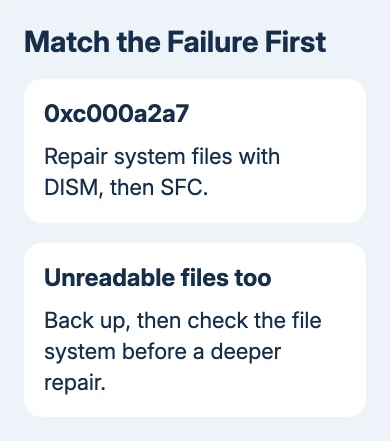
Error 0xc000a2a7 during Windows Update points to damaged compressed system-file data. Repeating the download may leave that damage untouched. Start with DISM and then SFC; check the drive too if files are unreadable.
The original report involved KB5031354 on Windows 11 22H2. You don't need to chase that old update to repair the PC today. Keep the exact error, repair the installed system and then install an update supported for your version.
In this guide
1. Confirm which update is failing
Open Settings > Windows Update > Update history. Write down the update name, its KB number and the error beside the failed attempt. Press Windows + R, enter winver, and note your installed Windows version too.
Monthly cumulative updates fix the installed Windows release. Feature upgrades install a different release, so the failed update's name matters when choosing a repair.
The original question called the problem an installation failure, but the failed item was the October 2023 cumulative update KB5031354.
If your error is different, use the Windows update code guide to match that message first. A repair aimed at 0xc000a2a7 shouldn't replace advice for an incompatible driver or a download that never begins.
Protect important files before a drive repair or Windows reinstall. Use an external drive if cloud storage isn't practical. A folder on the same C: drive won't protect those files if that drive fails.
The Windows Backup explanation helps distinguish backed-up folders from a complete copy of the computer. Open several saved documents to check the copy before moving to a deeper repair.
2. Run DISM, then System File Checker
Search Start for Command Prompt, select Run as administrator, and accept the permission prompt. Enter the following command, allowing it to complete:
DISM.exe /Online /Cleanup-image /RestorehealthWindows keeps a component store, a collection of files it uses for updates and repairs. DISM checks and repairs that collection. Keep the PC online so it can download replacement files when needed.
After DISM completes successfully, run:
sfc /scannowSFC scans the protected files that Windows relies on and replaces damaged copies when possible. Microsoft says to run DISM before SFC in its system-file repair instructions.
Let the scan reach completion. A message saying Windows Resource Protection repaired files means it changed damaged system files. After a restart, attempt the update once and read its result. Note any new code.
A clean SFC result means the scan didn't find damage in the protected Windows files it checked. Continue with the drive check if the update still fails, particularly when a log or another operation reports a corrupted or unreadable file.
If DISM or SFC fails, keep its exact message. Tell support whether missing repair files stopped the process or whether it finished successfully but left the update failing. Don't describe both outcomes simply as DISM not working.
3. Check the drive when files are unreadable
A setup attempt in the discussion also returned 0x80070570, a corrupted or unreadable file or directory. The accepted reply suggested CHKDSK. There was no later reply from the owner saying whether the update worked afterward.
Start by checking the file system while Windows is running. In the administrator Command Prompt, enter:
chkdsk C: /scanThis checks NTFS, the system Windows uses to organize files on the drive, while Windows keeps running. Read the result; don't assume it repaired everything. If Windows says a repair is needed, arrange time for it and use:
chkdsk C: /fIf the Windows volume is in use, schedule it when prompted, then restart to run the repair. Let the check finish before trying the update again. Plug the laptop into power for this repair.
The suggested /r option adds a bad-sector check and attempts to recover readable data. It includes /f repairs and can take much longer. I'd save that deeper scan for suspected storage trouble or a technician's recommendation.
If unreadable-file errors recur, the drive disappears or scanning cannot finish, ask the PC maker for storage diagnostics. Give them the scan result. Repeated downloads won't repair failing storage.
4. Repair Windows without choosing a reset
If the drive checks finish but updates fail, consider a Windows repair installation. On eligible Windows 11 PCs, open Settings > System > Recovery. Fix problems using Windows Update identifies the section for this repair.
Choose Reinstall now there and confirm the repair. Windows reinstalls its current version and keeps your apps, files and settings. Leave the power supply and internet connected until the installation finishes.
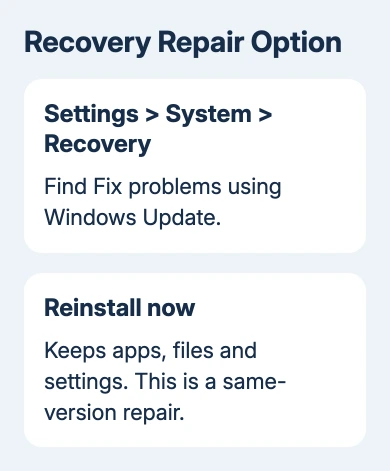
This control isn't Reset this PC. Choose the matching repair option by its full label. A reset handles apps and settings differently. Don't choose it just because it's also on the Recovery page.
Some older installations and workplace policies leave the reinstall option hidden. That includes some 22H2 machines. If yours has no such control, ask IT or support for a repair or supported upgrade suited to that installation.
For a repair using installation media, start setup from working Windows. Before continuing, look for Keep personal files and apps. If it's missing, ask support to check the media's language, edition and version first.
Give support the repair results, not another download attempt
For a persistent error, request update support through Get Help. Give support the KB number, installed build, DISM/SFC results and CHKDSK result. If requested, provide the CBS log from C:\Windows\Logs\CBS.
Windows 11 22H2 is past its update lifetime. Ask for a path to a supported release as part of the repair. Installing a 2023 package that newer updates have replaced won't bring a computer you still use online up to date.
The Short Version
For 0xc000a2a7, run the DISM/SFC repairs, check the drive when files are unreadable, and use an appropriate repair installation if needed. The old thread's CHKDSK suggestion wasn't followed by a confirmed success.
Checked November 26, 2026.
 If you have any business, I can build it online