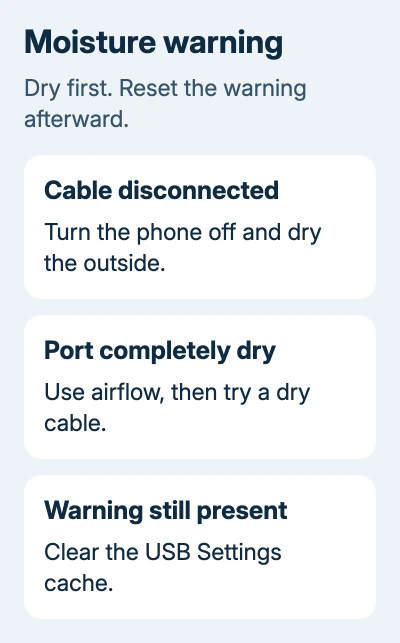
Samsung's moisture detected warning blocks USB charging when the port or cable is damp. Unplug the cable and let both dry completely. If the water drop stays afterward, clear the USB Settings cache to remove a lingering system warning.
The warning can also appear in humid air, even without a spill. A wet connector, a warning that hasn't cleared and a damaged port need different fixes, so work through them in that order.
In this guide
1. Unplug the cable and dry the connector
Remove the USB cable from your phone and turn the phone off. Dry the outside with a cloth, then leave your phone in a room with good airflow. A fan can help move air around the device.
Hold the USB port downward and gently shake the device to release excess water. Samsung's water drop troubleshooting steps describe five to ten gentle movements. Use small movements, without swinging the phone.
Don't put an object into the connector or use a heater to dry it. Let the port dry without damaging the contacts inside it. Trying to charge while the connector is visibly wet won't help you check whether it's ready.
There isn't one drying time that fits every spill or environment. Wait until the phone and cable connector are completely dry. Then turn the phone on and check whether the icon has cleared before reconnecting a dry cable.
When charging works, you'll see the battery indicator without a moisture alert. If a dry phone still shows the warning, check the room and cable next. The water drop doesn't identify which connector triggered it.
2. Move out of humid air and try a dry cable
A bathroom or kitchen can trigger the warning through condensation. Move your phone and charger into a dry room and allow them to dry there. A phone that hasn't been dropped into water can still have moisture around its connector.
Examine the cable end too. Moisture there can bring the alert back immediately when you reconnect it. Use another dry, compatible cable instead of repeating the attempt with a damp connector.
Swap only the cable, keeping your adapter and outlet unchanged. If charging now works, set the first cable aside. If both dry cables trigger the alert, check the phone's port and USB settings next.
I'd try the other cable before changing any phone settings. It takes little effort, and it avoids treating a damp accessory as a software problem. Clearing a cache can't dry a cable.
If charging fails without a water drop warning, follow the separate Android charging checks. A dead battery indicator or loose plug needs different checks from a moisture alert that blocks the connection.
3. Clear USB Settings cache after drying
Use this step when the port is completely dry and the warning won't clear. It removes temporary USB system files. Use Clear cache here, rather than resetting the phone or tapping Clear data.
- Open Settings > Apps.
- Tap the Filter and sort icon beside the app list.
- Turn on Show system apps, then tap OK.
- Find and open USB Settings.
- Select Storage, then tap Clear cache.
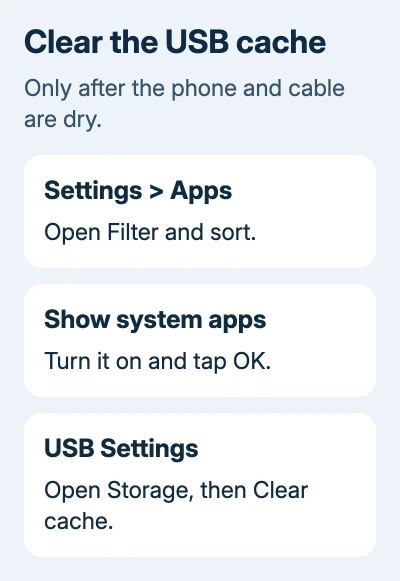
Turning on system apps matters because USB Settings may not appear in the usual app list. Your Galaxy model and software release can use different menu names. If your Apps screen looks different, look for the option to show system apps.
Reconnect your dry cable after clearing the cache. Normal charging without the icon means the lingering warning has cleared. If it returns immediately, unplug the cable and continue with the remaining checks.
If USB Settings isn't available even with system apps shown, leave the app list unchanged and continue. Don't disable unrelated USB services to copy a menu that your model doesn't show. Tell support that USB Settings wasn't listed.
4. Restart and install available phone updates
Once the port is dry, restart the phone. Recheck the warning after startup, before reconnecting the cable. Now that you've finished drying the phone, a restart lets it reload its USB controls.
For a Galaxy that has enough battery power, open Settings > Software update > Download and install. Follow the update prompts if a release is available. Carrier versions can use different menu names, but use your phone's own update option.
An update isn't a way around a wet-port warning. It's a software check to try after drying the phone and checking the cable. If no update appears, your phone isn't being offered a newer release through this menu right now.
After a restart or update, test once with your dry cable and note the result. If the water drop remains, use another charging method if your model supports it, and arrange a port check.
5. Use wireless charging while arranging a port check
A Galaxy with wireless charging can charge without using its USB port. Dry the phone's outside first, then center it on a compatible charging pad. Remove anything that prevents the back from sitting properly against the pad.
Wireless charging isn't included on every Galaxy. Check your model's manual before buying a pad. For a compatible Galaxy Z Fold or Z Flip, close the phone and place its back toward the charger, using the manual's charging position.
Watch for the charging indicator and a rising battery percentage. If charging cuts in and out, adjust the position. If repositioning helps, the pad was losing its charging connection. USB moisture detection is separate.
On a tablet, the Galaxy Tab charging checks help you work out whether the charger, port or battery is at fault. Don't assume a tablet supports the same charging methods as a Galaxy S phone.
When the dry port still refuses charging
Ask Samsung Support or its authorized repair center to inspect a dry port that rejects multiple dry cables. Tell them the moisture alert won't clear, and give them your model, software version and what happened after clearing the cache.
Mention any liquid exposure, visible damage or corrosion so the repair center knows what to check. A warning that survives these checks needs a port inspection. Bypassing the alert leaves the cause unresolved.
The Short Version
Disconnect and dry the phone and cable completely. Try a dry room and another cable, then clear USB Settings > Storage > Clear cache. Use supported wireless charging while arranging service if the dry port still reports moisture.
Checked November 27, 2026.
 If you have any business, I can build it online